Create and Edit Pathway Scaffolding
This article explains how to create and edit Primary Pathway scaffolding.
Last updated About 5 hours ago
Create and Edit Pathway Scaffolding
Pathway Scaffolding is a visual representation of the grade-level specific requirements within a Primary Pathway.
Pathway Scaffolding is only visible for Primary Pathways.
Pathway Scaffolding allows you to be more prescriptive as to what Courses students take and when they can take those Courses.
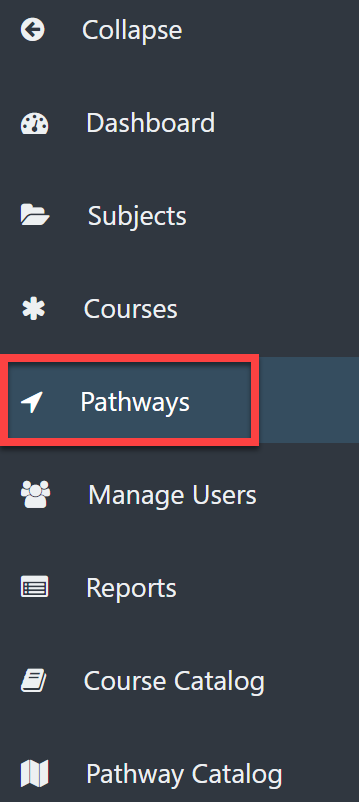
Select Pathways on the left menu.
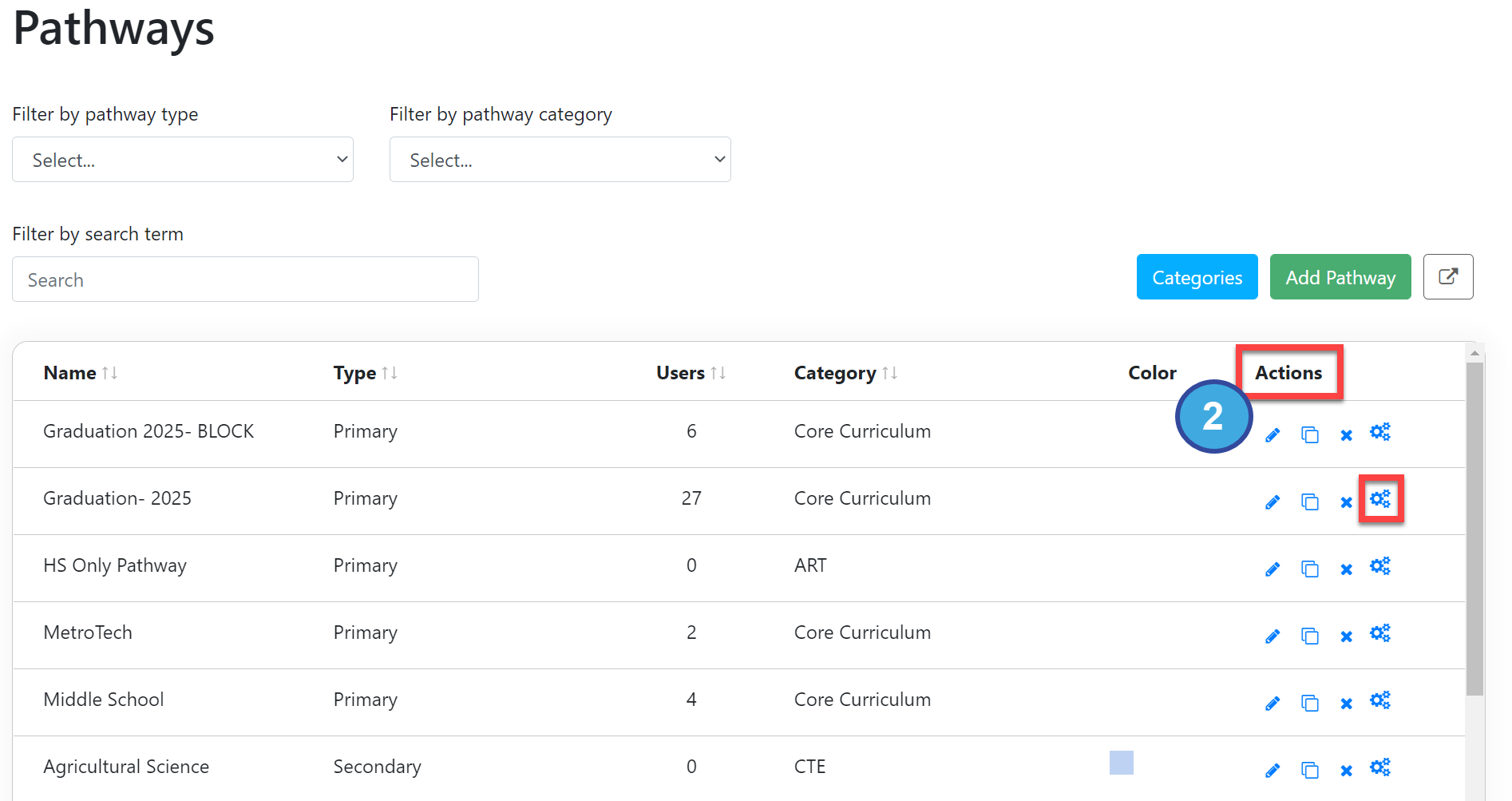
Under the Actions column, select the "gear" icon to the right of the Primary Pathway you want to edit.
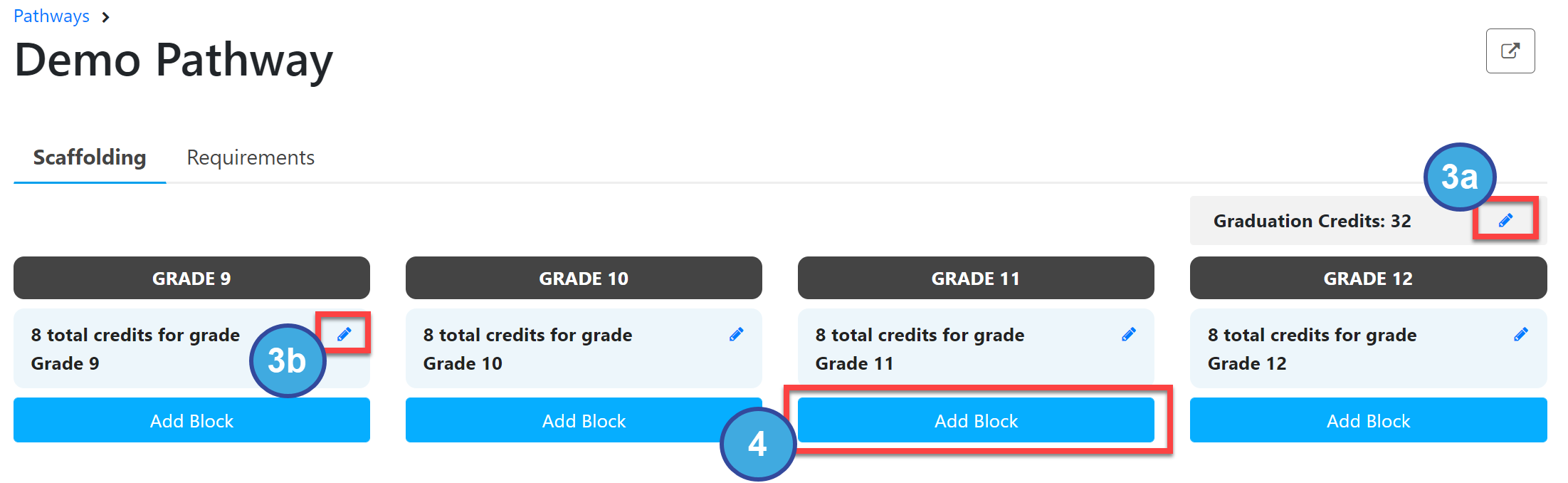
The Pathways screen defaults to Scaffolding. Edit any of the following as needed by clicking the pencil icon:
Graduation Credits
Total credits in each grade level
To add a requirement to the schedule, select Add Block.
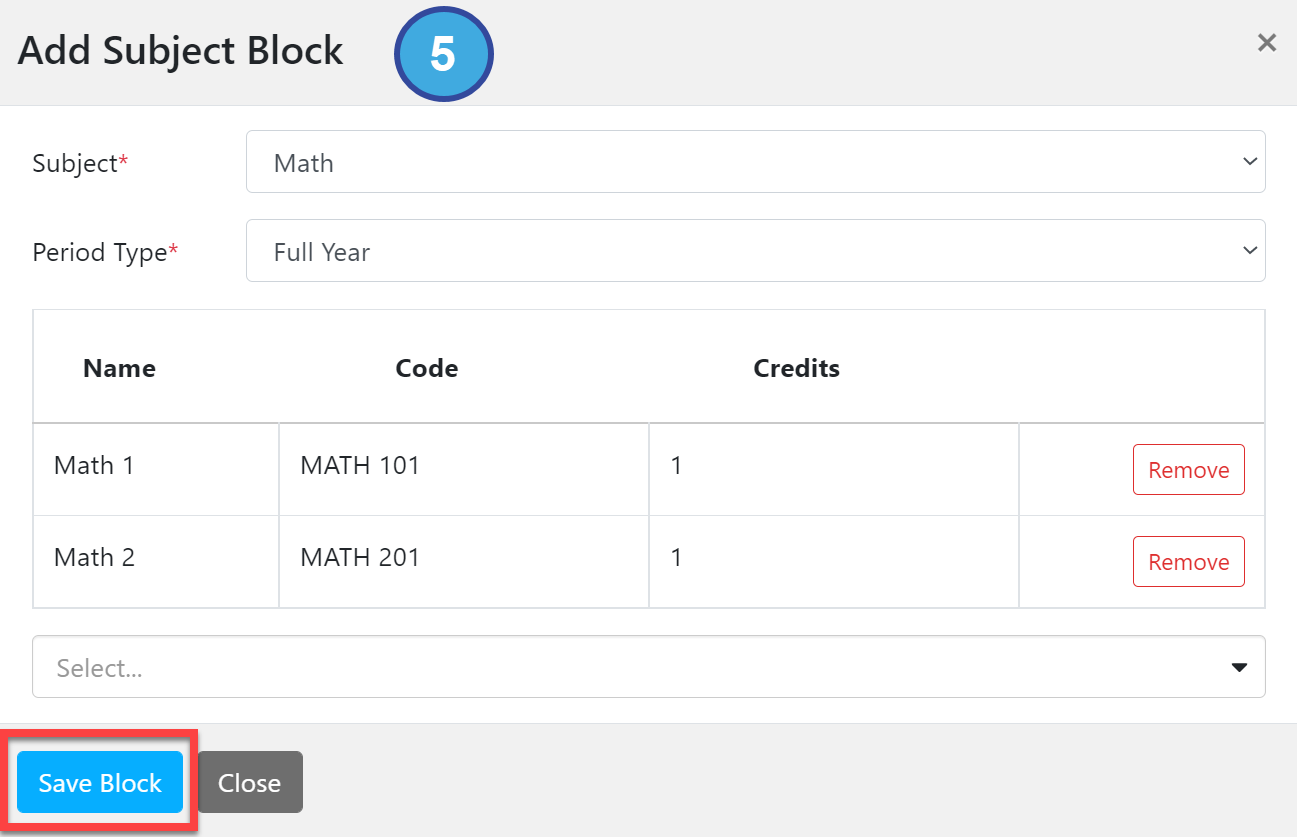
In the Add Subject Block pop-out window, enter the following:
*Subject
*Period Type
Select the Course(s) that can be taken to satisfy this requirement. This is optional.
If you do NOT select specific courses for the block, students must still choose a course from that subject. The courses that fulfill that requirement are listed under the Requirments tab for that specific course. For example, by not selecting specific courses for the Math block, you are saying, "I want students to take any Math course in grade 9." See Add Pathway Requirements or Edit Pathway Requirements for more information about setting up course requirements within a Pathway.
If you DO choose courses for the subject block, those become the only courses students can choose for that block. For example, if the optional courses are Math 1, Math 2, or Honors Math, you are saying, "I want students to take either Math 1, Math 2, or Honors Math in grade 9."
Select Save Block.
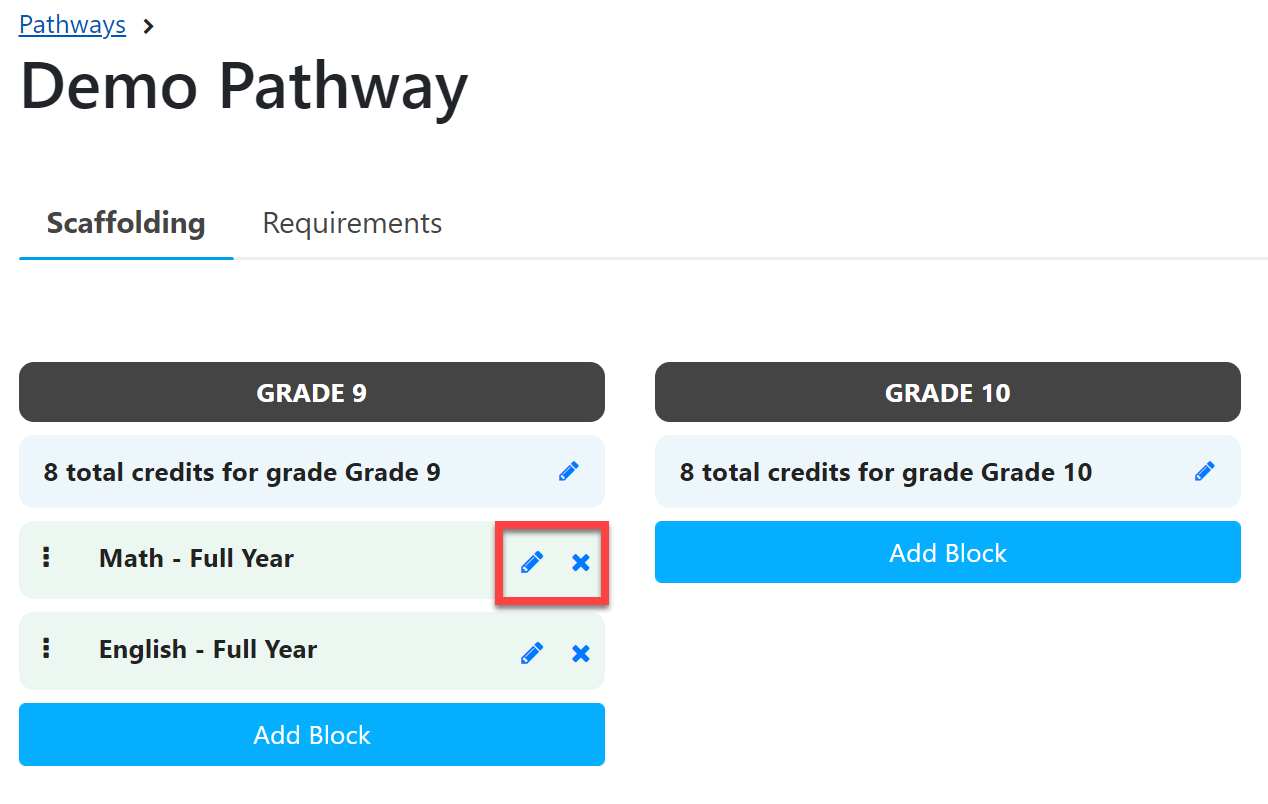
To edit a Block, select the pencil icon.
To delete a Block, select the "X".