Report: Students Per Course
This article explains the Students Per Course report and how to use it.
Last updated 3 months ago
Report: Students Per Course
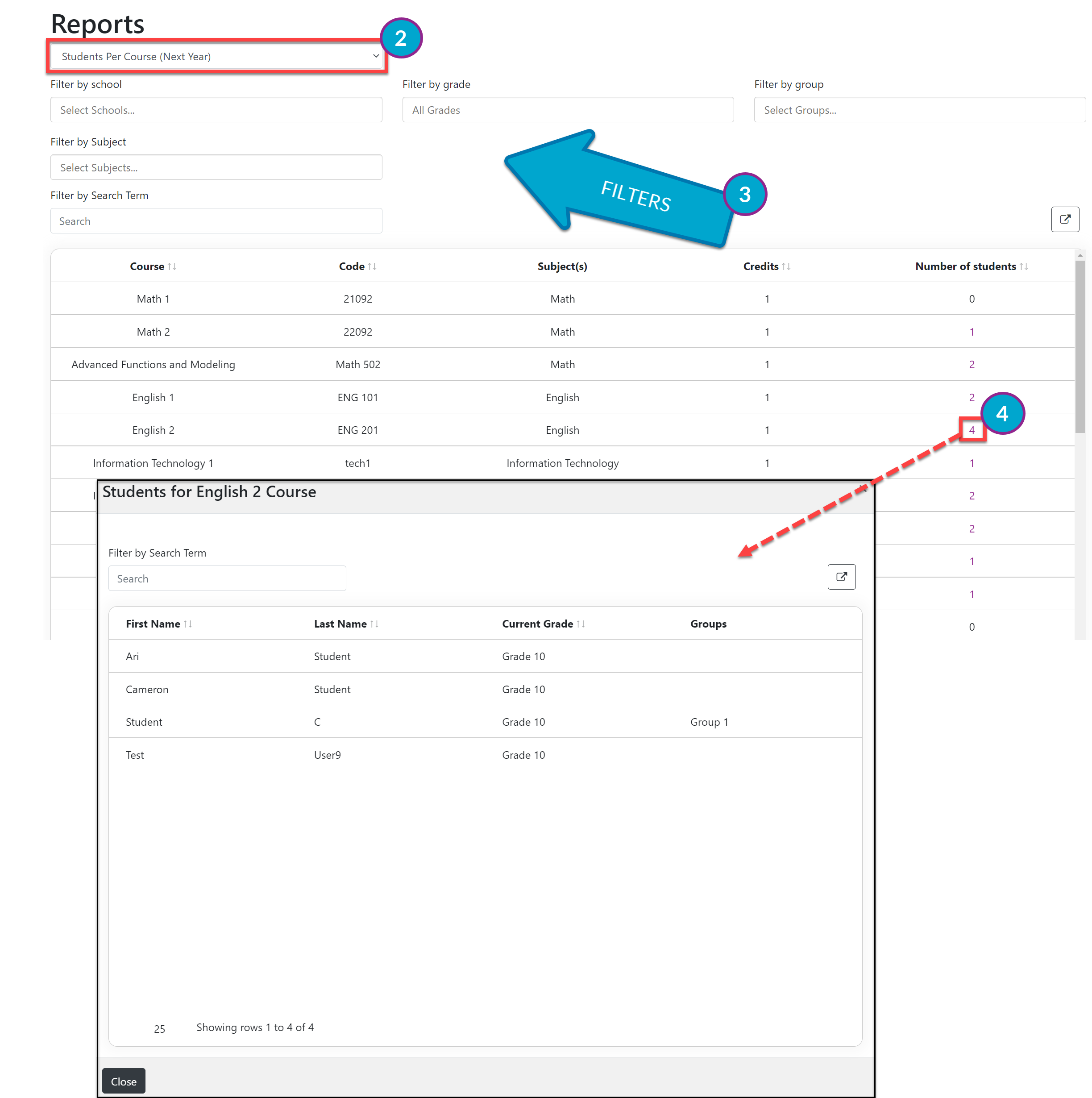
The Students Per Course Report shows the number of students who have chosen a particular Course for the next school year. This report is helpful for planning, scheduling, and staffing purposes.
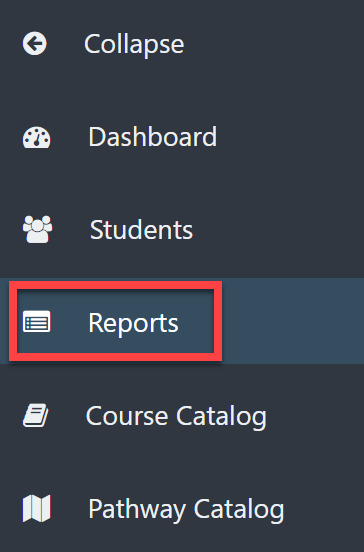
From your Dashboard, select Reports.
On the Reports page, select Students Per Course (Next Year) from the drop-down menu.
The report will automatically generate.
Apply any filters as needed.
School
Grade
Groups
Subject
Search Box
From the Number of Students column, select the number to the right of the desired Course to see a popout window with the list of students who have selected that particular Course.