See a List of All Courses in a District
How to view a list of all Courses in a District. This can be sorted by Subject, Grade, School, and Archived Courses.
Last updated 3 months ago
See a List of All Courses in a District
As the Curriculum Manager, you can view, edit, add, and archive courses from your District.
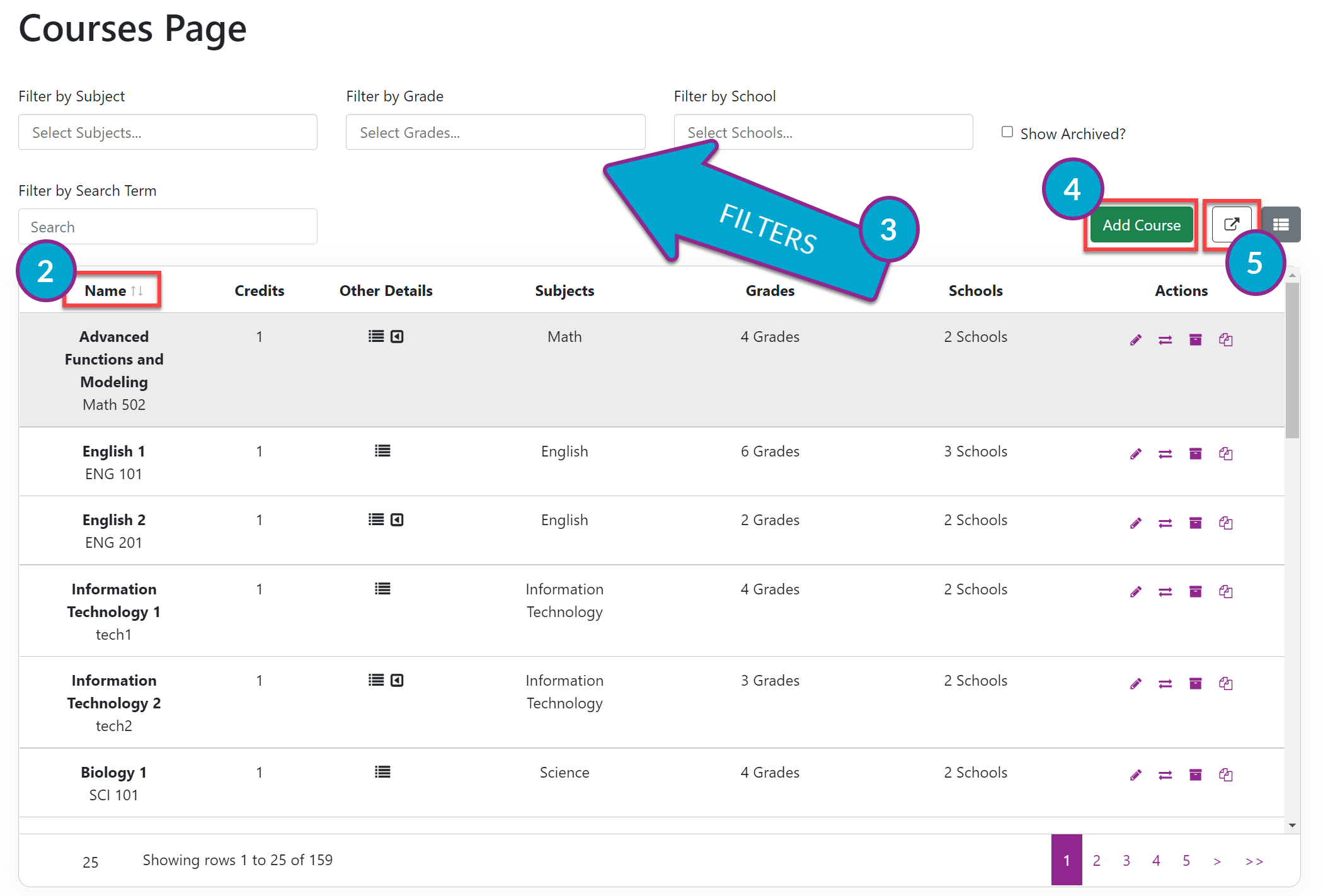
From the Dashboard, select Courses on the left menu.
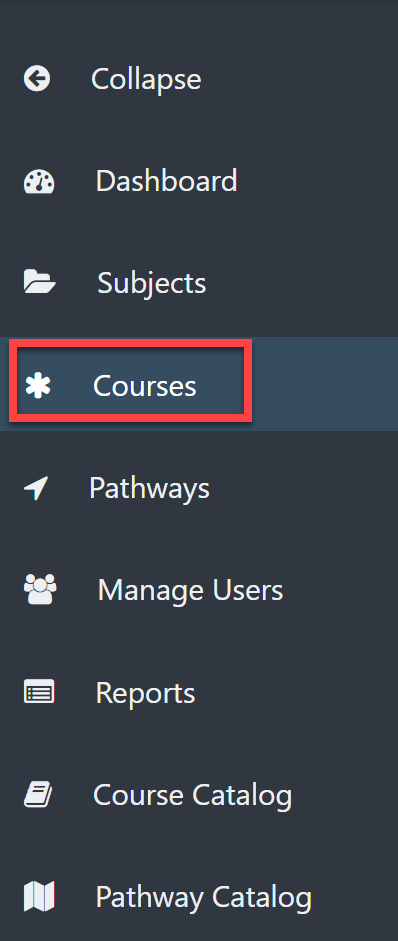
The Courses Page provides a sortable list of all courses in the District.Use the filter arrows next to Name in the table to sort alphabetically or reverse alphabetically.
You can filter the Courses table by the following:
Subject
Grade
School
Archived Courses (NOTE: courses are never deleted, only archived)
Search Term box (type directly in the search box)
Select the Add Course button to add additional course offerings. Once a course is added, it will be visible in the Course Catalog.
To export to Excel the data on the screen (i.e., based on the filters you have applied), select the export icon in the upper right of the screen.