Replace a Course
A step-by-step guide for how to Replace an existing Course.
Last updated 3 months ago
Replace a Course
Replace a Course
This allows you to replace an existing course with a new course.
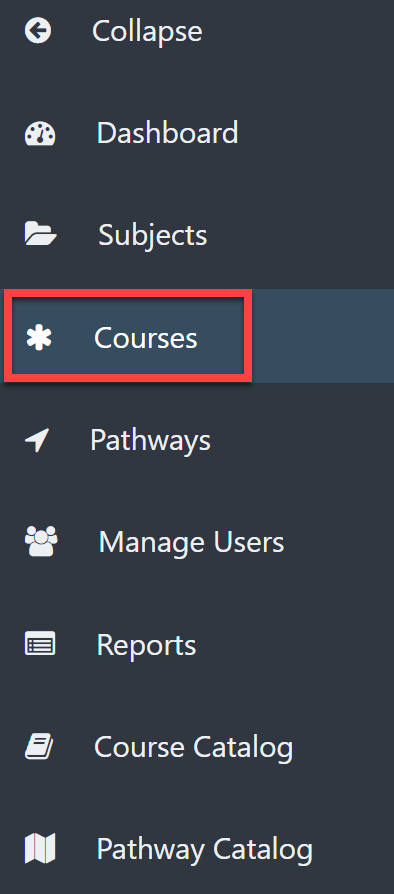
Select Courses from the left menu.
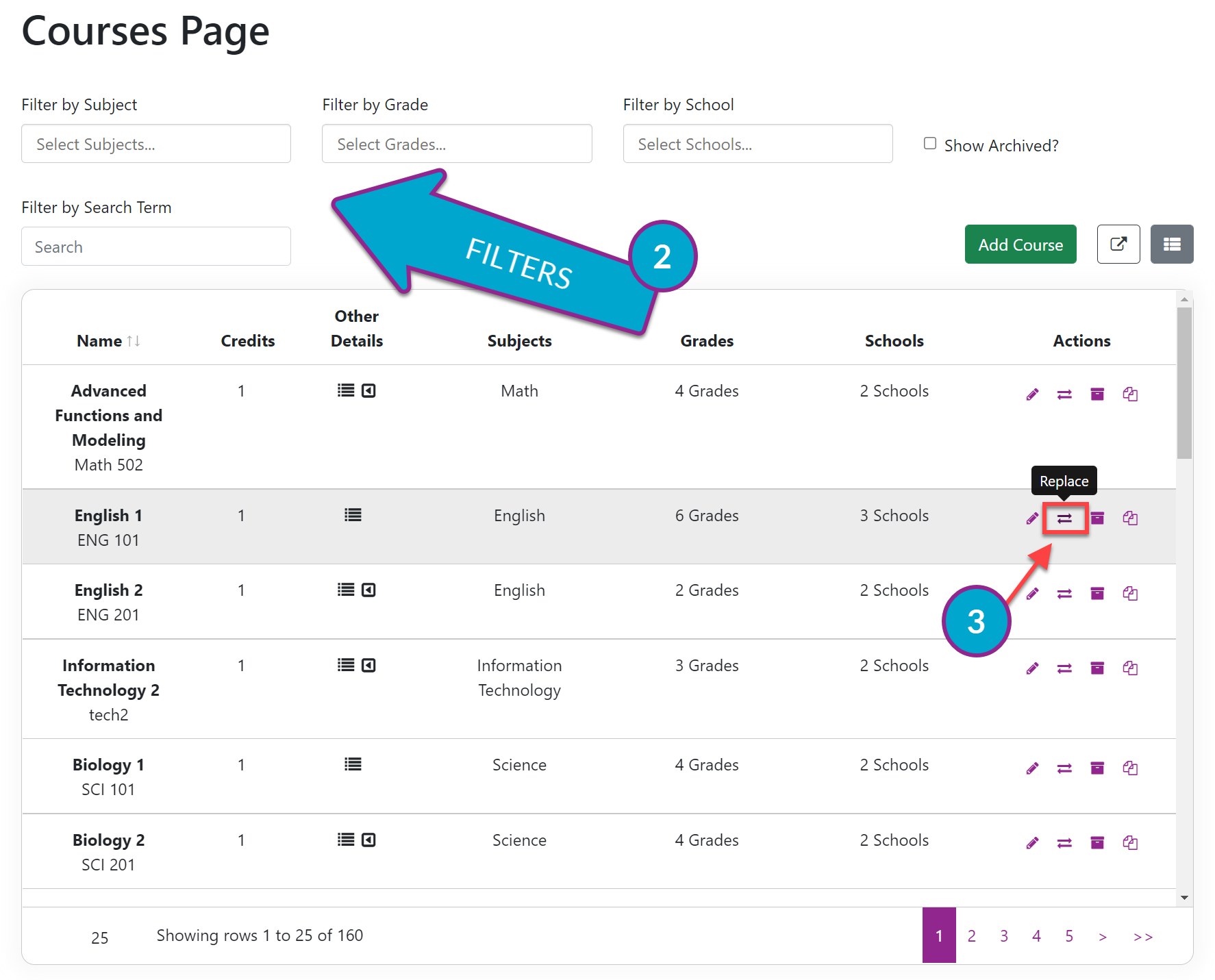
Locate the desired Course using the filters or by scrolling.
Under the Actions column, select the Replace icon.
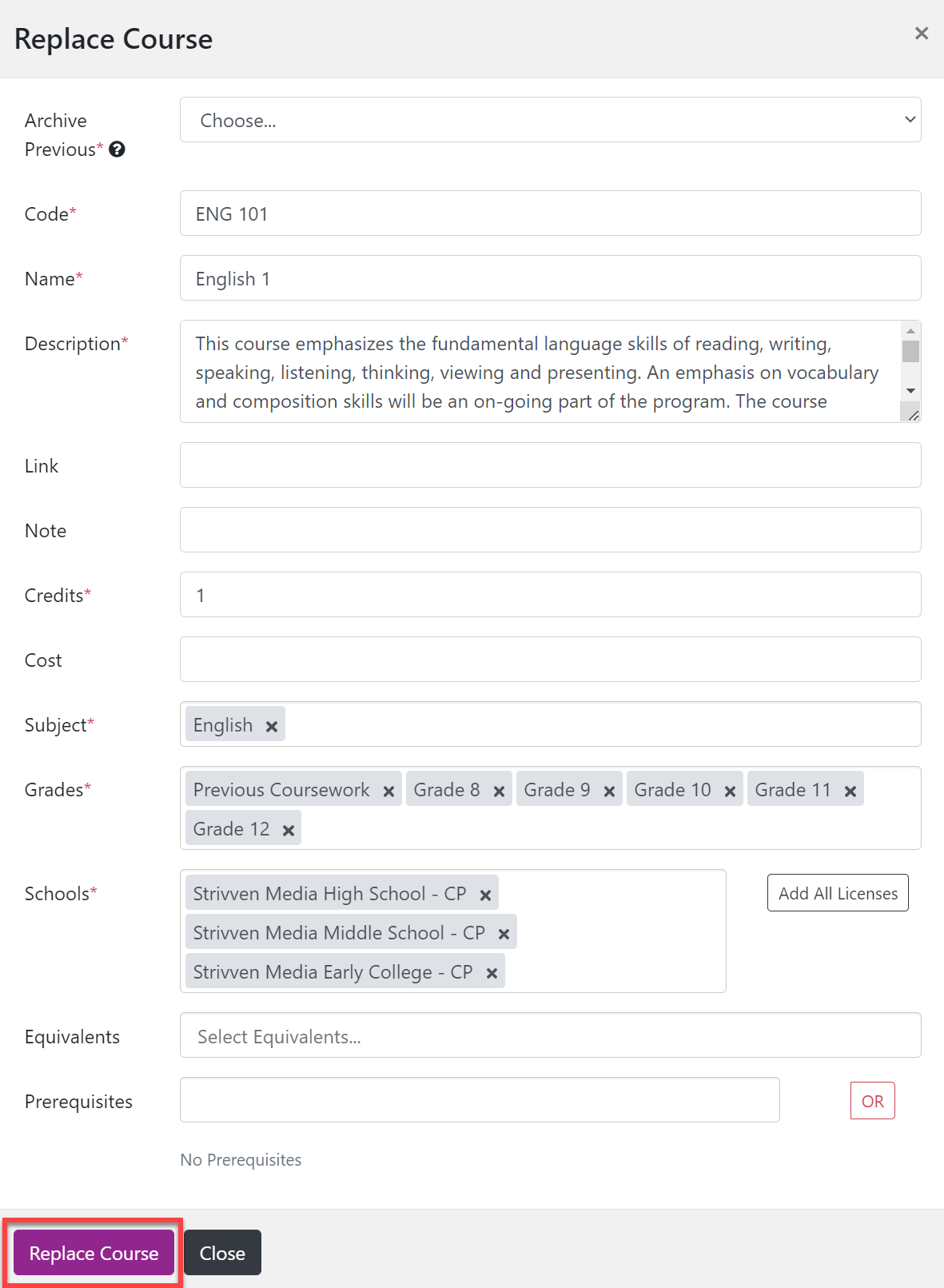
Complete the necessary fields.
Archive Previous? Yes or No (i.e., do you want to archive the course you are replacing?)
Code
Name
Description
Link
Note
Credits
Cost
Subject (you can have more than one)
Grades
Schools
Equivalents
Prerequisites
Select Replace Course when you have made your changes.