Plan Access Settings- School Level
This article explains, at the school level, how to set the level of access students have when editing their Course Plan.
Last updated About 5 hours ago
Plan Access Settings- School Level
Plan Access determines how much of the Course Plan students can edit.
Plan Access defaults to the District setting but can be changed by individual schools. School settings override the District setting.
Setting options are as follows:
District Default: accept the district setting with no changes.
Full Plan: students can edit the entire Plan during the Enrollment Window.
Current Year and Future: students can edit the current year and the future years.
Current Year Only: students can only edit the current year (i.e., the grade they will be in next year).
NOTE: The "Current Year" is the grade for which students are required to select courses. For example, a 9th-grade student using Pathful Planner to choose courses for 10th grade has a current year of Grade 10.
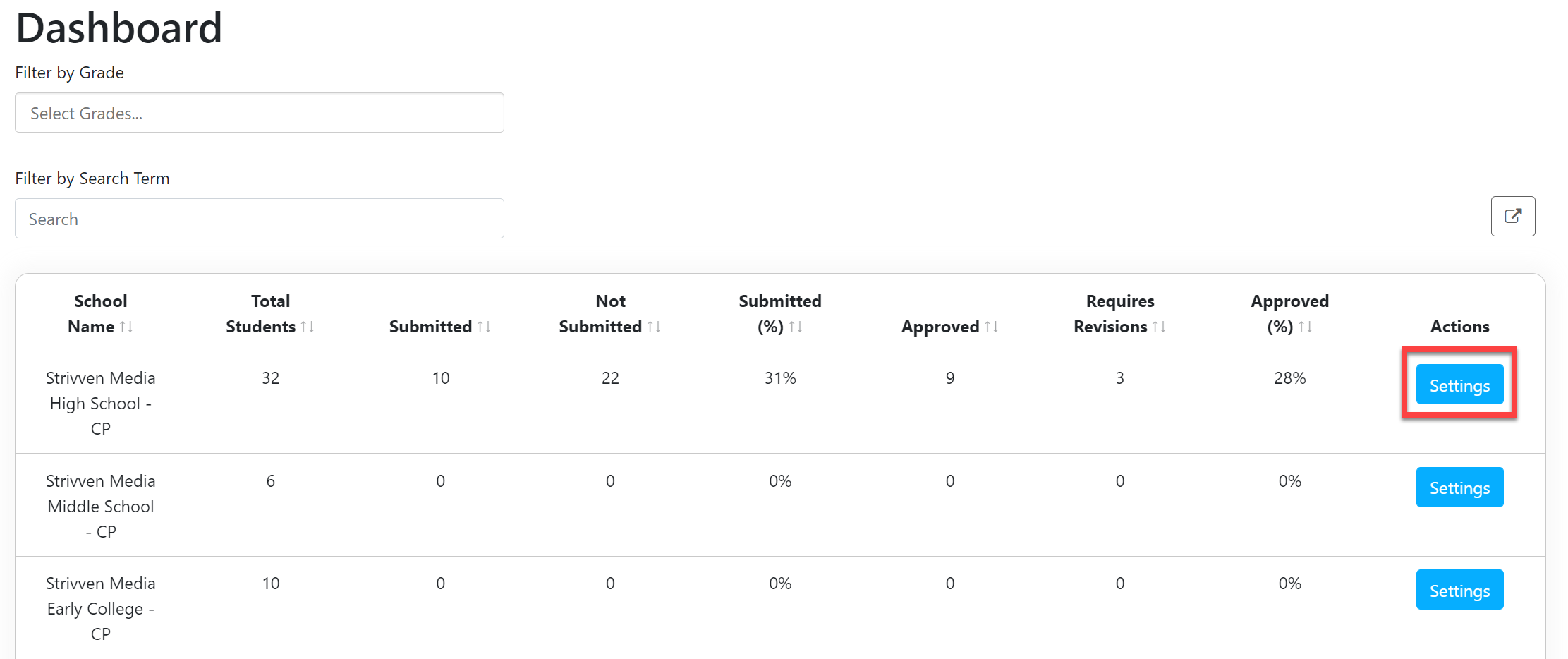
From the School Admin Dashboard, select Settings.
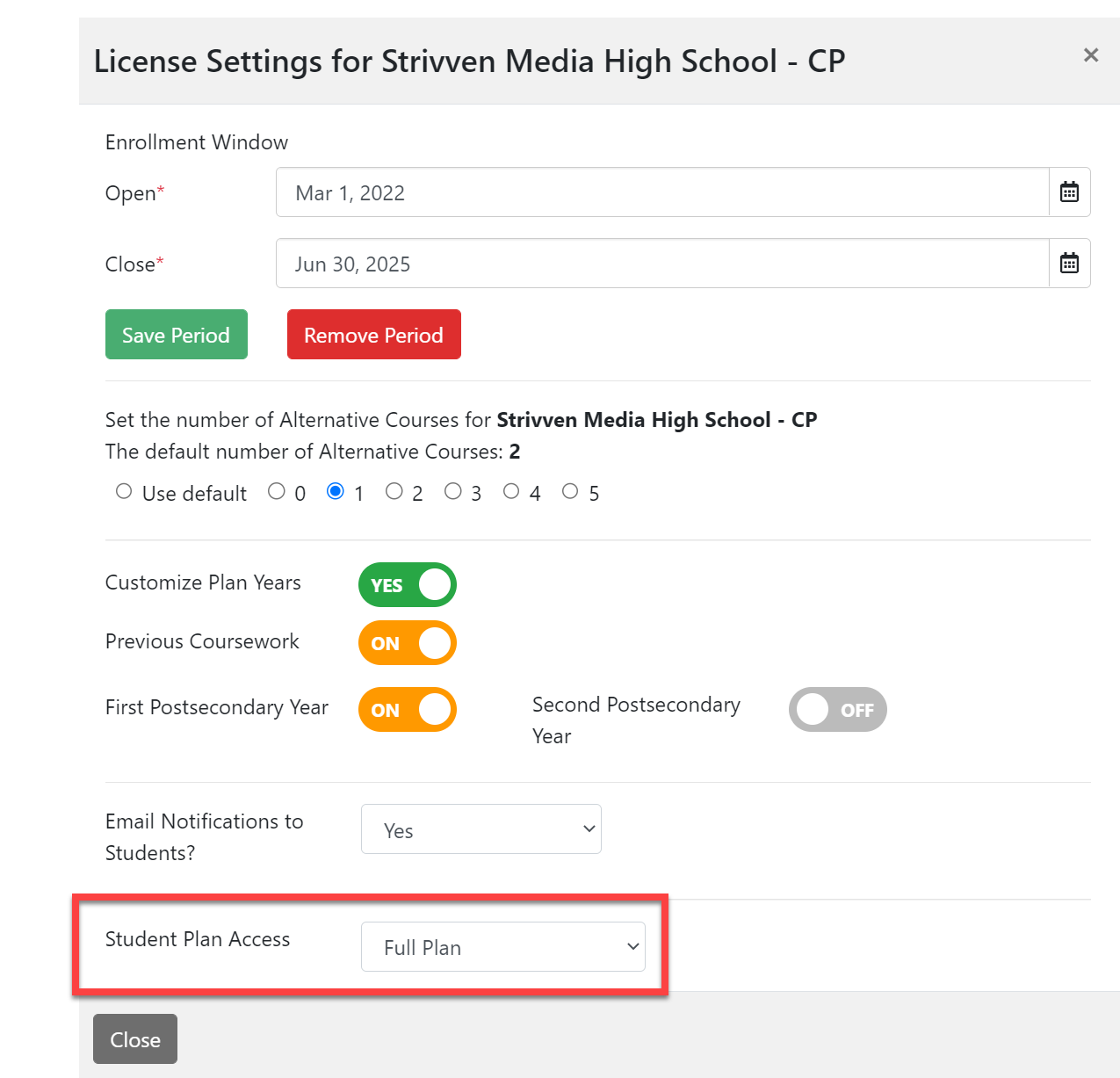
In the License Settings window, scroll down to the Student Plan Accesssection.
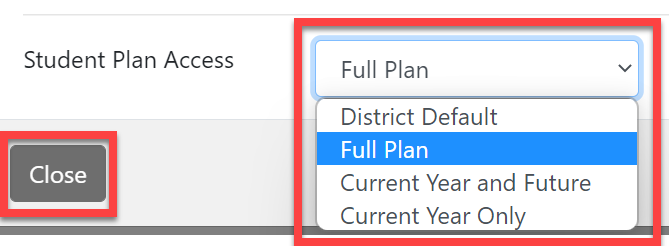
From the drop-down menu, select the desired level of access.
Select Close when you are done. Your changes are automatic and will be enforced the next time students log in to Course Planner.