Create and Edit Subjects
A step-by-step guide for how to Create, Edit, and Remove Subjects from district offerings.
Last updated About 5 hours ago
Create and Edit Subjects
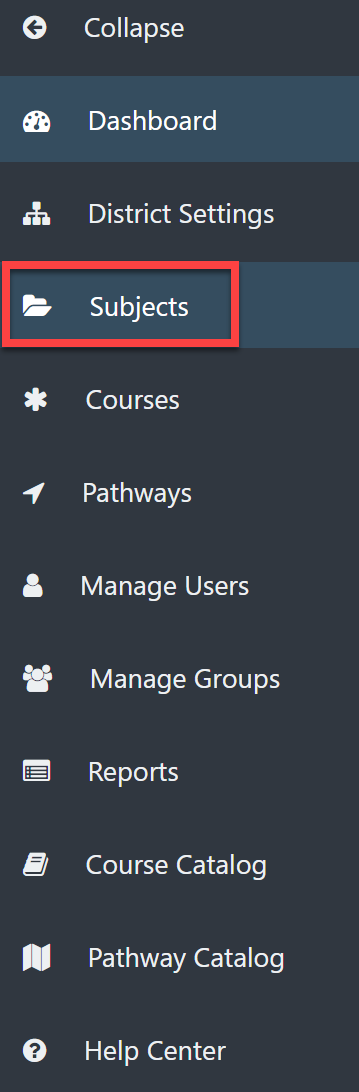
From the Dashboard, select Subjects on the left menu.
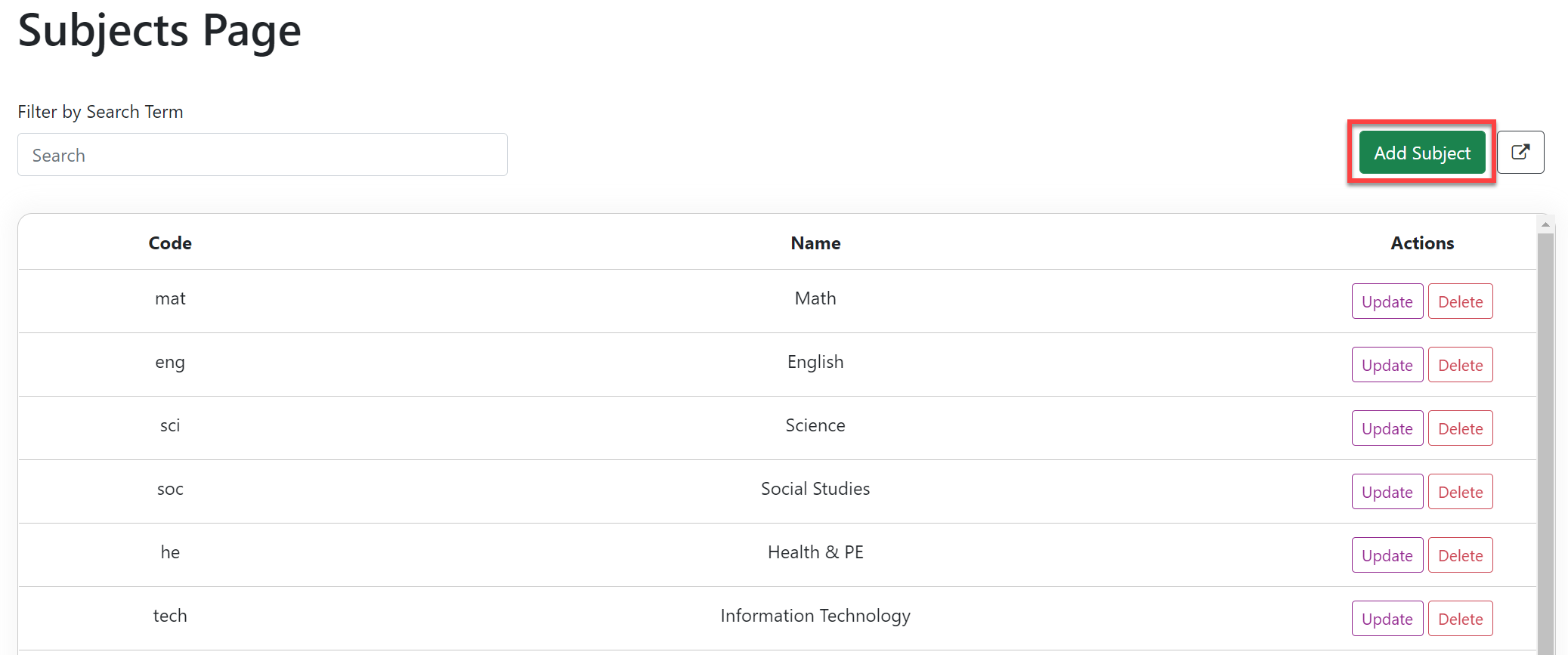
The Subjects Page shows a list of all the Subjects and their corresponding Codes that you have made thus far.
Create a Subject
Select the Add Subject button on the upper right.
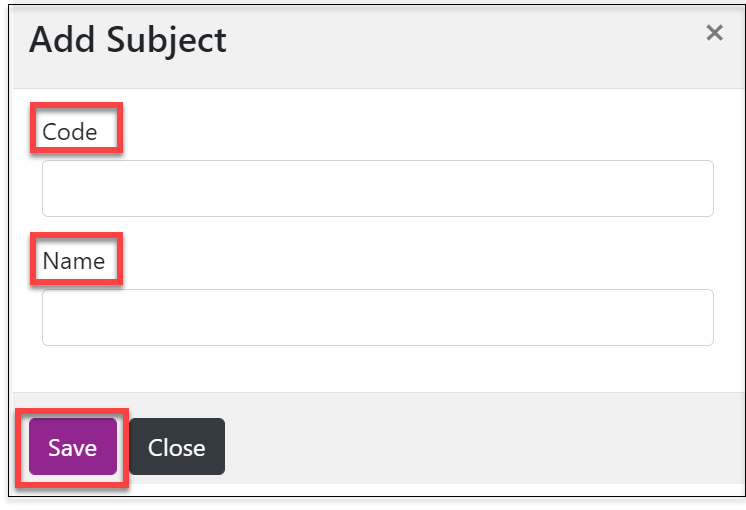
In the pop-out window, enter the Code and the Name of the Subject.
Select Save.
Edit an Existing Subject
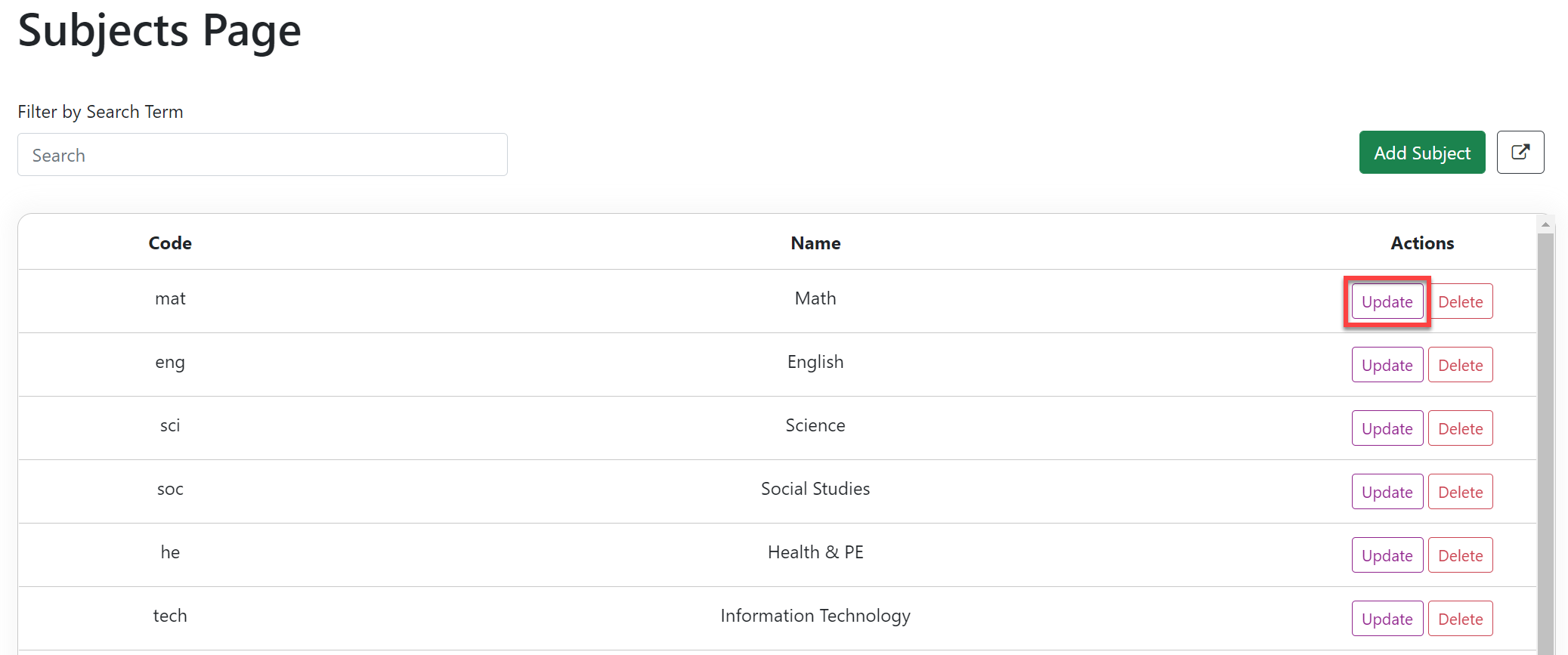
Under the Actions column, select the Update button to the right of the Subject you want to edit.
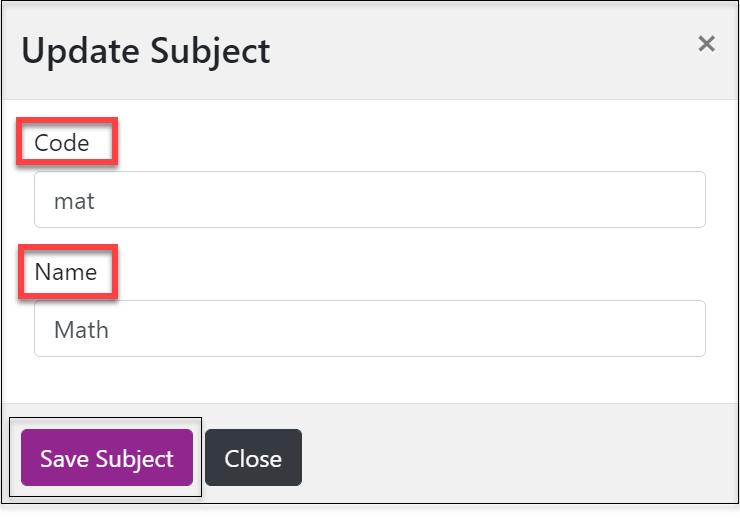
Change the Subject Code or Name.
Select Save Subject.
Delete an Existing Subject
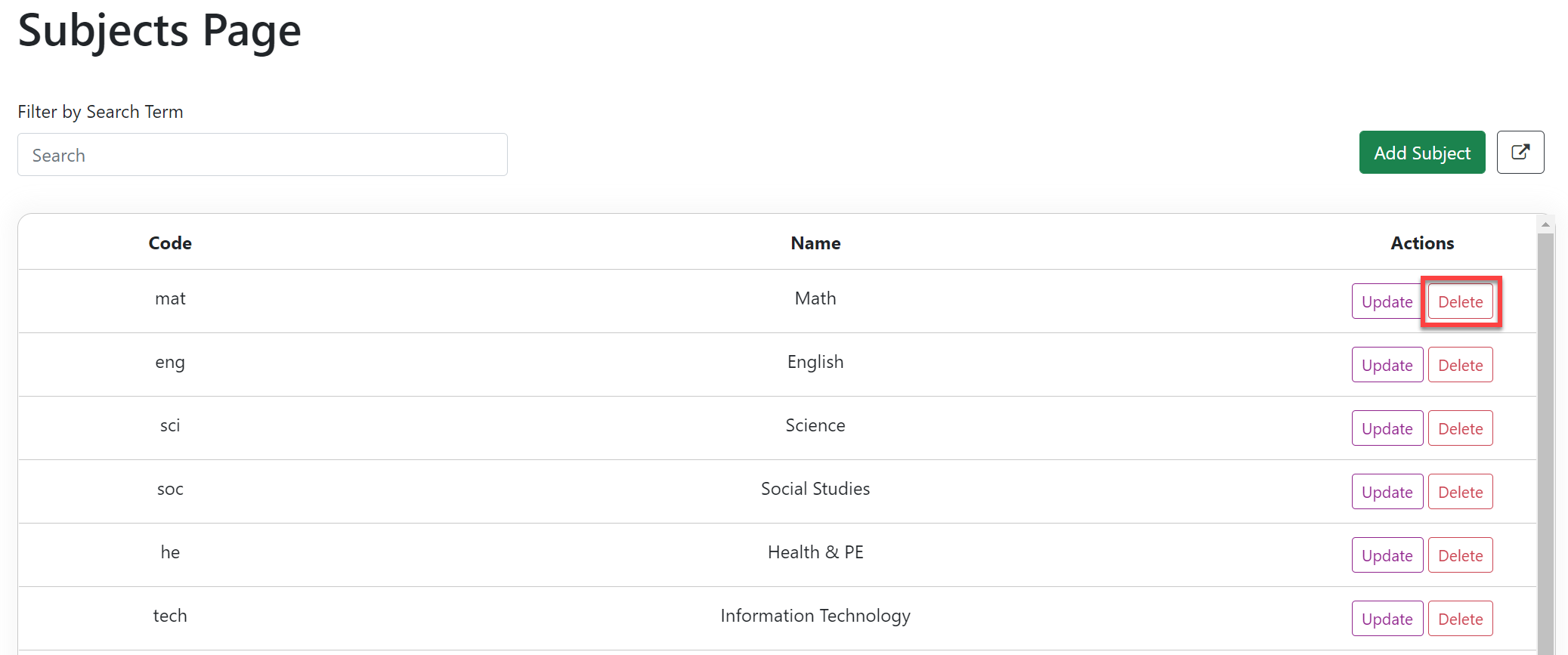
Under the Actions column, select the Delete button to the right of the Subject you want to remove.
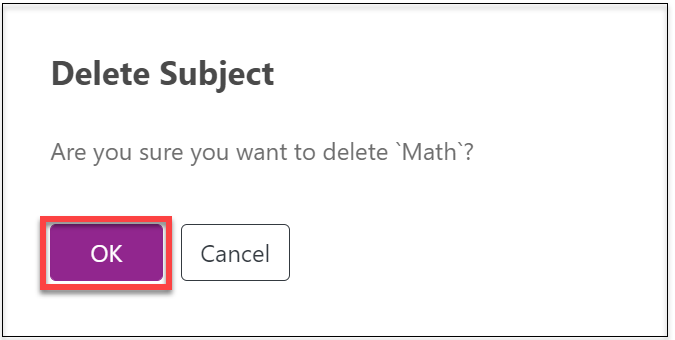
Select OK in the pop-out window.
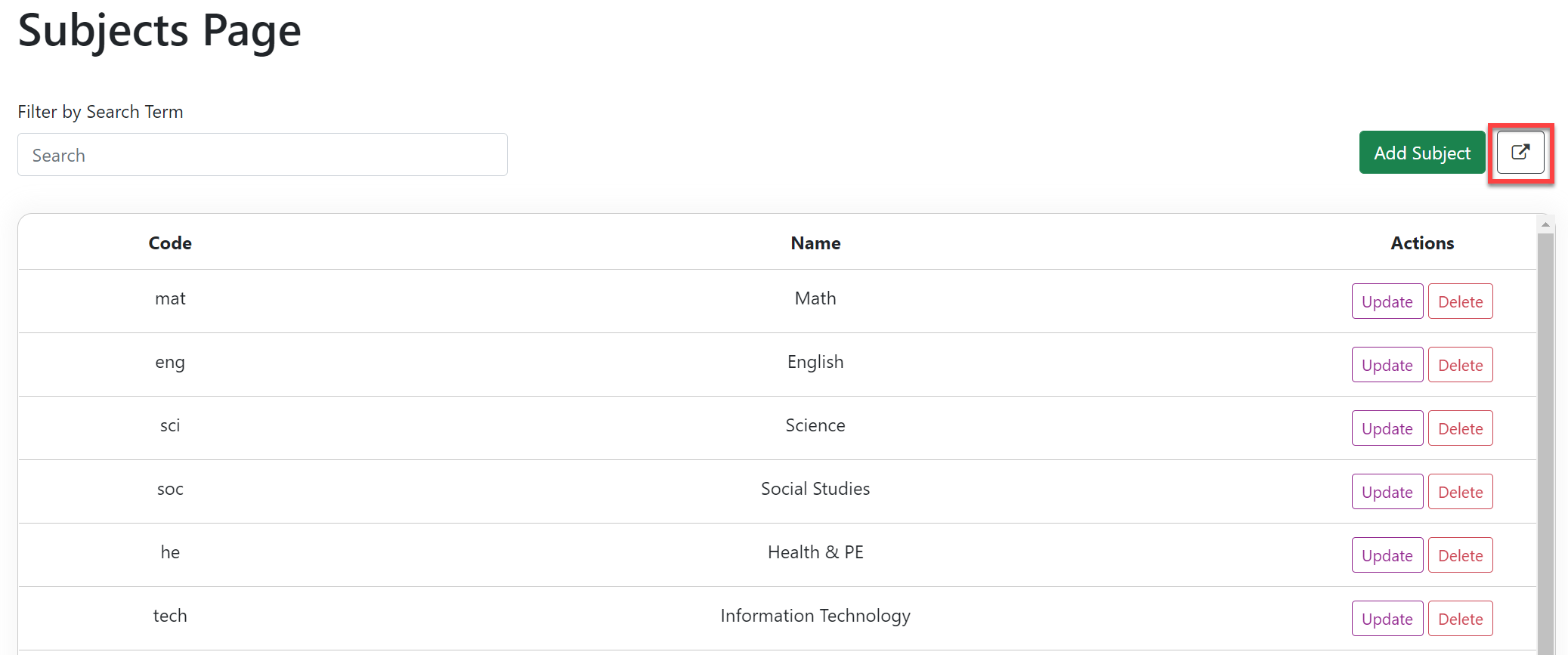
Export Subjects List to Excel
Select the export icon on the upper right of the screen.
This will export a list of Subject Codes and Subject Names to Excel.