Edit My Plan
This article explains how to add and remove courses from your Plan prior to submitting it to your Counselor or Advisor for review.
Last updated About 6 hours ago
Edit My Plan
My Course Plan shows all the courses you have selected for each of the 4 years of high school and beyond if you are in a post-senior year situation. Your Plan may also show any courses taken before 9th grade that qualify for high school credit.
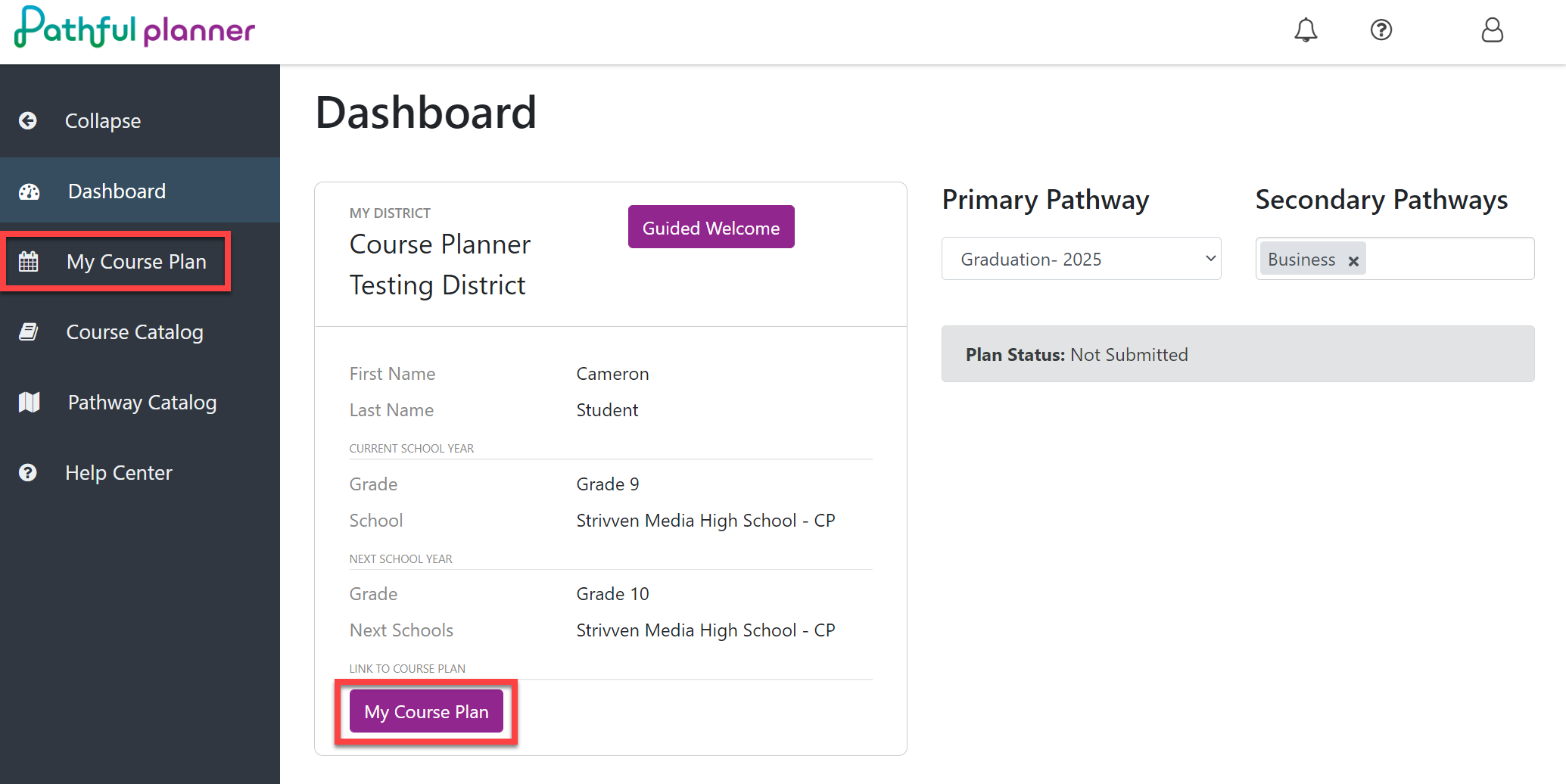
From your Dashboard, select My Course Plan.
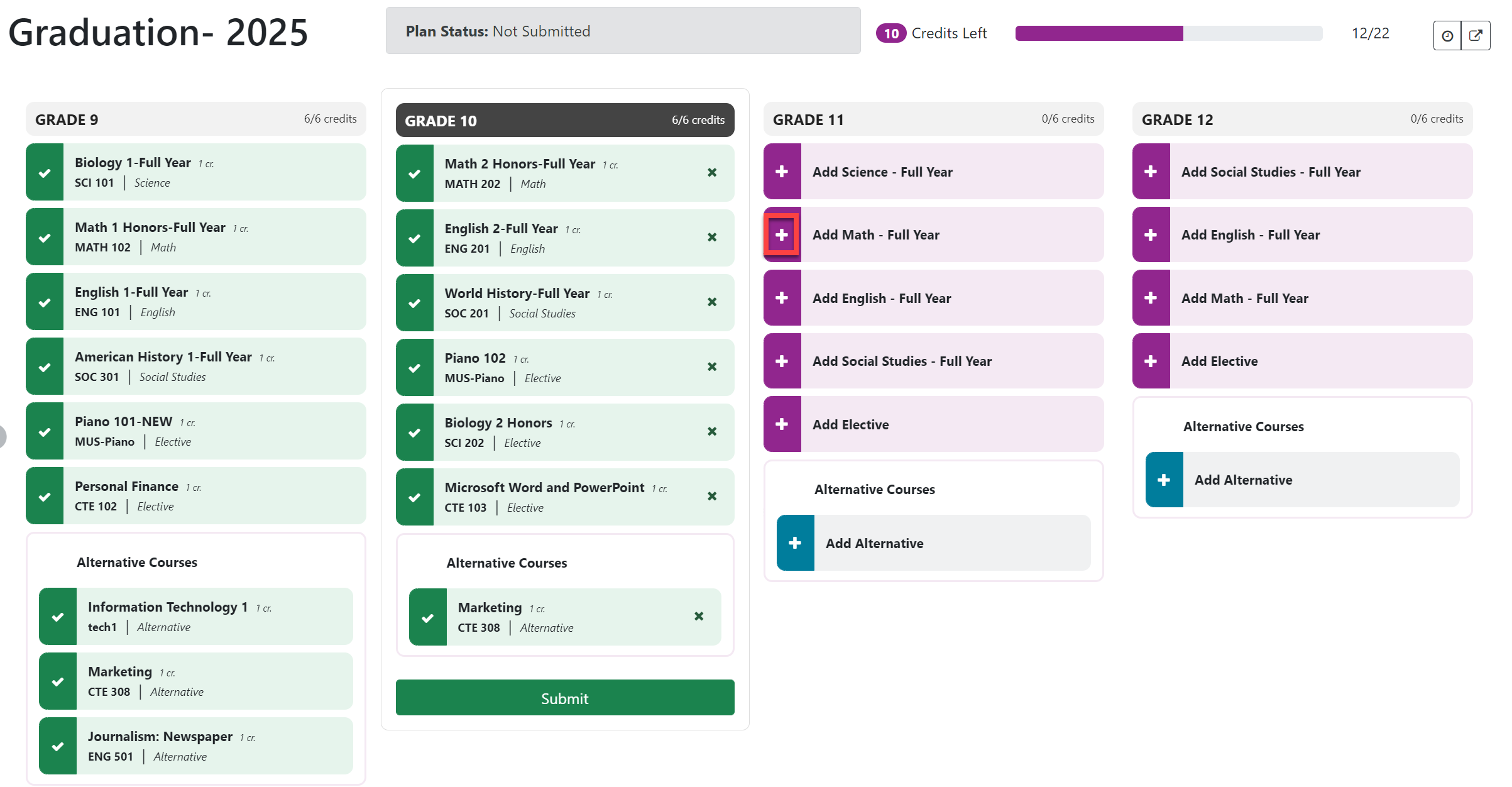
To add a course to your Plan, click the "+" sign to the left of the desired course block.Refer to View My Plan for an overview of the information displayed on your Plan.
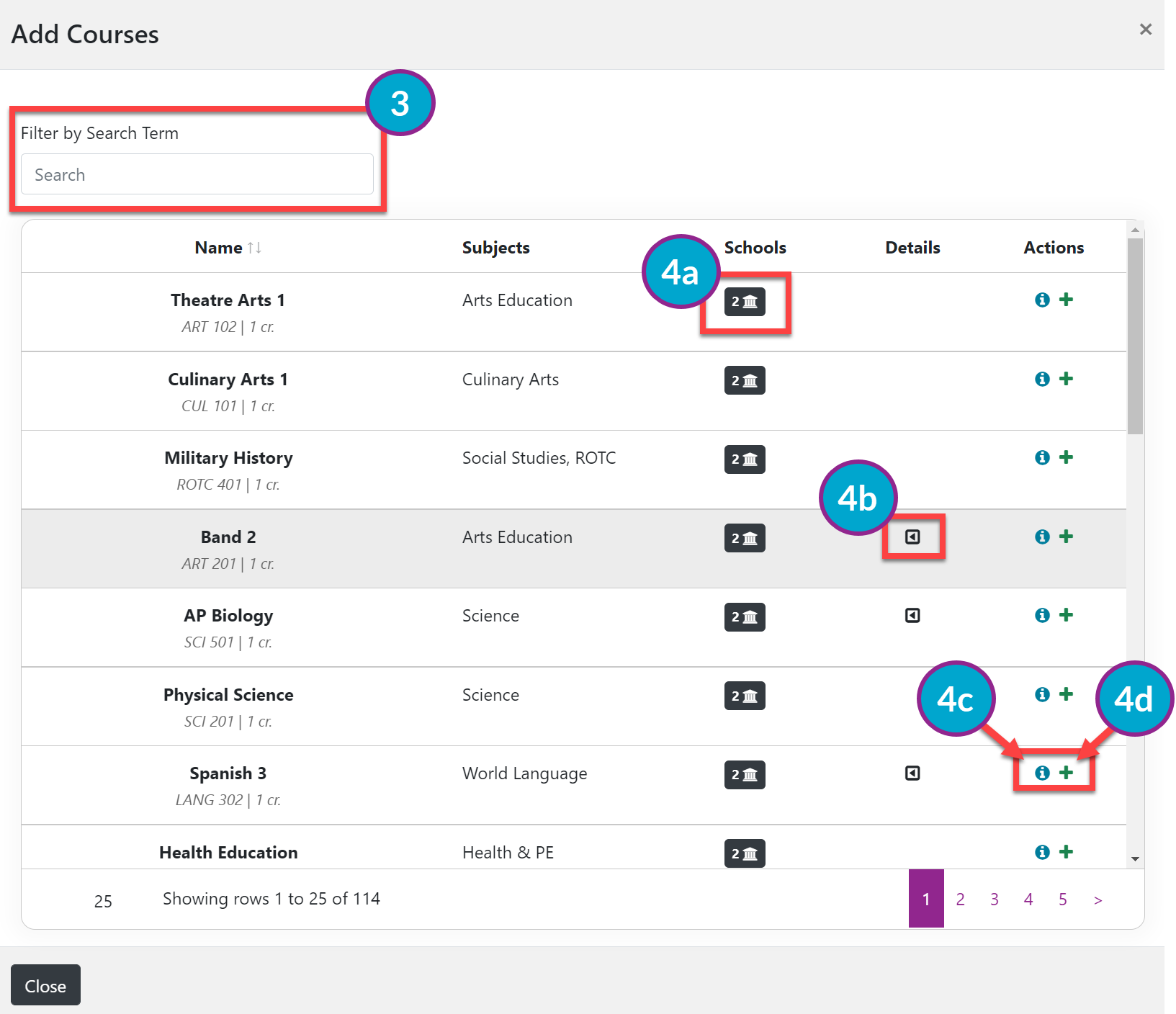
From the Add Courses pop-up window, you can type directly into the search bar or scroll to find the desired course.
Once you have located the course you want to add or found a course you want to learn more about, you can do the following:
Hover over the Schools icon to see the schools where this course is offered. This is especially important if you are dually enrolled.
Hover over the icon in the Details column to seeany prerequisites for the desired course.
Select the "i" info icon to read about the course.
Select the "+" add icon to add the course directly to your Plan.
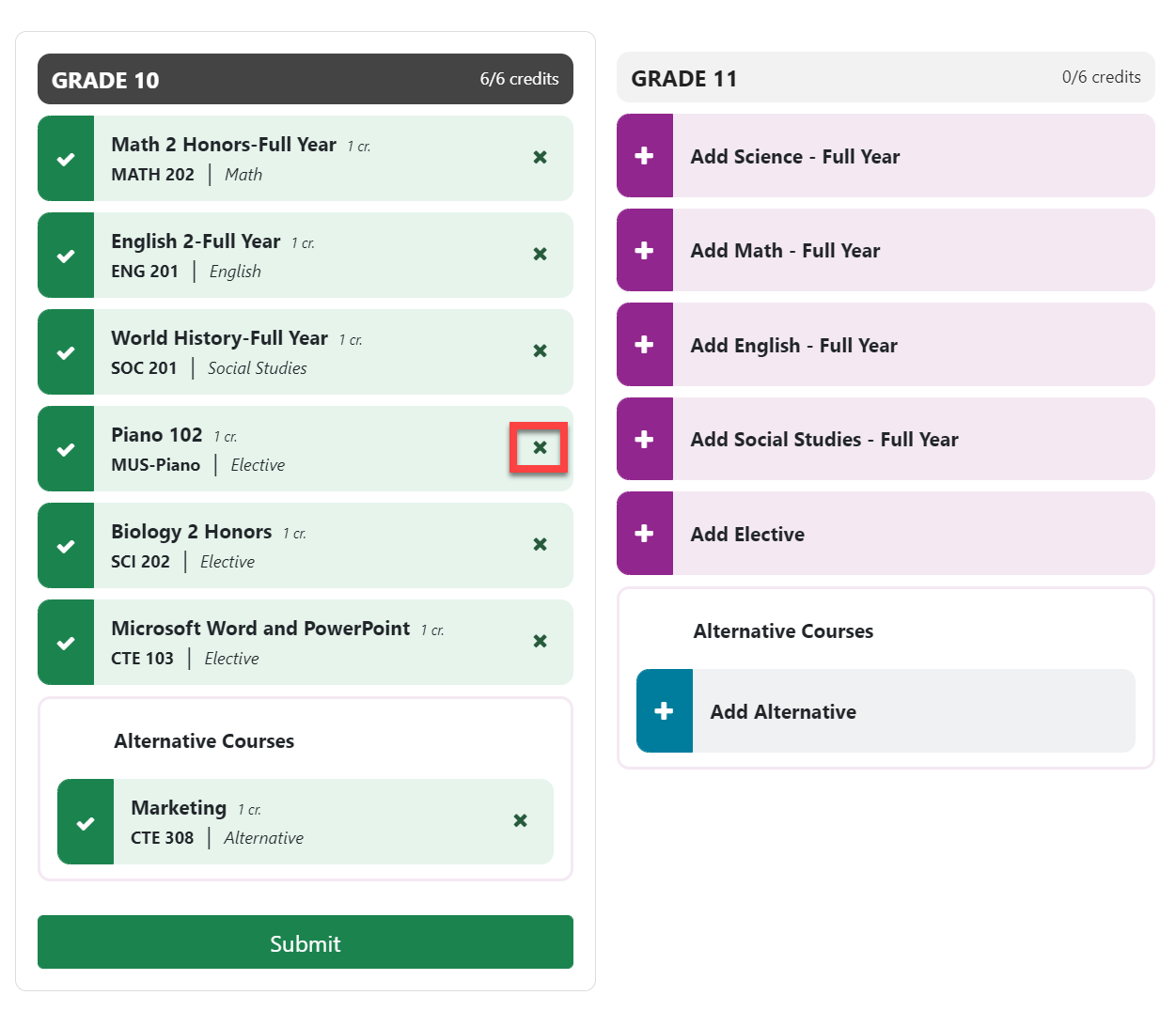
To remove a course from your Plan, click the "x" to the right of the course you want to remove.
When you complete your Plan and are ready to submit it to your Counselor or Advisor for review, select the Submit button at the bottom of the column for the upcoming school year.
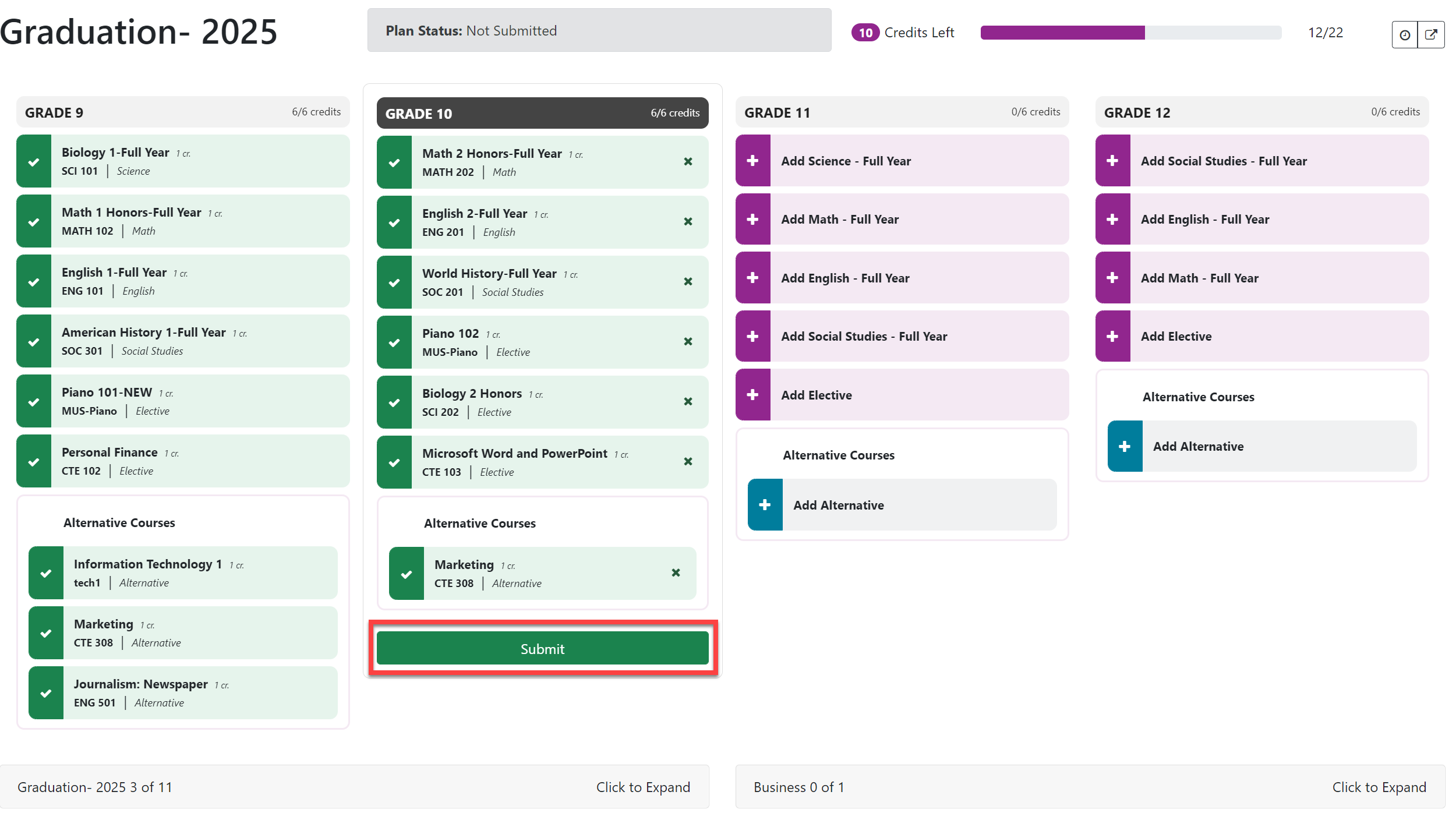
Your Plan status will be updated immediately both on your Plan and on your Dashboard. (You may have to refresh your screen).
Your Counselor or Advisor will automatically get a notification that you have submitted your Plan.