Add Pathway Requirements
This article explains how to add subject and grade requirements to a new or existing Pathway.
Last updated About 5 hours ago
Add Pathway Requirements
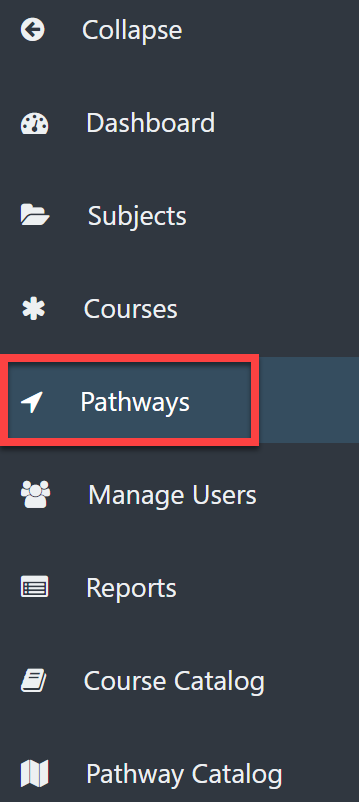
From the Dashboard, select Pathways on the left menu.
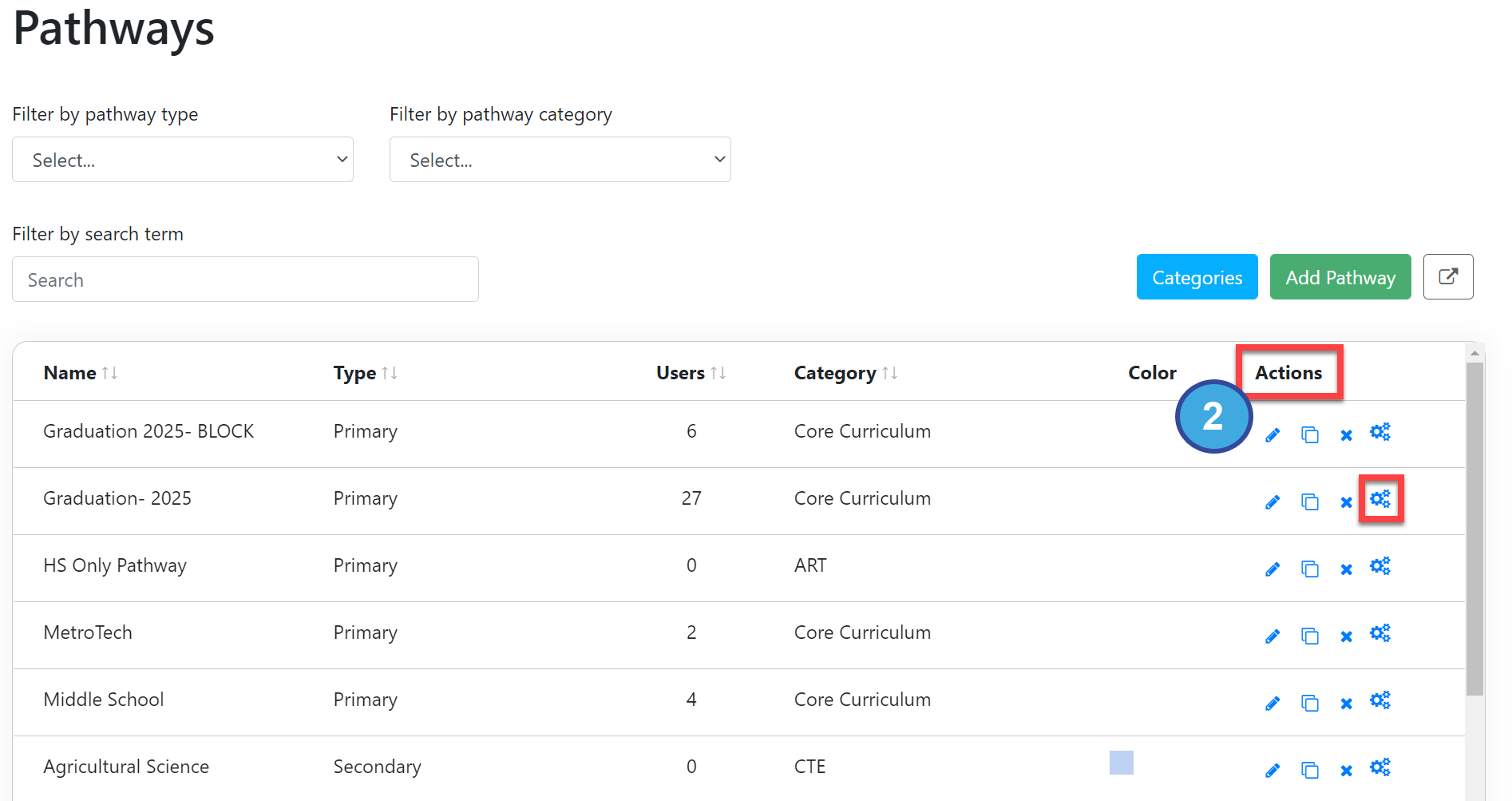
On the Pathways screen, under the Actions column select the gear icon to the right of the desired Pathway.
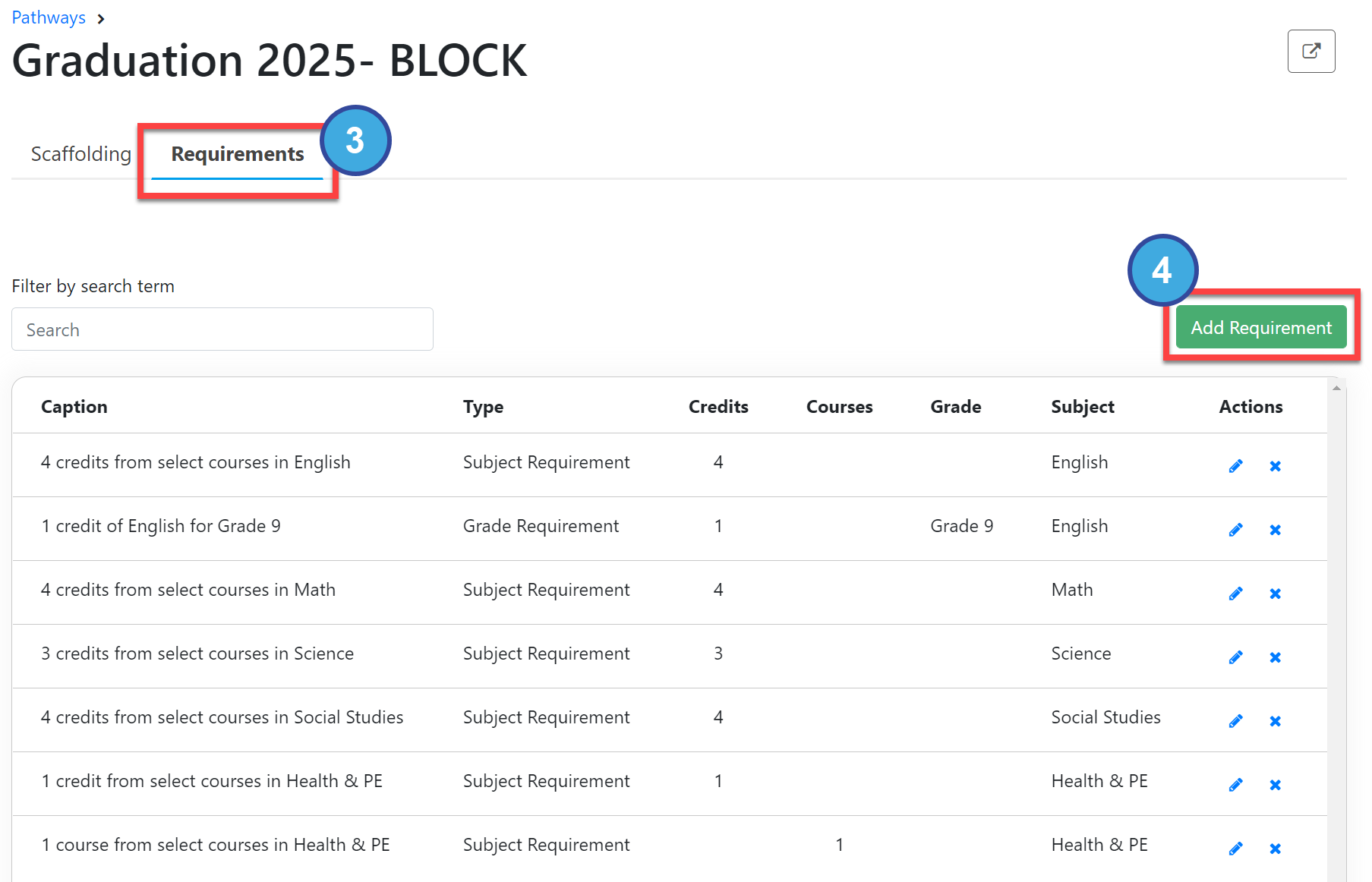
Select the Requirements tab.
Select Add Requirement.
In the Add Requirement popout window, select the Type of Requirement:
Subject: courses or credits from a specific subject that can be taken at any time (e.g., 3 Math courses/credits).
Grade: this requirement must be met in a specific grade level (e.g., Math 1 in 9th grade).The best practice is to add all of the Subject requirements first and then add the Grade requirements. For example, if the Pathway requires 4 English credits to graduate, those are added as Subject requirements. Then you can add a grade requirement of English 1 in 9th grade, English 2 in 10th grade, and so on.
Select Save Requirement.
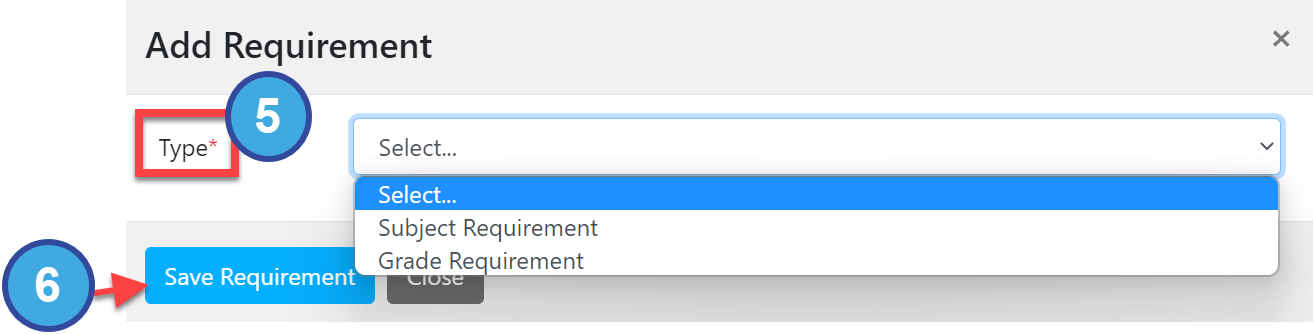
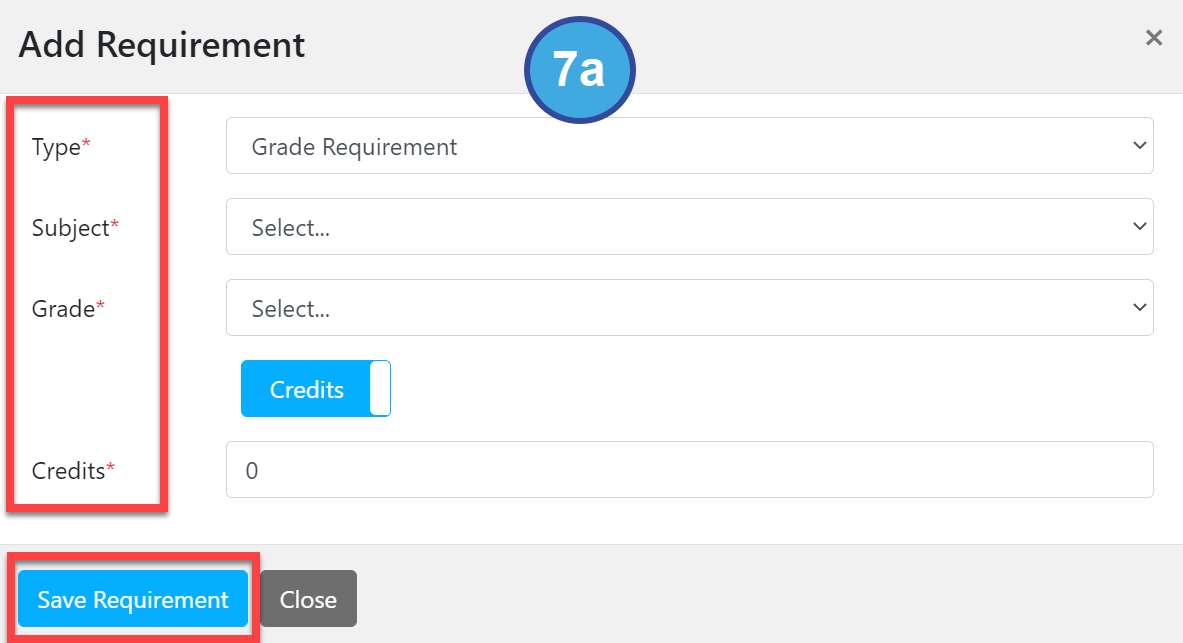
Complete the Add Requirement popout window and select Save Requirement.
Grade Requirement window:
Type
Subject
Grade
Credit or Courses (toggle button)
Credits/ Courses: enter the actual number needed.
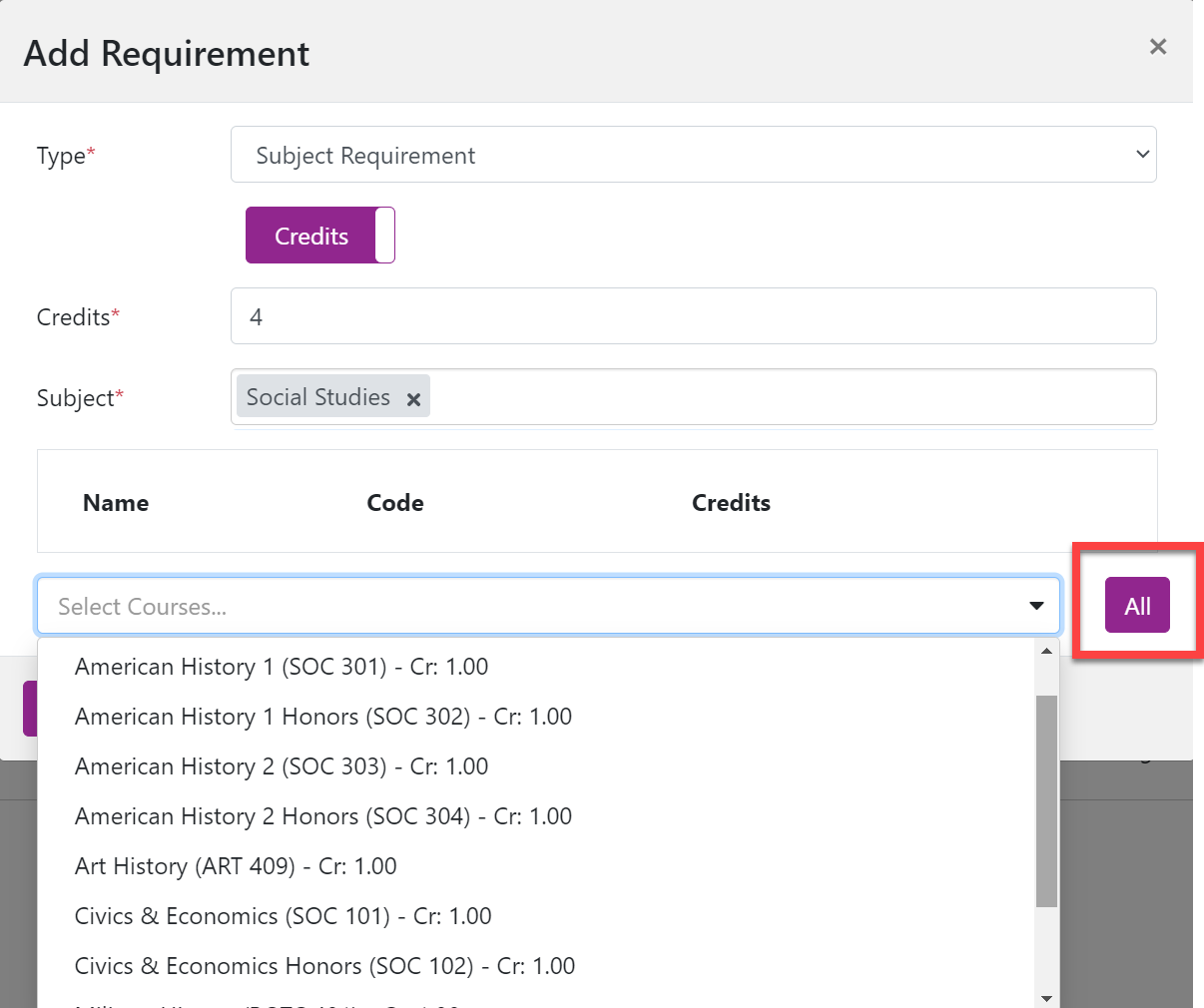
Subject Requirement window:
Type
Credits or Courses (toggle button)Credits refer to a number (i.e., each class is worth a certain number of credits and you need a total of 22 credits to complete the Graduation Pathway). Courses refer to a specific course (i.e., you need 22 courses to graduate).
Subject
From the Select drop-down menu, choose the courses that satisfy this requirement. You will likely add more courses than the required number.The All button allows you to add all of the courses in that subject quickly. You can remove any courses that you do not meet the subject or grade requirement.
Select Save Requirement once you have added all of the courses.
The new Pathway Requirement will be on the Requirements list and added to the Pathway Catalog.