Create a Pathway
A step-by-step guide for how to create a Pathway.
Last updated About 5 hours ago
Create a Pathway
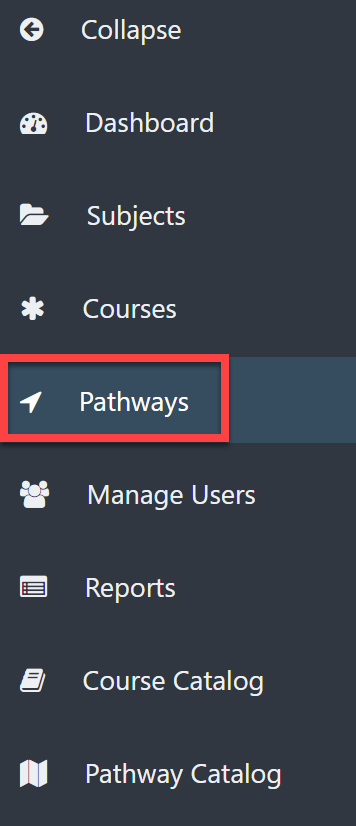
Select Pathways from the left menu.
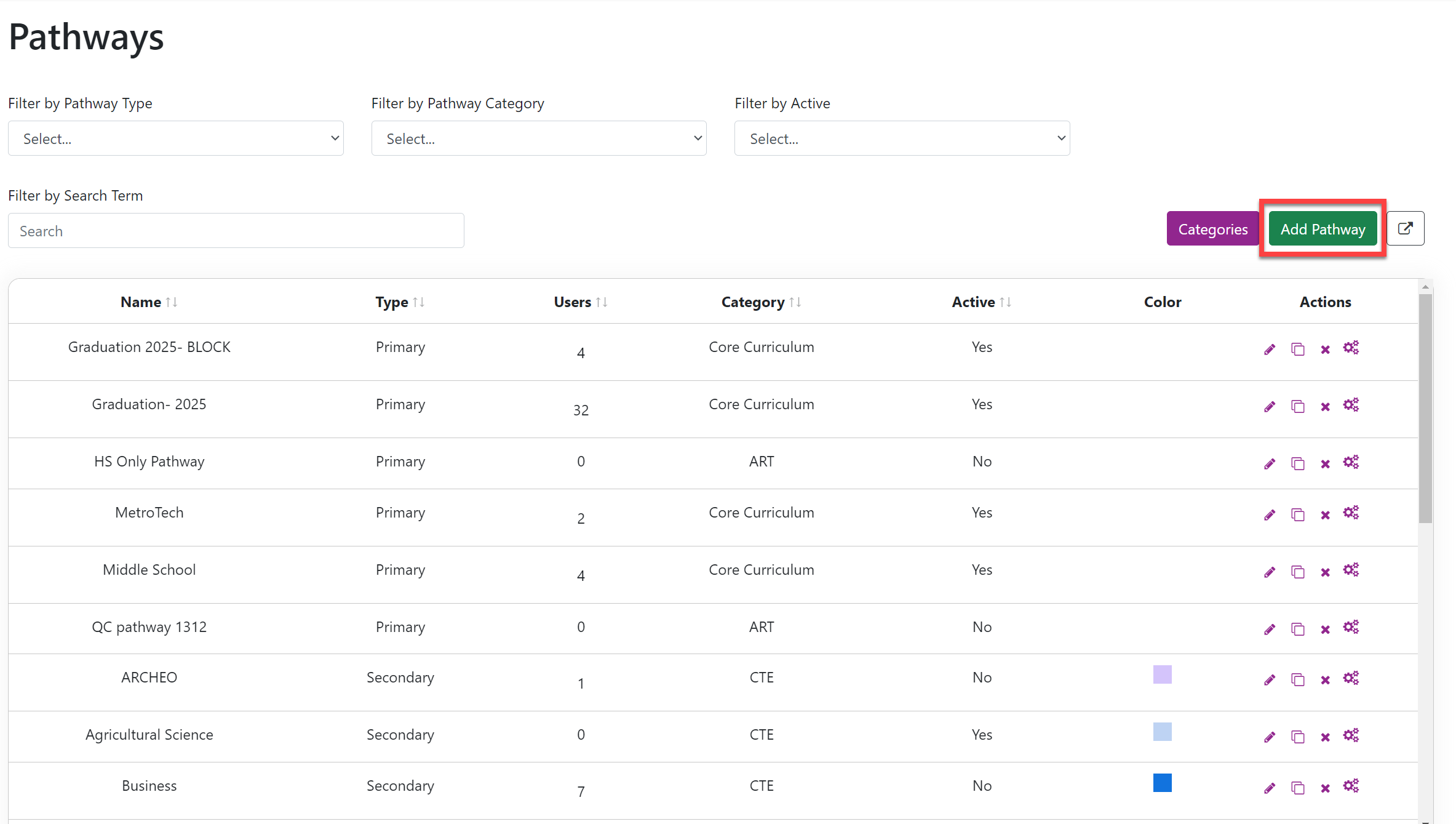
Select the Add Pathway button in the upper right.
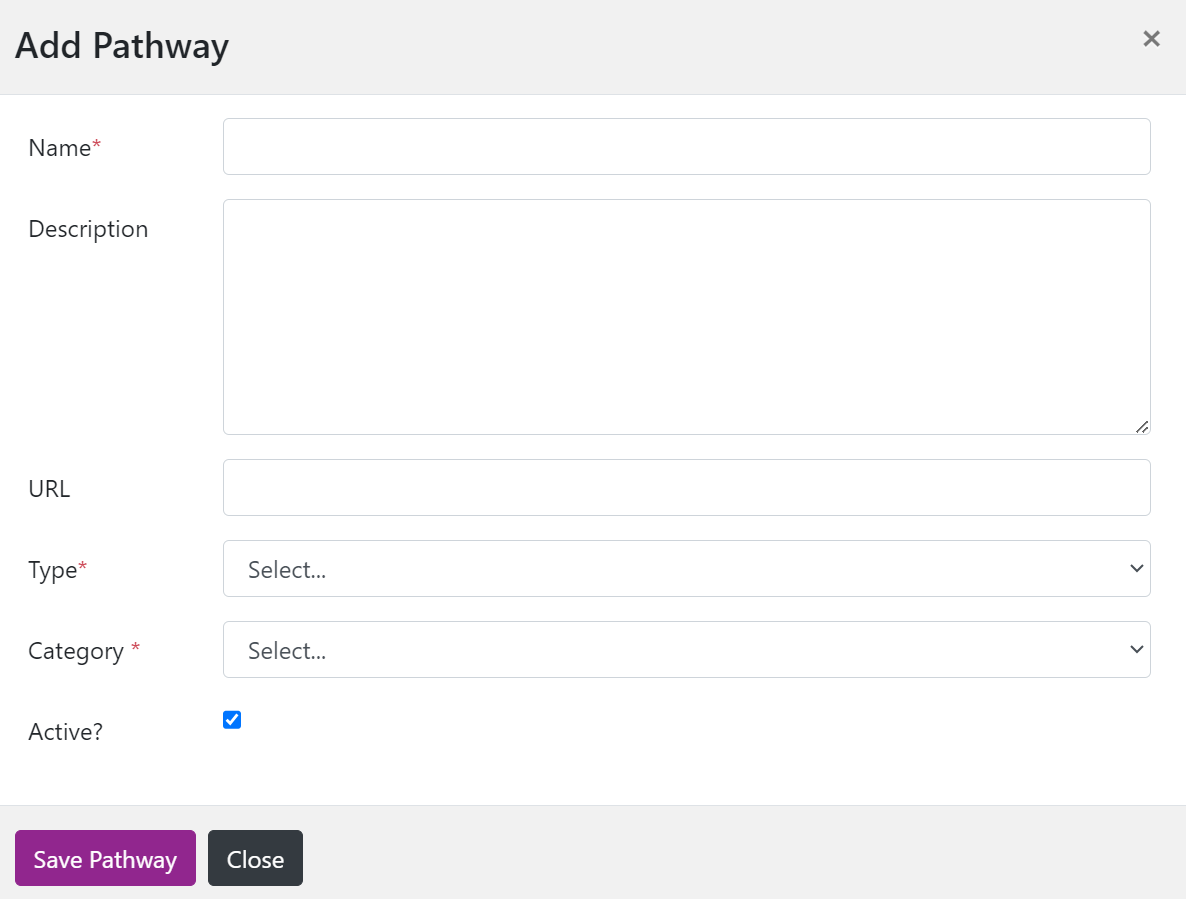
In the Add Pathway pop-out window enter the following:* Indicates a required field.
*Name: the name of the Pathway
Description: a description of the Pathway. This will appear in the Pathway Catalog for students and staff to read and understand the requirements of this Pathway.
URL: you can add a URL where students and staff can go for additional information.
*Type:
Primary: a Pathway that lead directly to graduation.
Secondary: a supplemental Pathway to graduation based on personal interest or ability.
See Definition of Primary and Secondary Pathways for more information.
*Category: select the category to which this Pathway belongs.
See Create Pathway Categories for more information.
Active? A Pathway defaults to active, but you can uncheck this box if you want the Pathway to be inactive as you build it. You can make the Pathway active once you have added all of the requirements. Active Pathways are immediately listed in the Pathway Catalog.
Select Save Pathway.