Overview of the Course Catalog
This article explains how to access and use the Course Catalog for your school.
Last updated 3 months ago
Overview of the Course Catalog
The Course Catalog provides a list and description of all of the courses offered at your school.
From the Dashboard, select Course Catalog from the menu on the left.
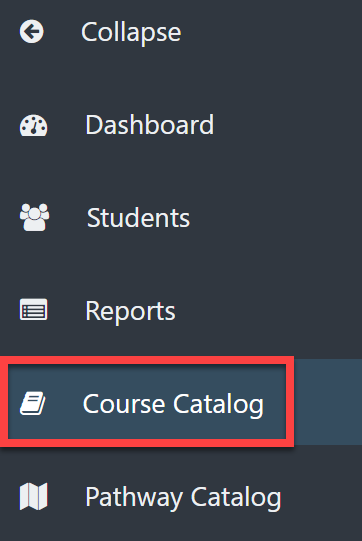
The entire Course Catalog will display.
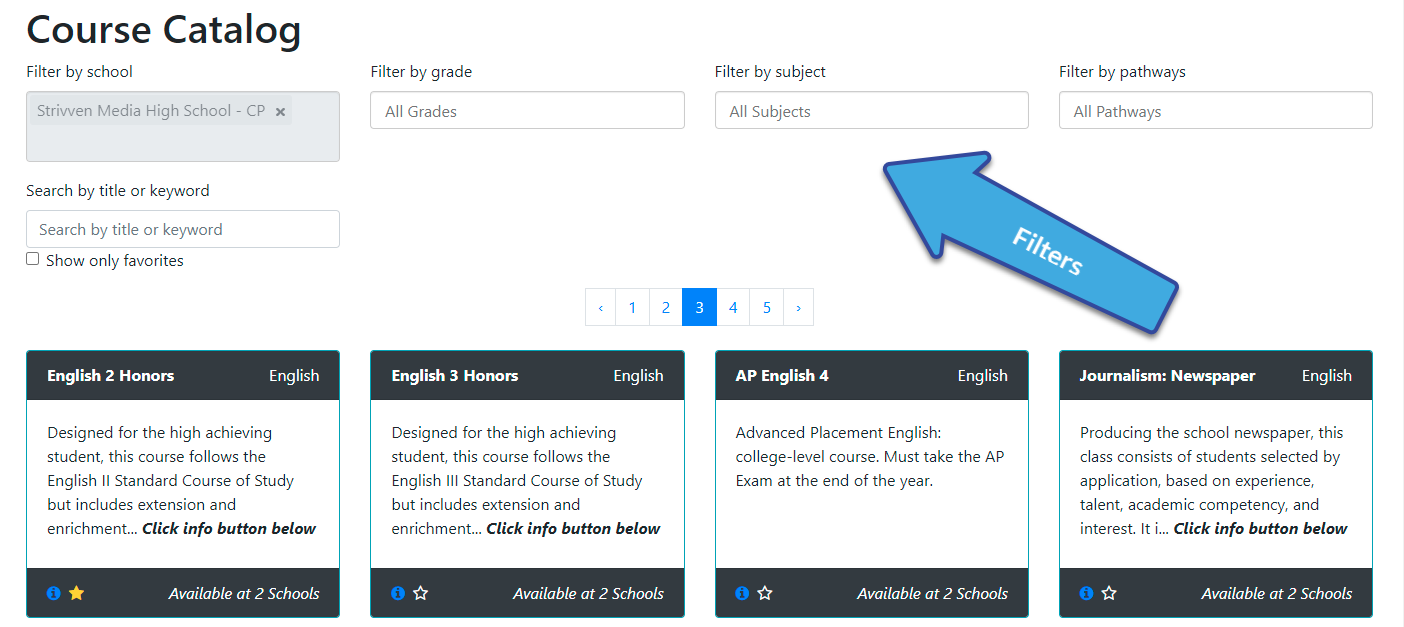
You can filter the Course Catalog to more easily find the course you need.
Filter by school: this is only available if you are enrolled at more than one school.
Filter by grade: select a specific grade level (i.e., courses offered in 9th grade).
Filter by subject: choose the desired subject.
Filter by pathways: select a pathway.
Search by title or keyword: type directly into the search box.
Show only favorites: this checkbox applies any selected filters to your favorite courses. You can choose only this to see a list of all of your favorite courses.
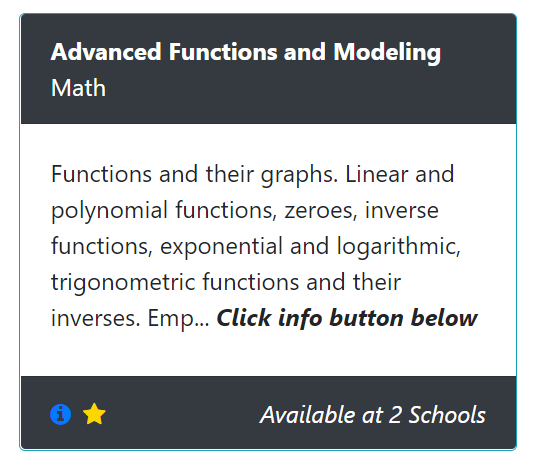
Each Course Card shows the following information:
Name of the Course
Subject
A short description
The number of schools in this district where this course is available
An Information icon
A Favorite icon (star)
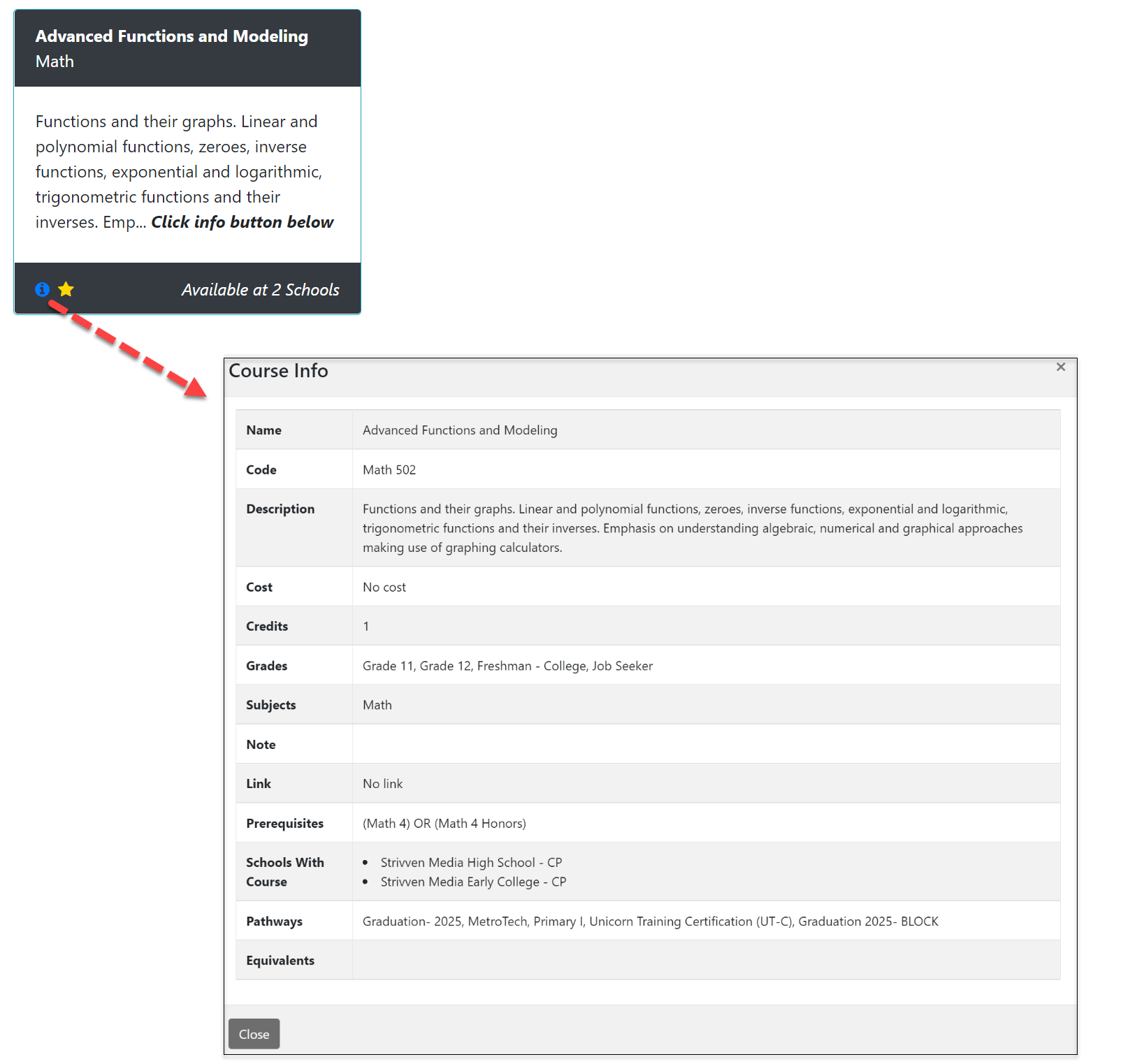
Click the Information icon to see more detailed information about the selected Course.
Name
Code
Description
Cost
Credits
Grades
Subjects
Note
Link
Prerequisites
Schools With Course
Pathways
Equivalents
6. Select the Star icon to favorite a course. Select it again to remove the course from favorites.