Complete the Guided Welcome for a Student
This article explains how to complete the Guided Welcome for a student and how to change a student's Primary Pathway if necessary.
Last updated About 6 hours ago
Complete the Guided Welcome for a Student
Sometimes the counselor will need to complete the Guided Welcome for a student. These times might include the following:
A new student arrives who has never logged in to Pathful Planner.
A student requires additional help to complete the Guided Welcome and select Courses.
A student selects the wrong Primary Pathway and submits a Plan.NOTE: anytime a Primary Pathway is changed, all courses will be lost, and the student must start over.
You can complete the Guided Welcome for a student from your Dashboard or the Students page.
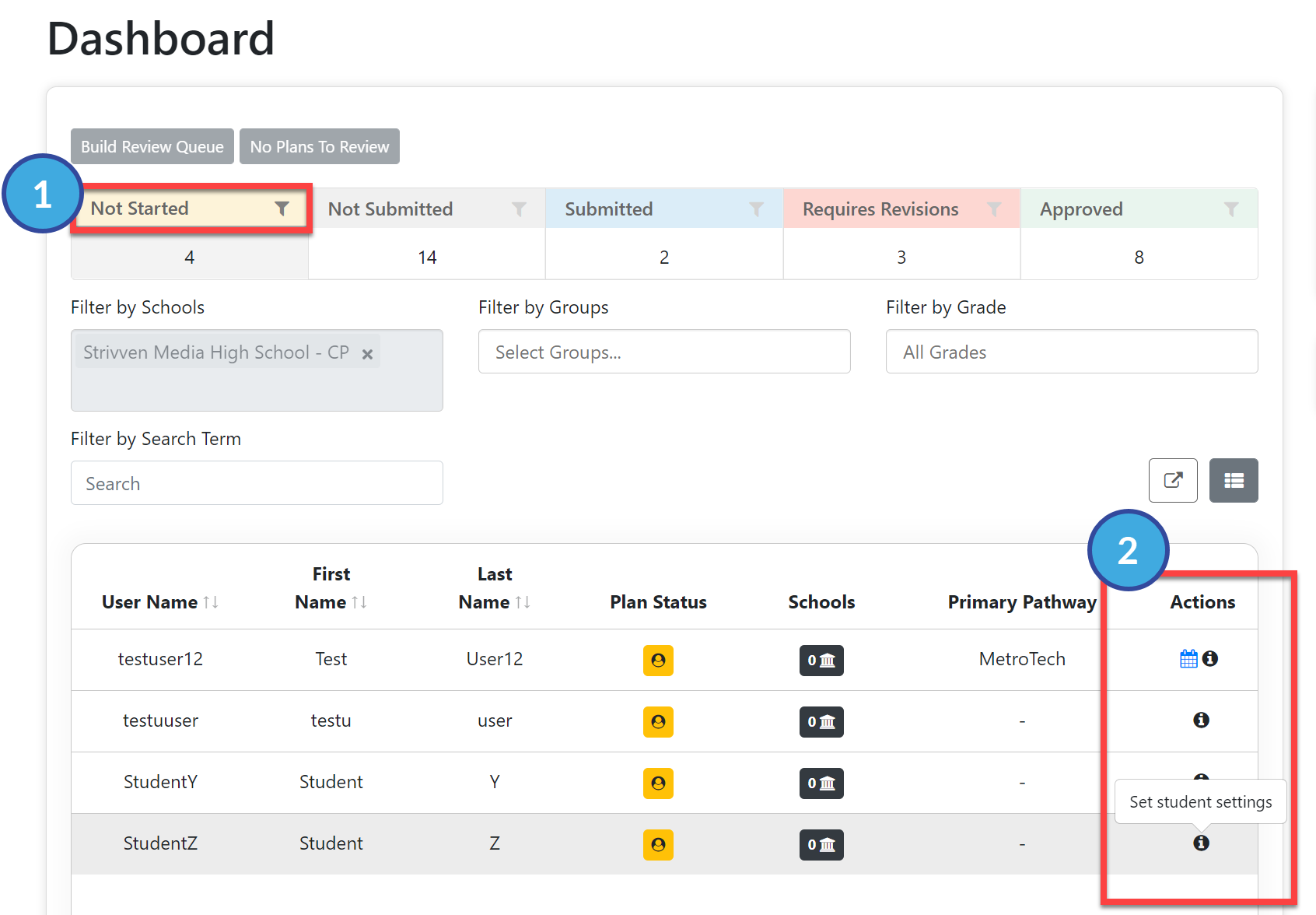
From the Counselor Dashboard, sort by Not Started.
Find the desired student in the list and select the "i" button (Set Student Settings) under the Actions column.
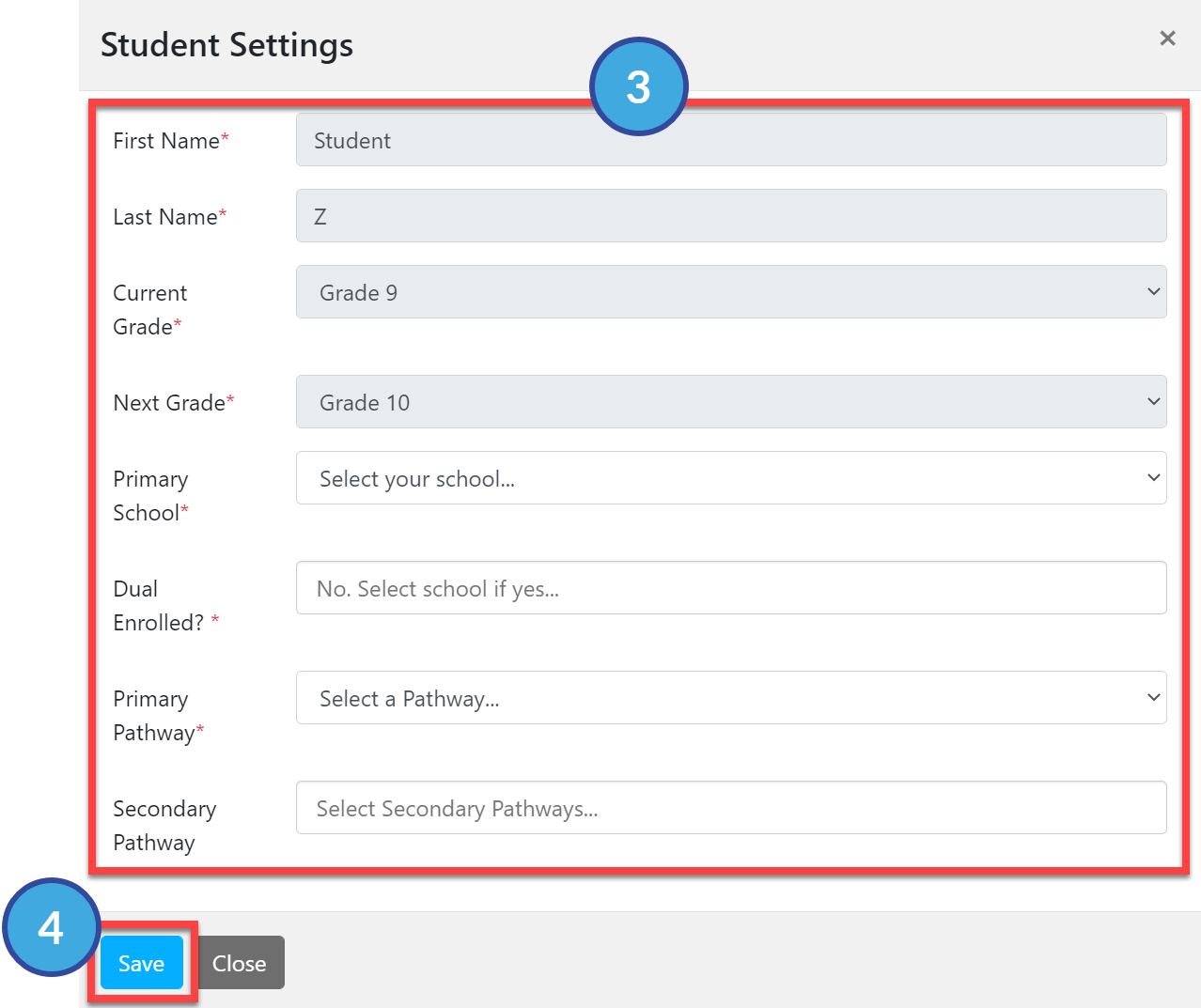
In the Student Settings window, complete all of the required information:
First Name, Last Name, Current Grade, and Next Grade are all pre-populated.
Primary School: the primary school the student is attending.
Dual Enrolled?: If the student is dual enrolled, select the additional school. If not, leave this blank.
Primary Pathway: select the student's Primary Pathway.
Secondary Pathway: select a Secondary Pathway if appropriate. Secondary Pathways can be added and removed at any time.
Select Save when you are done.
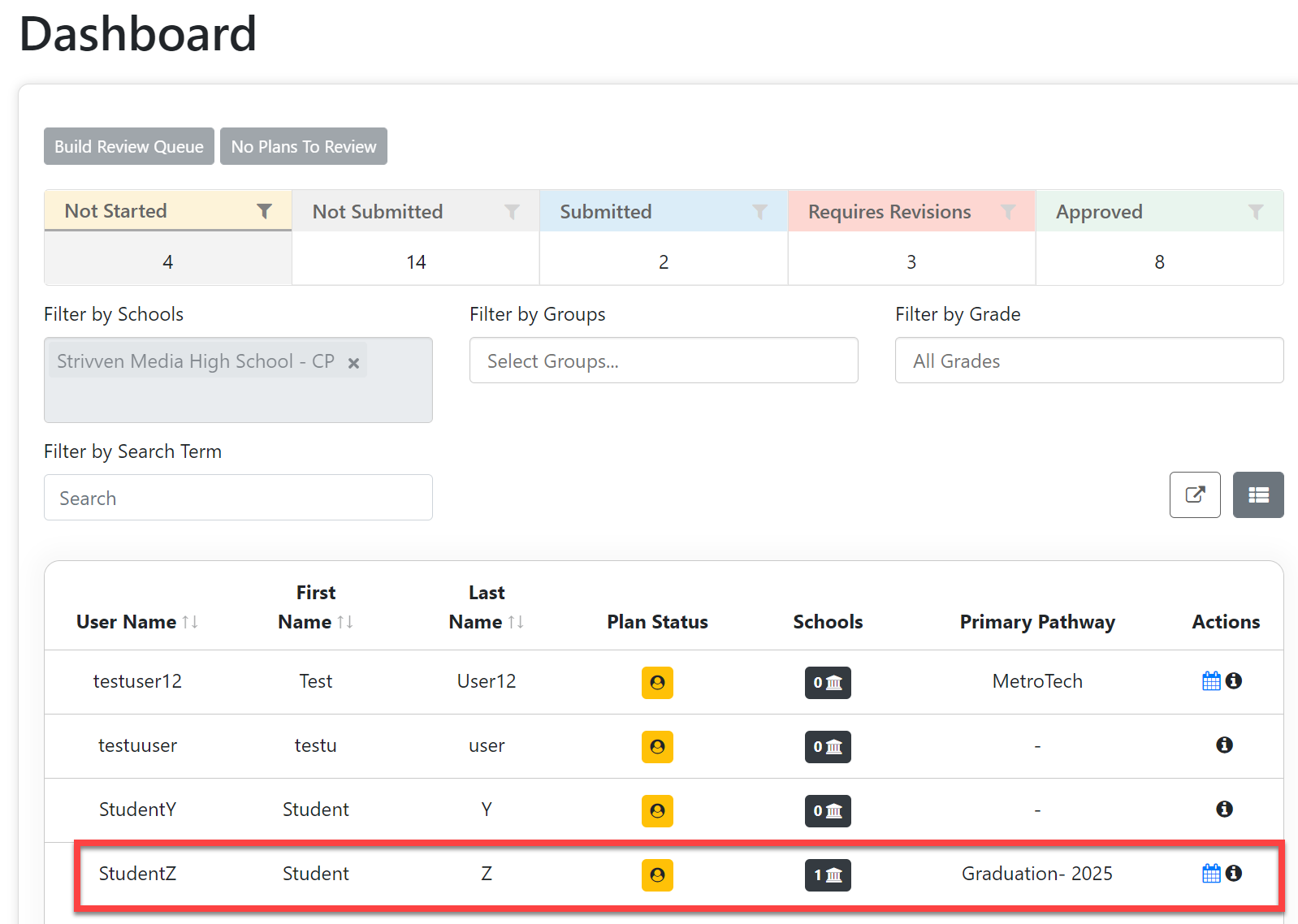
Upon returning to the Dashboard, the student has a Primary Pathway listed, and you can access the student's Course Plan.
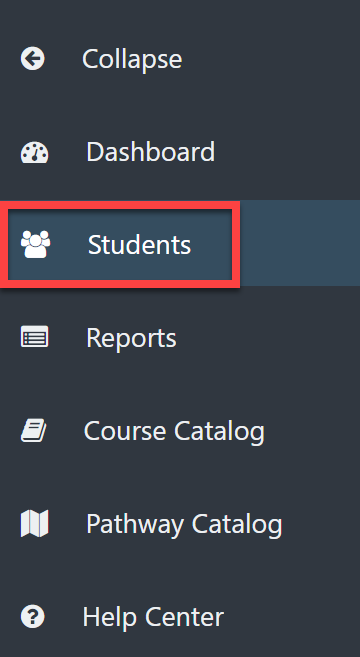
You can also access Student Settings from the Students page by selecting Students on the left menu.
Select the "i" icon (Set Student Settings) under the Actions column.
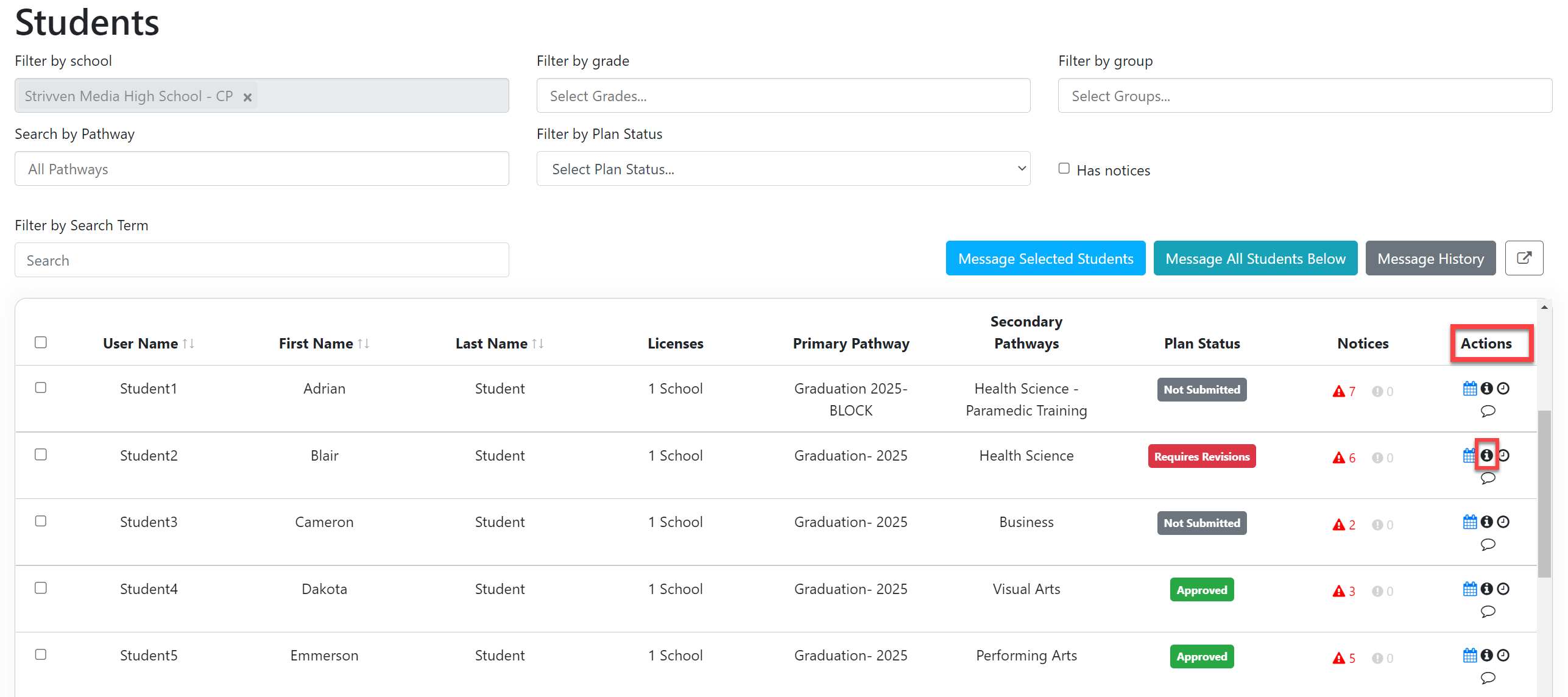
Follow the steps listed above to review or change any information.Reminder: anytime a Primary Pathway is changed, all courses will be lost, and the student must start over.