Equivalent Courses
This article explains equivalent courses and how to set them up in Planner.
Last updated 3 months ago
Equivalent Courses
Students may NOT take courses that are equivalent.
Examples of equivalent courses are Biology 1 and Biology 1 Honors, or English 1 and English 1 Honors.
Equivalent Courses are set up on the Courses page and displayed on course entries in the Course Catalog.
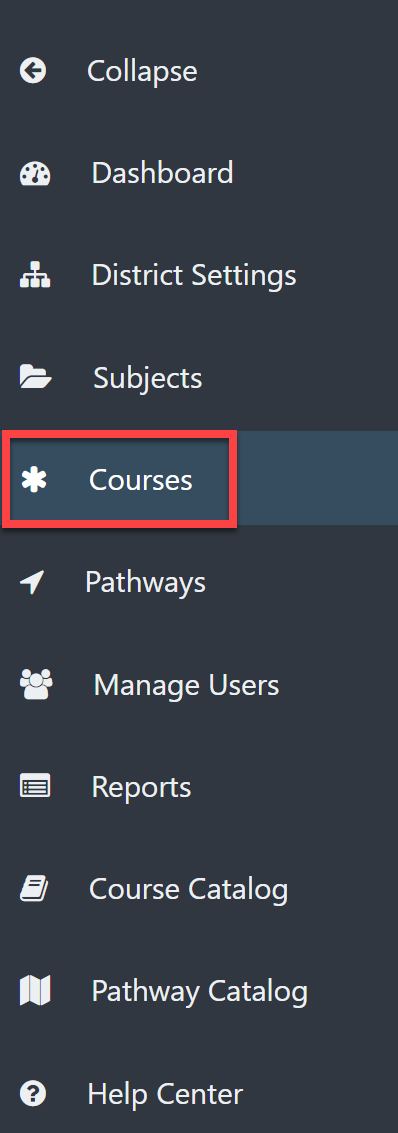
From your Dashboard, select Courses.
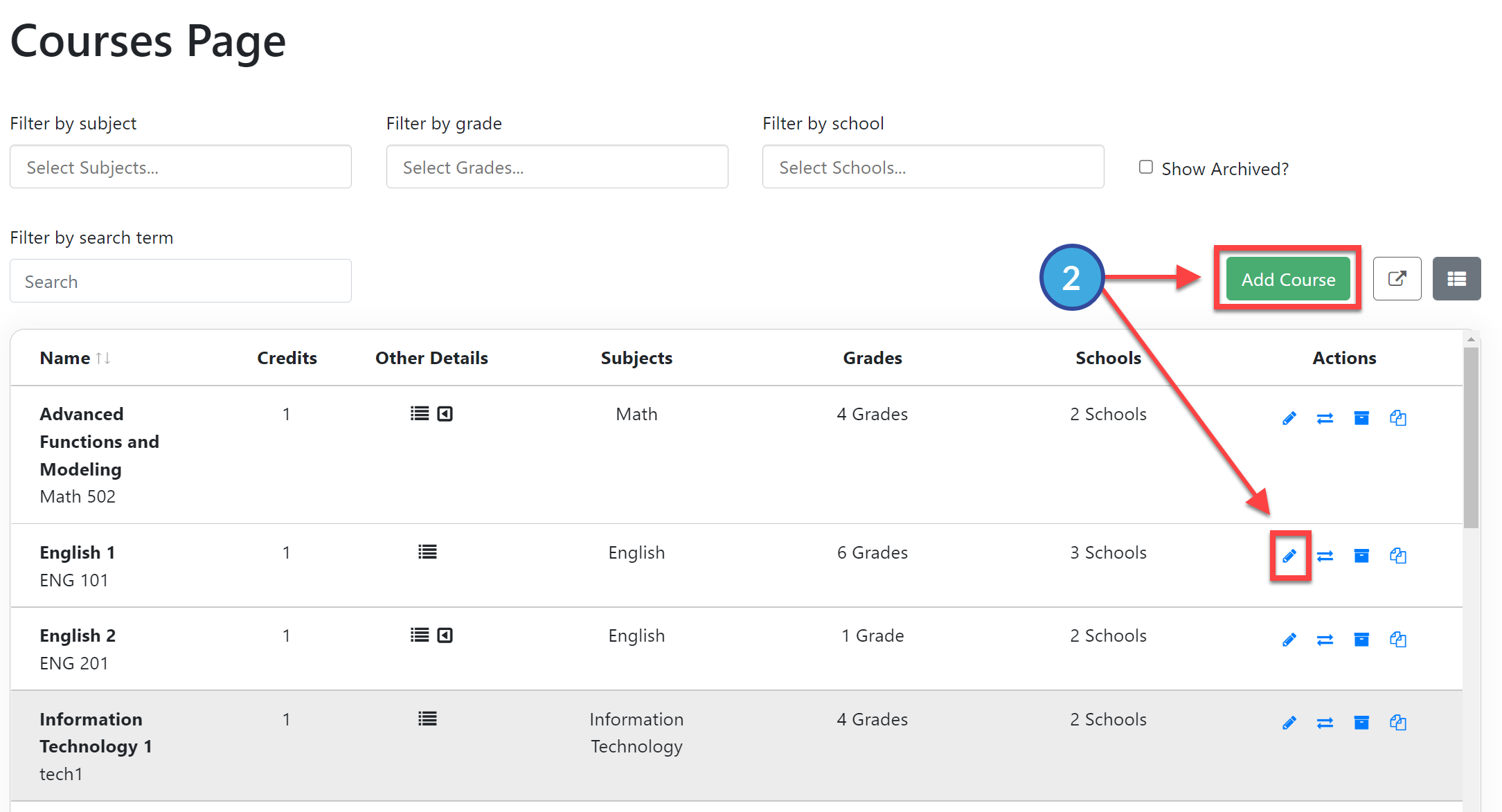
Select Add Course or edit a Course by selecting the pencil icon under the Actions menu. (Refer to Create a Course or Update a Course for additional information).
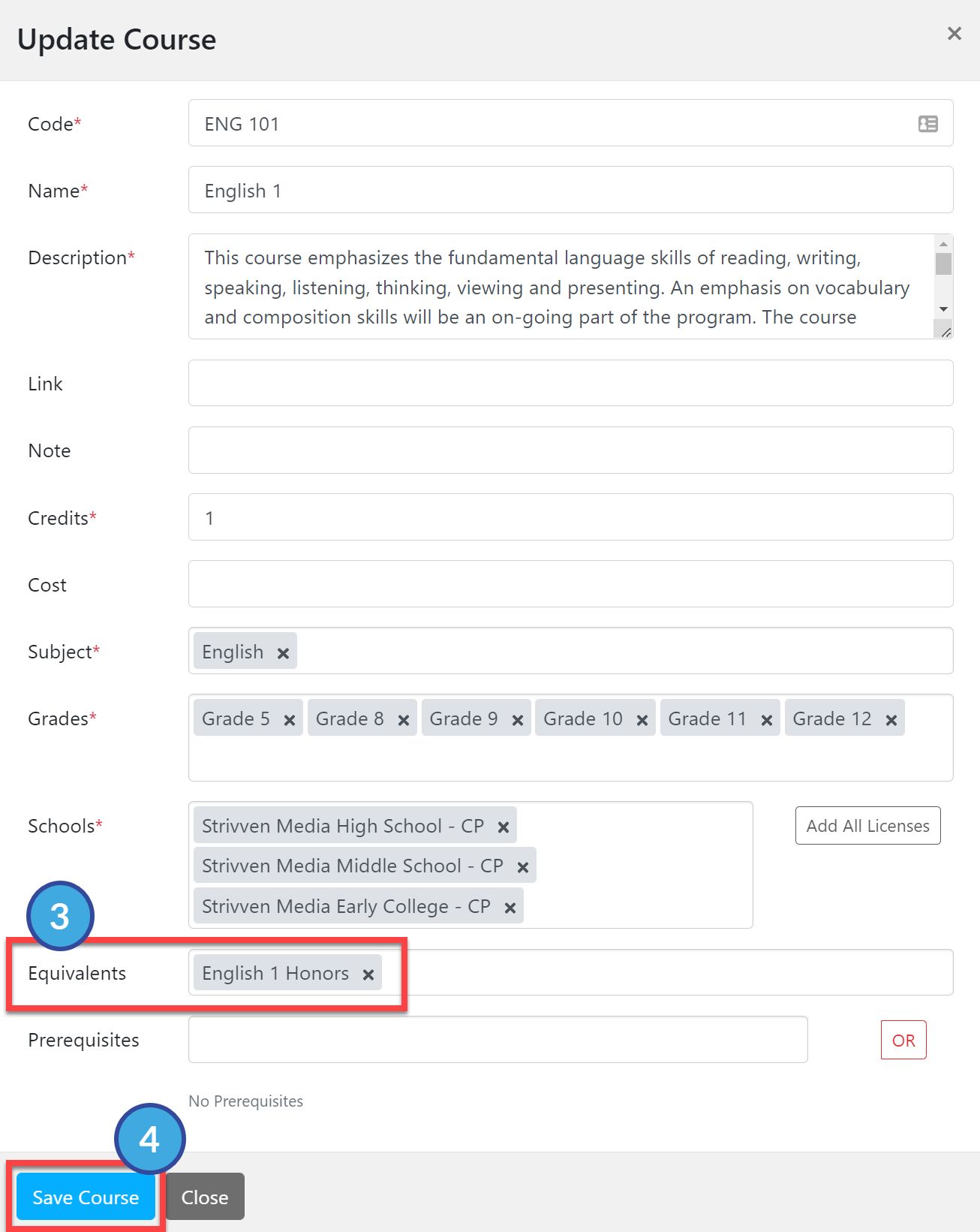
Enter or update the Equivalents field as needed. You may list more than one course.
Select Save Course.