Review Queue
This article explains how a Counselor can Build a Review Queue and review Student Plans within the Review Queue.
Last updated About 5 hours ago
Review Queue
The Review Queue allows you to build a queue of submitted Student Plans for your approval. You can quickly move through each plan and approve or request revisions as needed.
If you leave and return, the Review Queue will remain as it was. To add newly submitted Plans to the Review Queue, you will need to build a new Review Queue.
Build the Review Queue
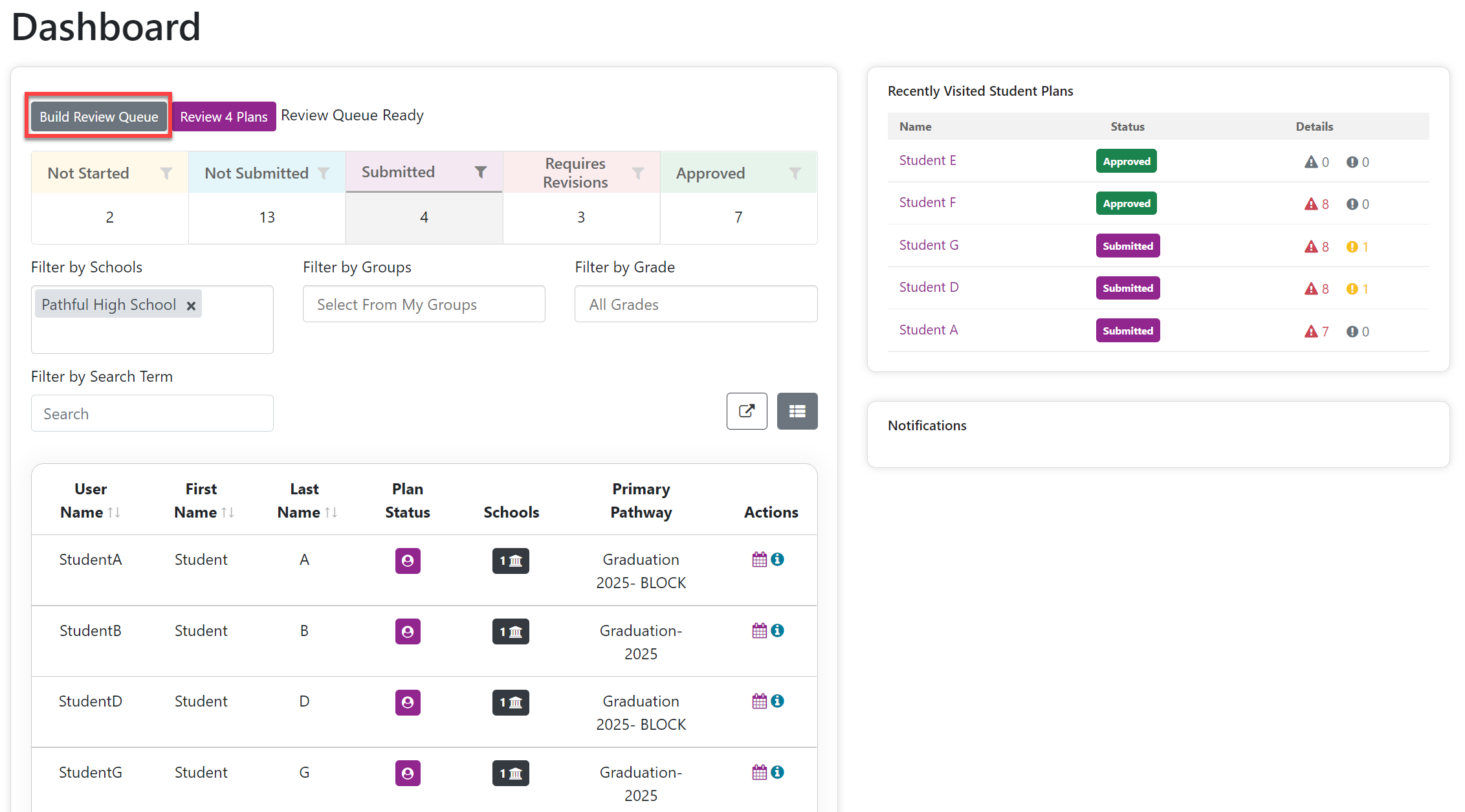
From your Dashboard, filter your data as needed (i.e., by Group, school, grade, etc.).
Select the Build Review Queue button.
The Review Queue will build automatically based on the selected filters and the students with the Needs Approval status.
Once the Review Queue is built, you can begin to review Student Plans.
Start the Review Queue
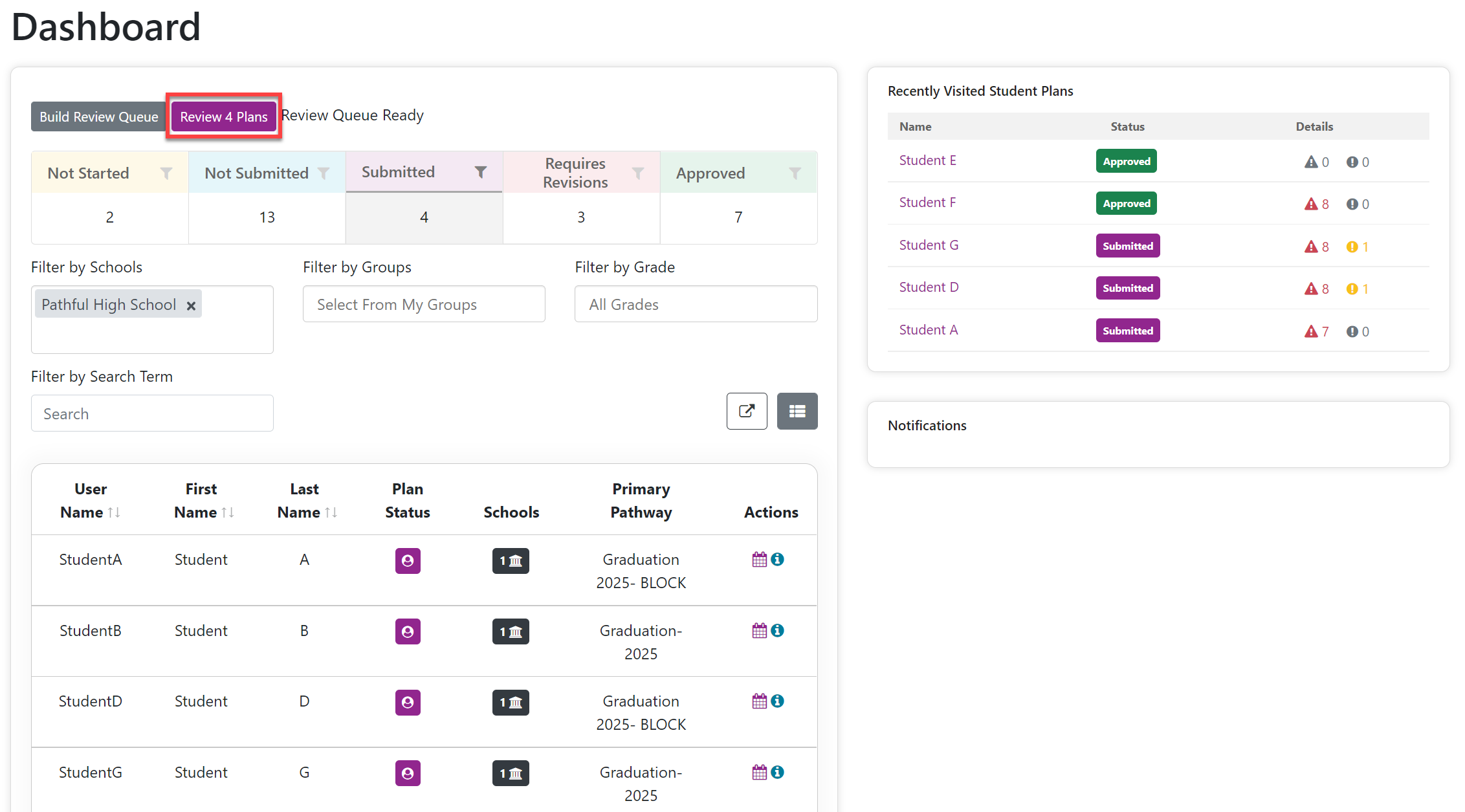
Select the Review Plans button.
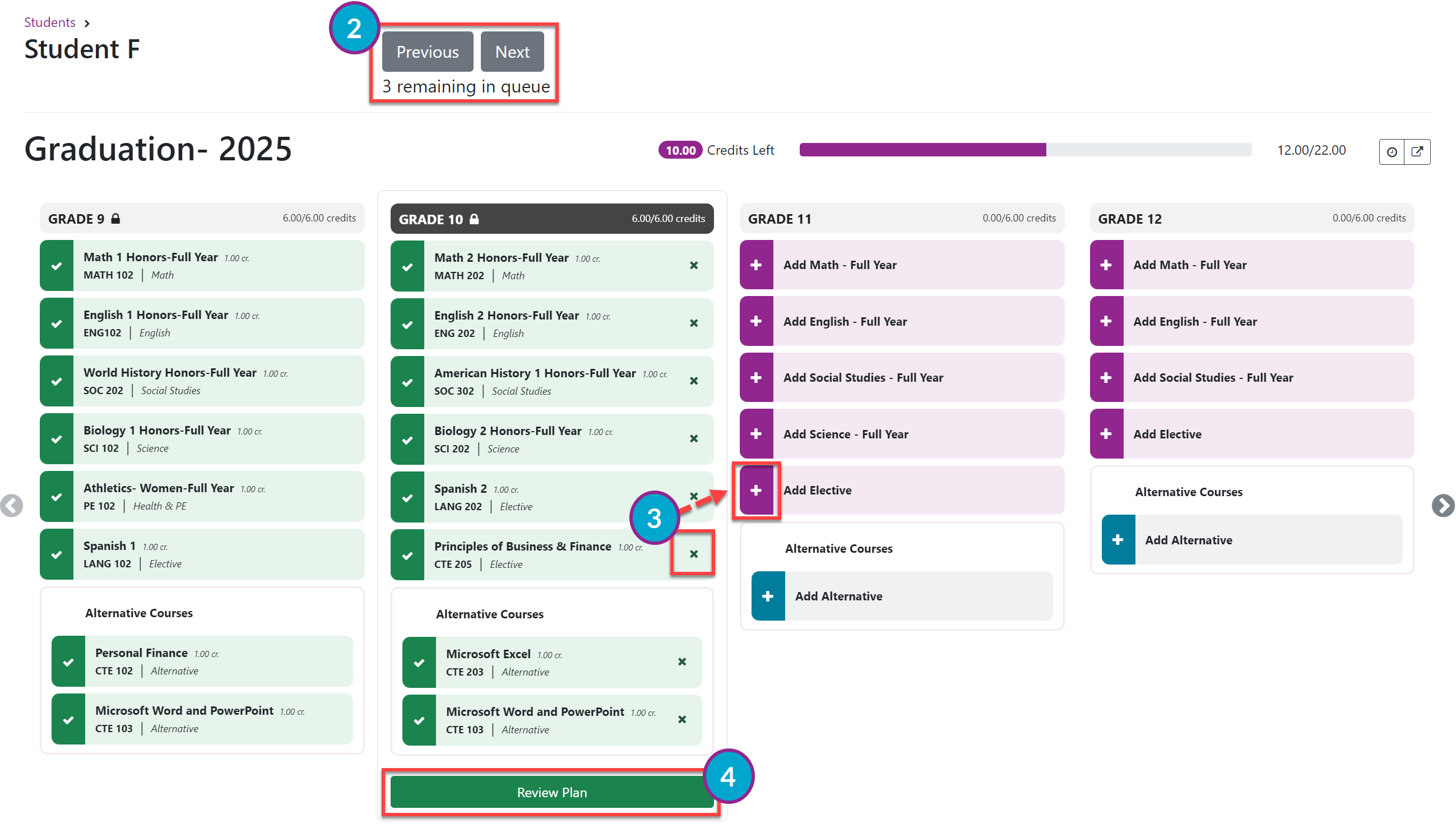
There are navigation buttons (Previous and Next) across the top for navigating through the Review Queue.
Make any necessary edits to the Plan using the Add ("+") and Remove ("x") buttons.
Select Review Plan on the student's Plan.
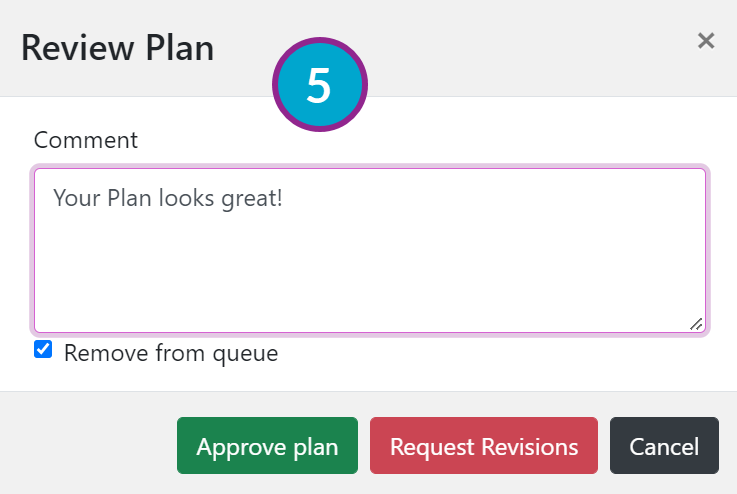
In the Review Plan pop-out window, you can do the following:
Leave a comment for the student.
Approve the Plan or Request Revisions.
Check/uncheck the Remove from queue checkbox. (This is based on personal preference).
Once you have reviewed a Plan, continue to the next student until you have reviewed all of the Student Plans in the Review Queue.
You can leave and return and build a new Review Queue as often as needed.