Make a Pathway Inactive
Pathways default to active but can be set to inactive as needed. This article explains how to make a Pathway inactive and back to active.
Last updated About 5 hours ago
Make a Pathway Inactive
Pathways default to active but can be set to inactive.
Inactive Pathways are not listed in the Pathway Catalog.
Students cannot select inactive Pathways.
Students who are using a Pathway that becomes inactive can continue to do so.
The Curriculum Manager can edit an inactive Pathway.
You can change the status of a Pathway to active or inactive at any time.
How to Make a Pathway Inactive
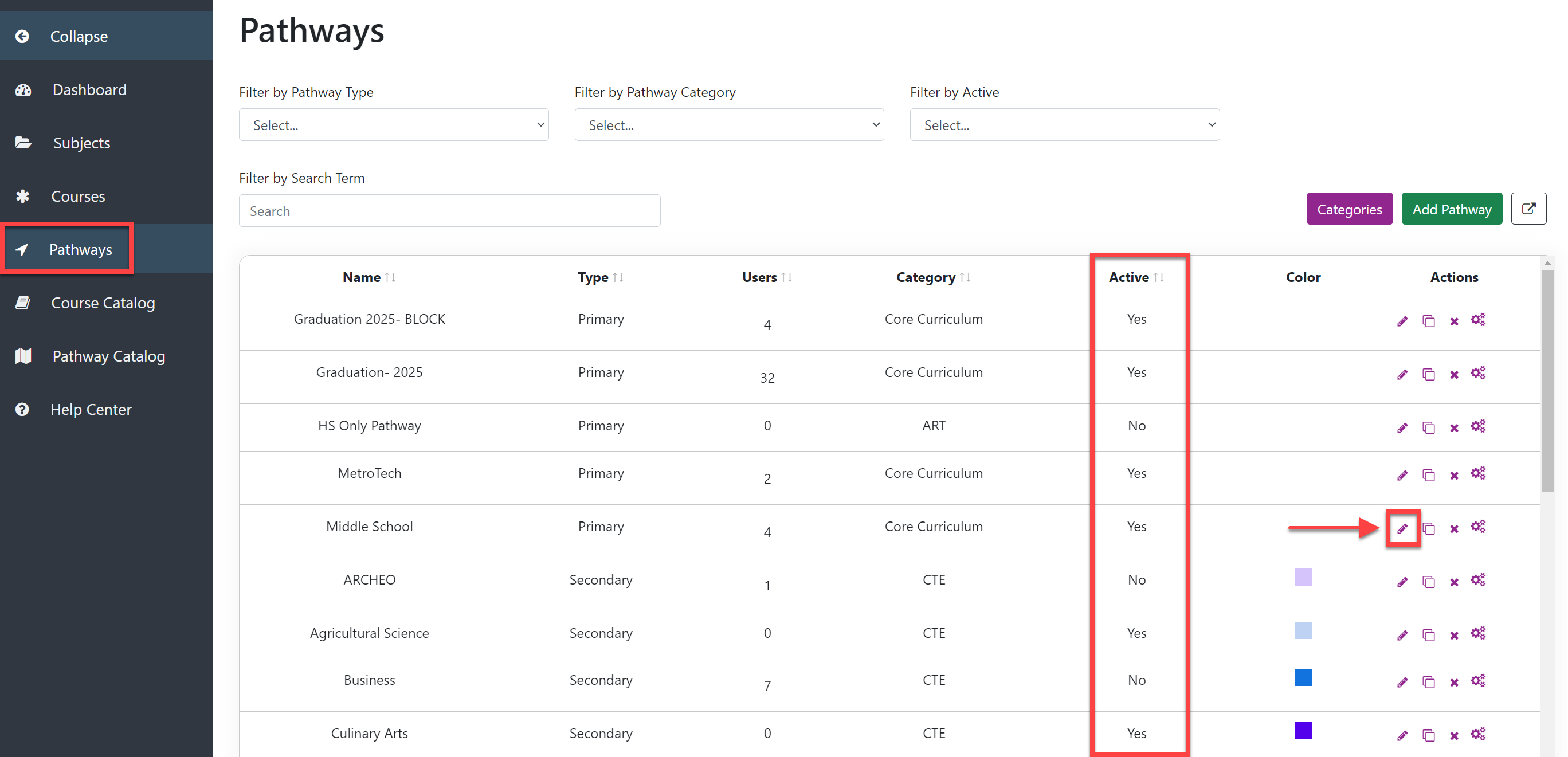
Select Pathways from the left navigation.
The Pathway table has a column that shows active and inactive.
Select Update (the pencil icon) to the right of the desired Pathway.
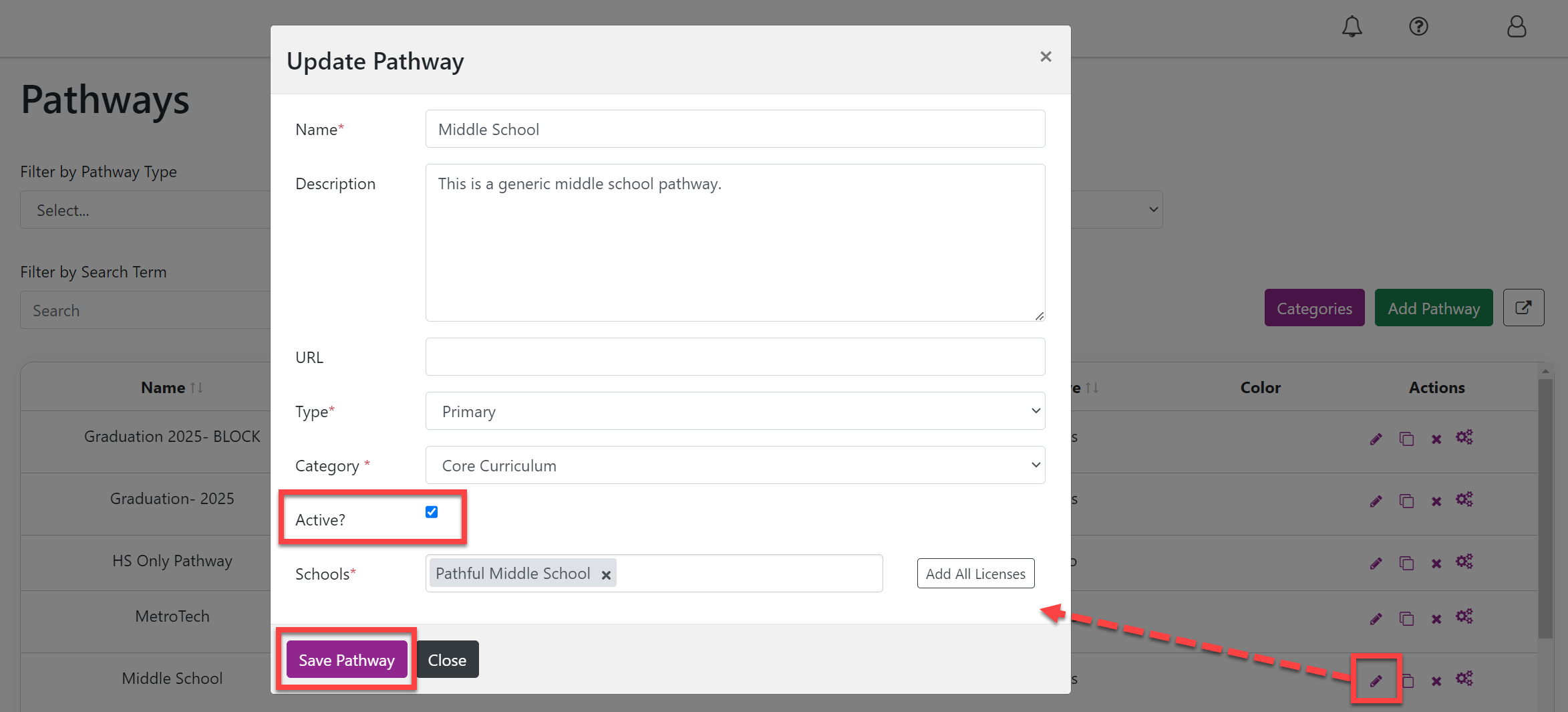
Select the checkbox to make the Pathway inactive or return it to active.
Select Save Pathway.