Add or Remove a User Role
This article explains how to add or remove a dual role to or from a user.
Last updated About 5 hours ago
Add or Remove a User Role
Admin-level users (i.e., District Admin or School Admin) can add or remove additional roles to or from a user.
The District Admin has access to all users within the district, and the School Admin has access to users within their school only.
NOTE: you cannot promote someone to a role higher than your own. For example, a School Admin cannot assign the role of Curriculum Manager or District Admin to another user.
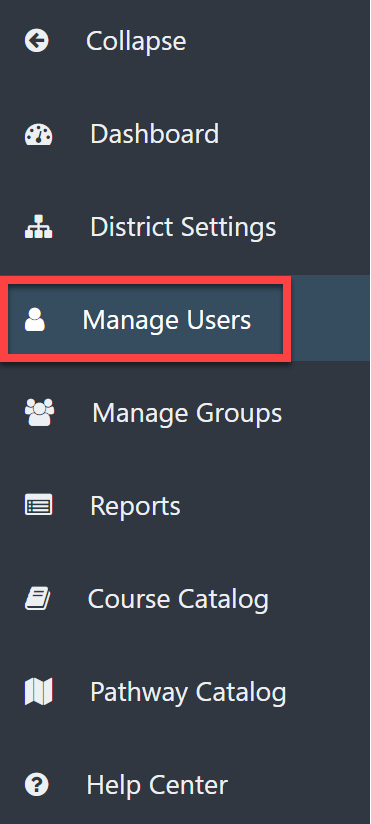
From your Dashboard, select Manage Users.
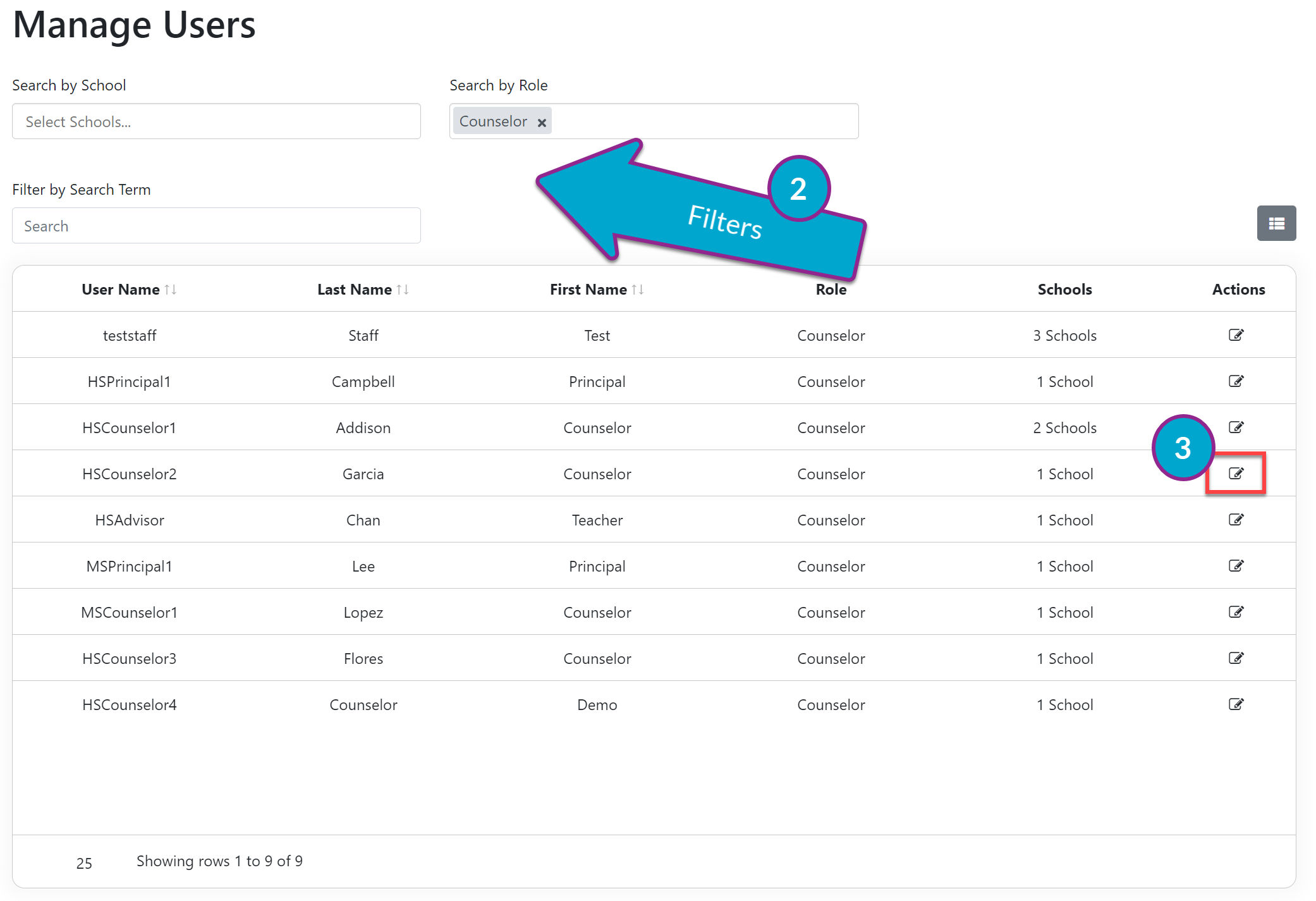
Use the search filters as needed.
Once you have located the desired user, select the Edit button in the Actions column.
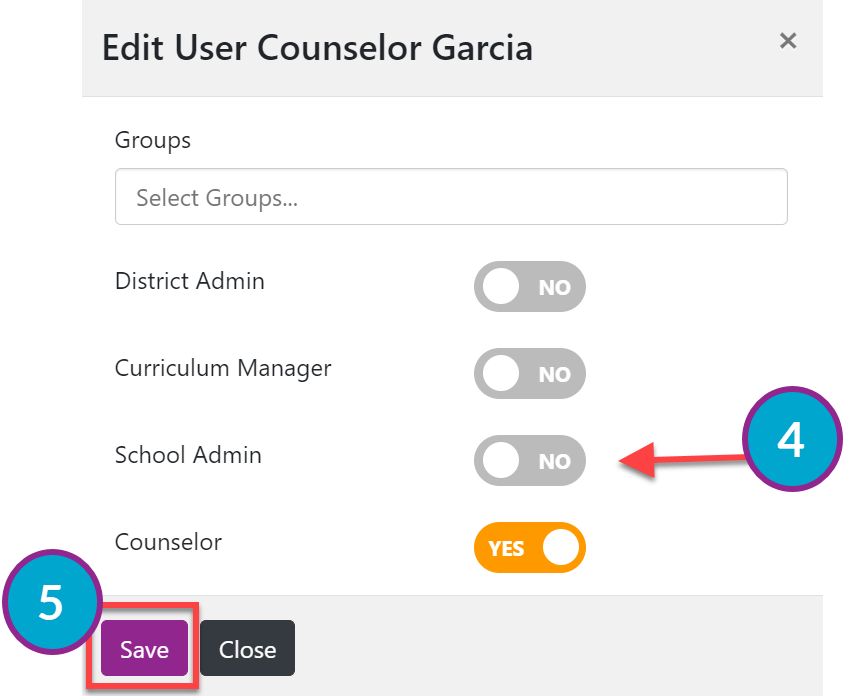
Select the new role by clicking the toggle button to Yes or removing the role by toggling to No.
Select Save.
Your changes are immediate.