Send a Message to a Group of Students
A step-by-step guide for how to send a message to a group of students.
Last updated About 2 months ago
Send a Message to a Group of Students
In Pathful Planner, you can send a message to an individual student or a group of students.
Refer to Send a Message to a Student for how to send a message to an individual student.
NOTE: Students cannot respond to nor initiate messages in Pathful Planner.
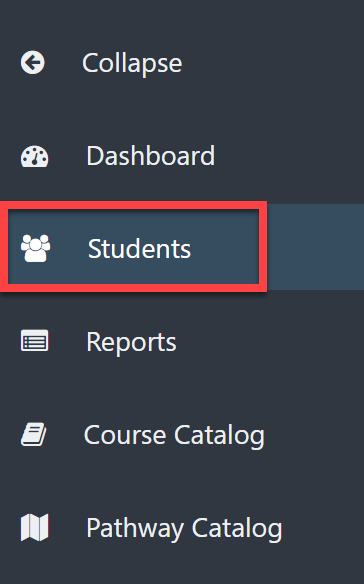
From the Counselor Dashboard, select Students on the left.
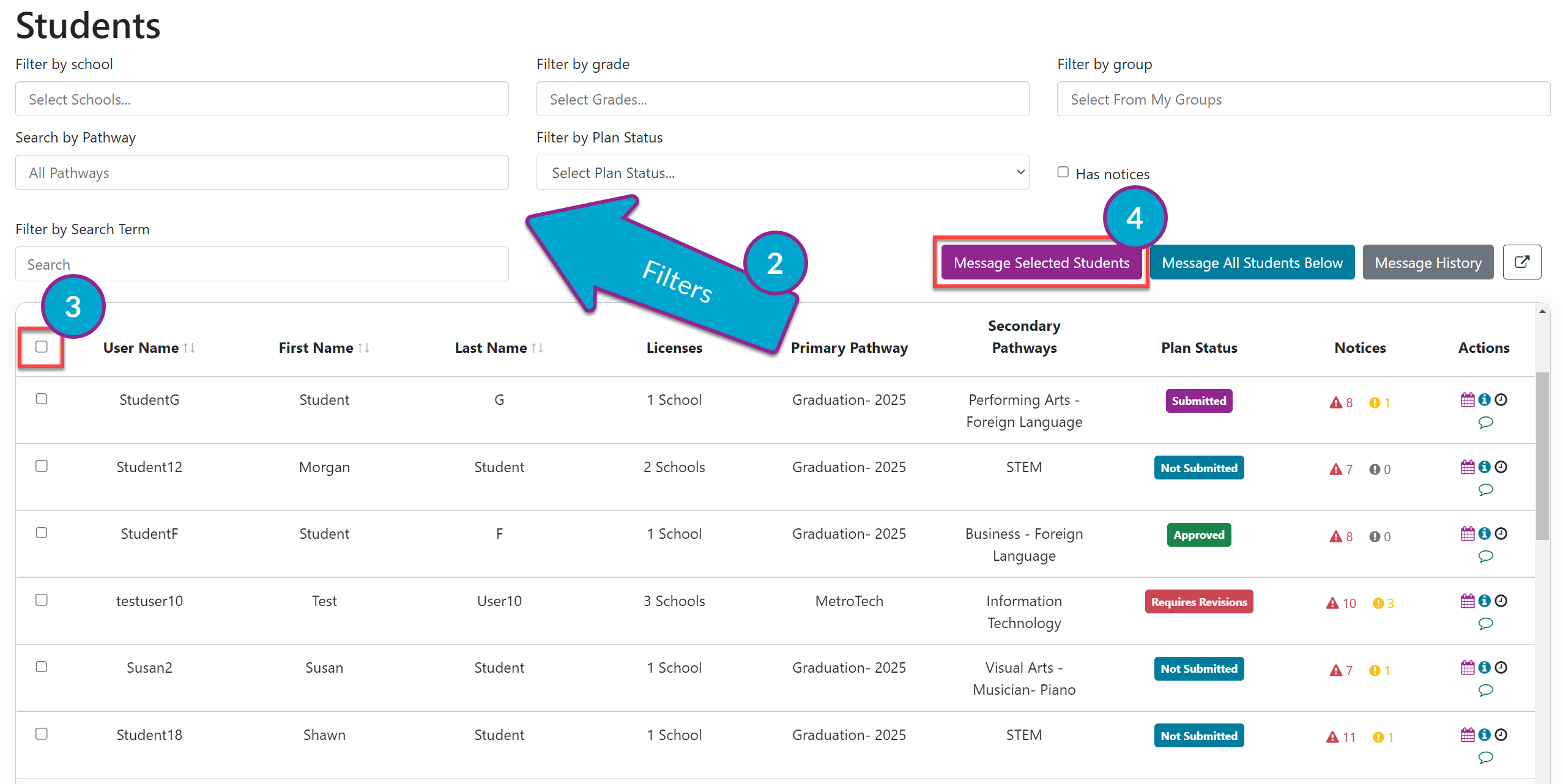
On the Students page, use the filters to locate the group of students to whom you want to send a message. For example, you may need to send a message to all students in a particular Secondary Pathway.
Select the checkbox in the table header to the left of the User Name to select all students in the list or choose the students individually as needed.
Select Message Students in the upper right.
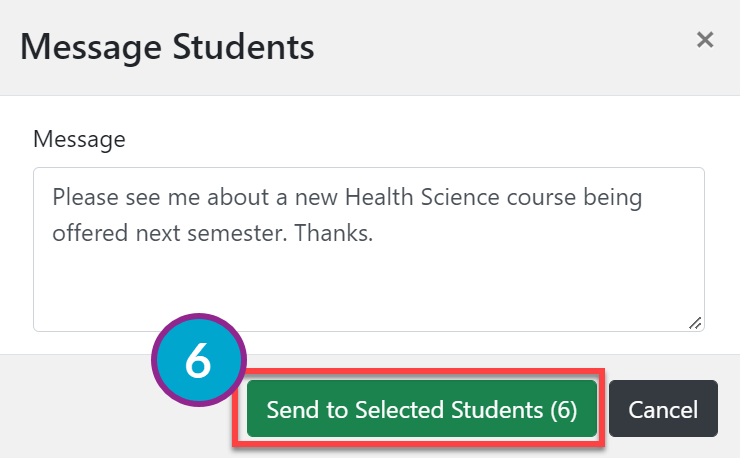
Type your message.
Select Send to Selected Students.
Students will have a message from you visible on their Dashboard the next time they log in to Pathful Planner.If your district has turned on Email Notifications, each student will receive an email indicating they have a message in Course Planner.