Approve a Student's Plan
A step-by-step guide for how to approve or deny an individual student's Plan.
Last updated About 5 hours ago
Approve a Student's Plan
There are multiple ways to navigate to a Submitted Student Plan:
From the Counselor Dashboard, apply the Submittedfilter and locate the desired student.
If you have recently viewed the desired student's Plan it will be listed on your Dashboard under Recently Visited Student Plans.
Select Students on the left menu to go to the Students Landing page.
Use the Review Queue to generate a list of Submitted student Plans that need to be reviewed.
Approve an Individual Student's Plan
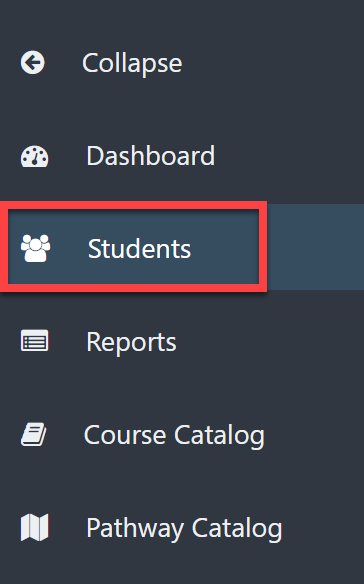
From your Dashboard, select the Students icon on the left menu.
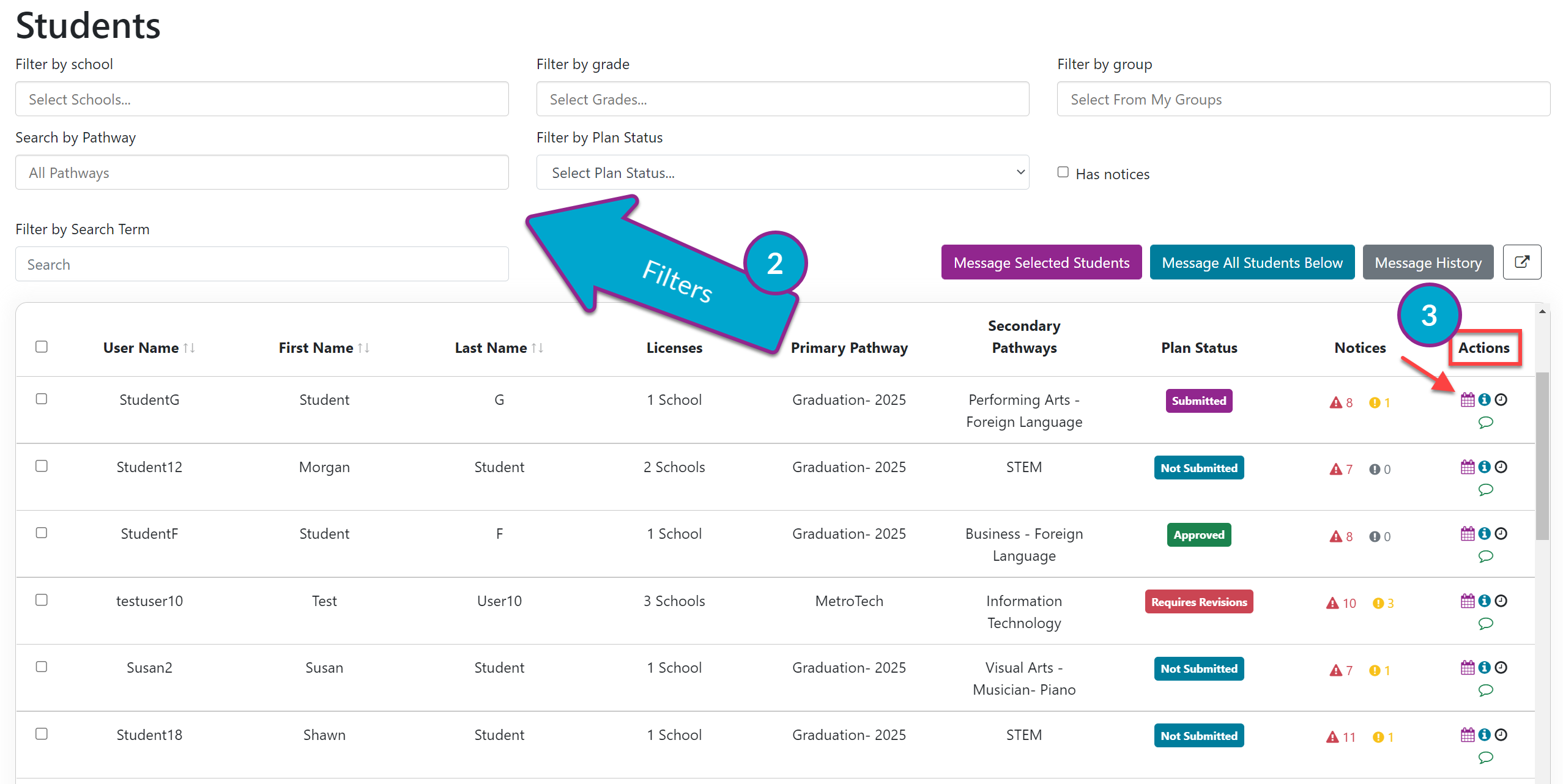
Find the desired student using the filters as needed.
Under the Actions column, select the Student Planicon to the right of the desired student's name.
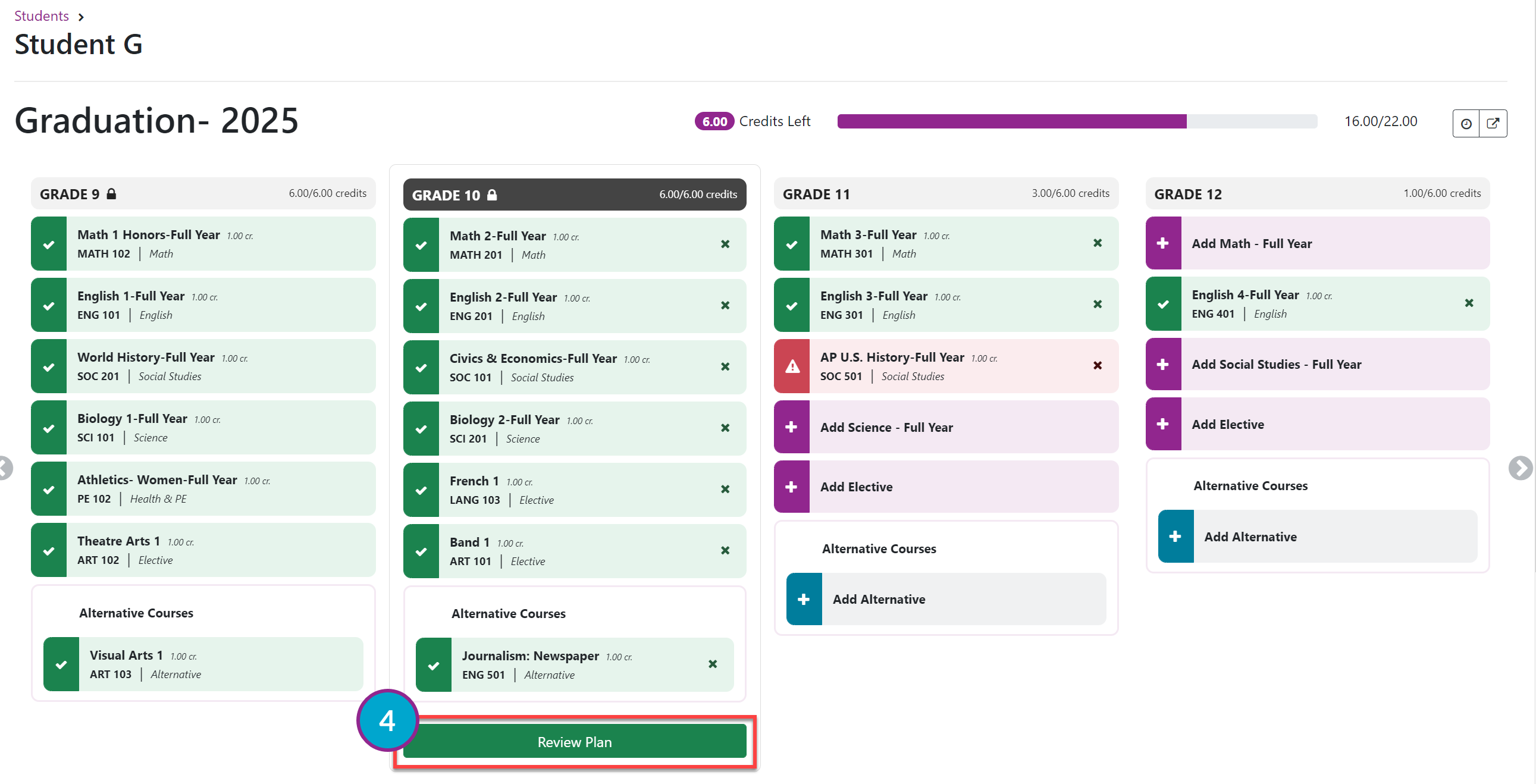
Select Review plan at the bottom of the next school year column.
From the Review Plan pop-up window, you can do the following:
Write a comment to the student
Approve Plan
Request Revisions
Cancel

Your Dashboard will immediately reflect the change in status for this student's Plan.
The student will automatically receive a Plan status notification on their Dashboard as well. This will be visible the next time the student logs into Planner. If your district has turned on Email Notifications, the student will also receive an email indicating they have a message in Pathful Planner.