View My Plan
This article explains how to view your Plan, look at graduation requirements met, remaining credits, and more.
Last updated About 5 hours ago
View My Plan
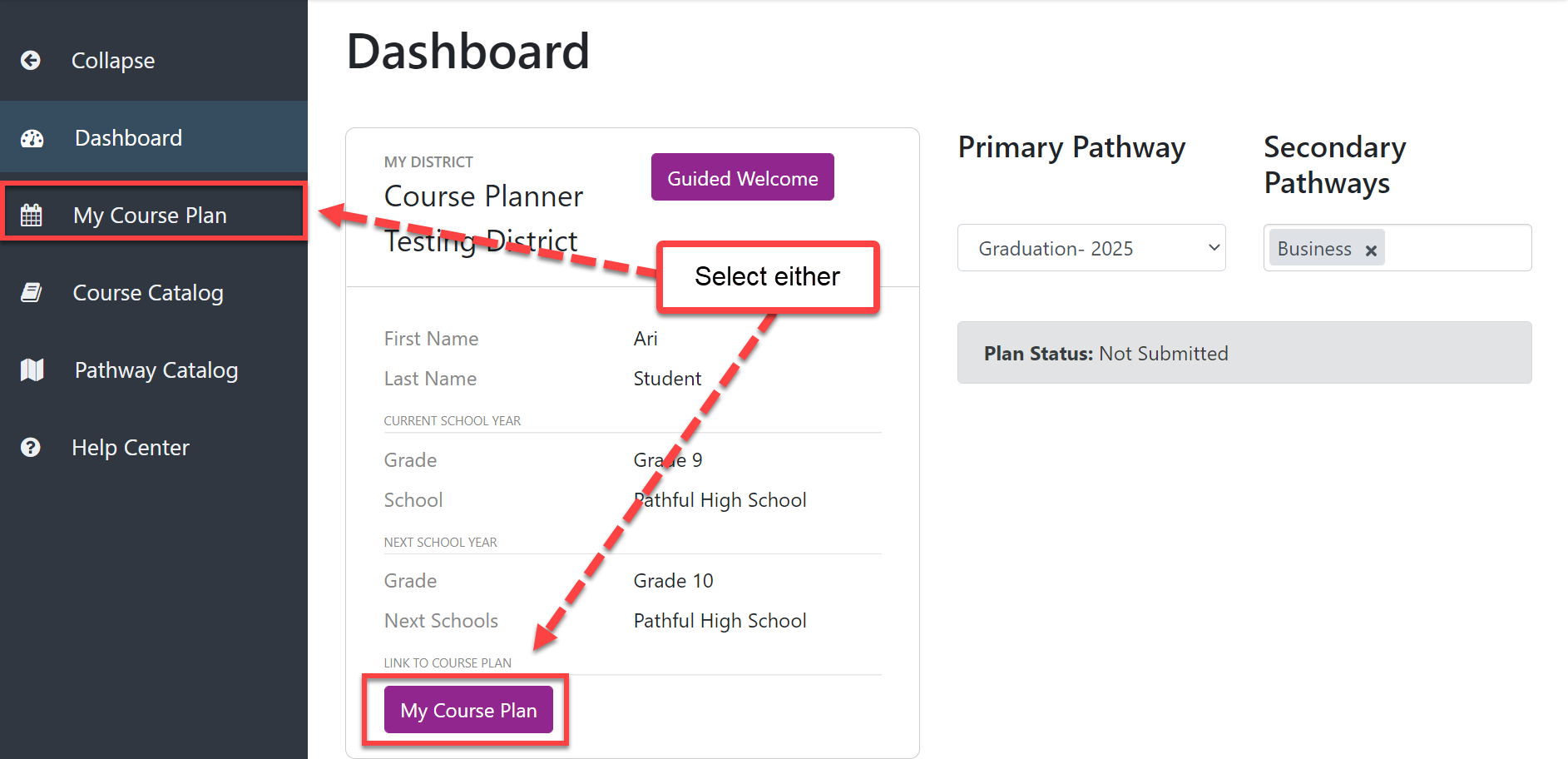
From the Dashboard, select My Course Plan on the left menu or at the bottom of the information box.
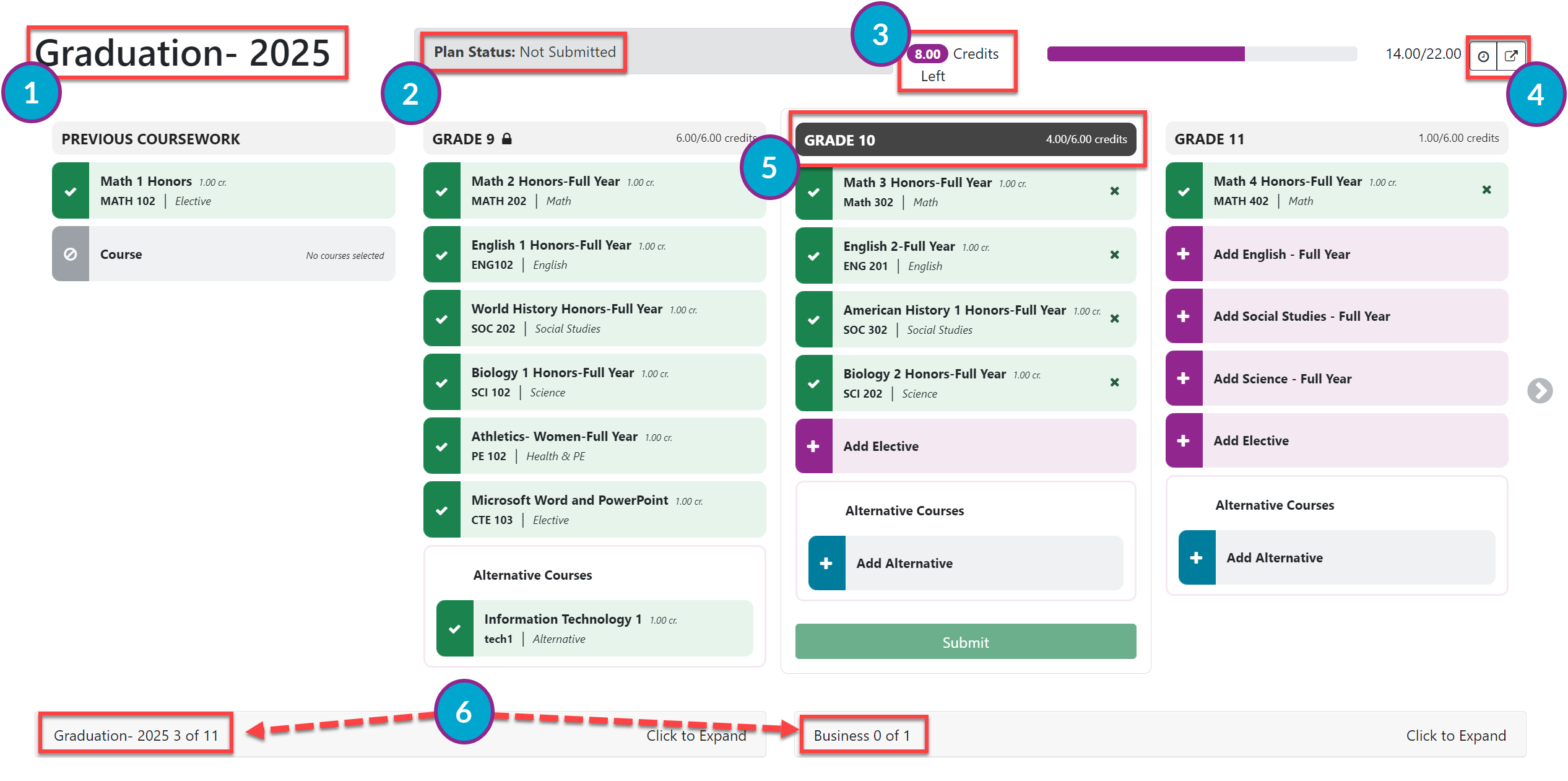
Your Course Plan shows the following information:
The name of your Primary Pathway.
Your Plan status.
The number of credits left and the total number needed to complete your Primary Pathway (i.e., graduation).
Icons for the following:
View your Change Log
Export your Plan
Courses for each grade level. The current grade level (i.e., the grade for which you are currently selecting courses) is highlighted in black at the top.
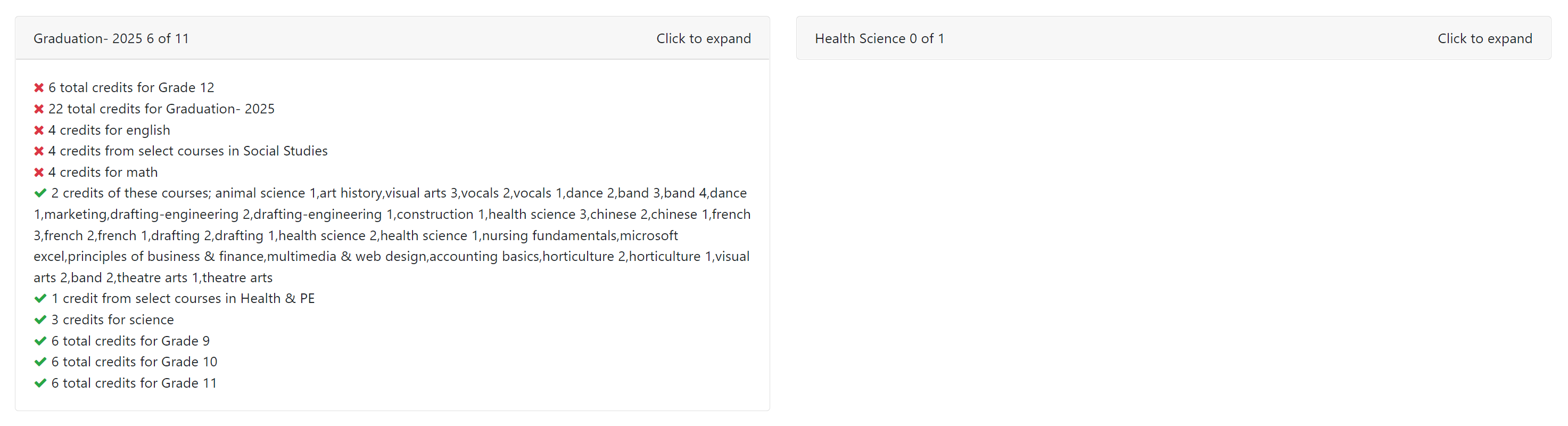
At the bottom of the Plan, click the Pathway boxes to expand and see a list of all requirements. A checkmark indicates the requirement has been met and "x" indicates the requirement has not been met.
From this page, you can do all of the following:
View all of your Courses.
Add or remove Courses from your Plan.
Change when you are taking a Course. Refer to Edit My Plan.
Submit your Plan. Refer to Submit My Plan.
Add Courses to your postsecondary years (i.e., after high school graduation) if this option is available based on your district settings.