View Your Notifications
This article explains how to view and clear notifications sent to you from your counselor.
Last updated 3 months ago
View Your Notifications
There are two types of notifications in Pathful Planner:
Automated notifications regarding changes to your Plan Status.
Direct messages from your Counselor or Advisor.
If your school allows it, you will get an email to your school email account whenever you have a notification in Planner.
You cannot respond to a message from your Counselor through Planner. If you need to respond to a message, it is best to speak directly to your Counselor or use another approved mode of communication, such as your school email.
Notifications are located in the upper right corner of your Dashboard.
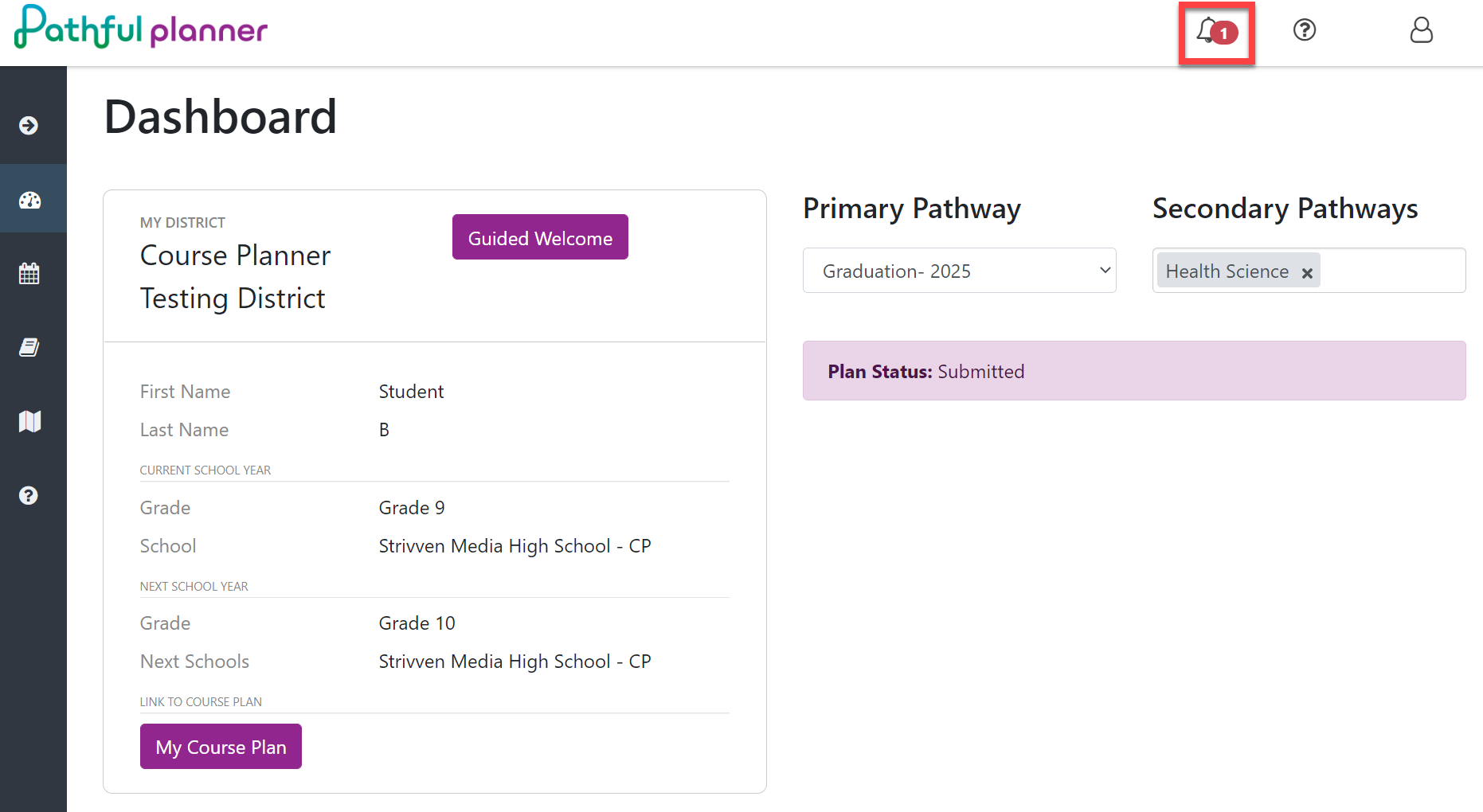
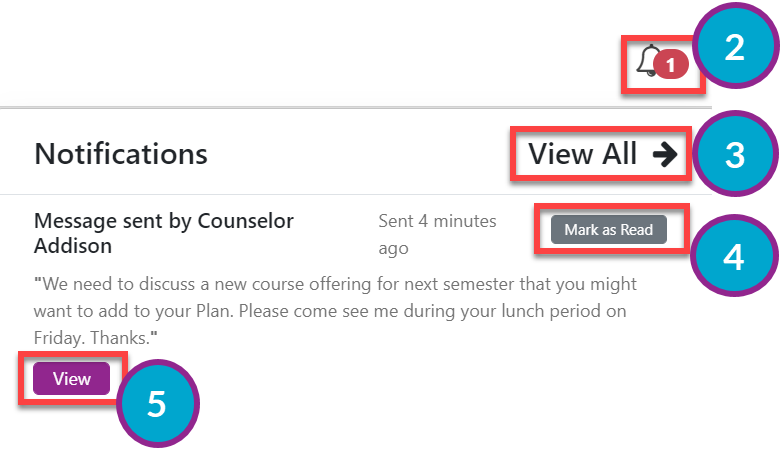
Select the bell icon to see your messages.
Select View All to see a list of all messages if you have more than one.
Select Mark as Read to clear the notification.
Select View to see the individual message.
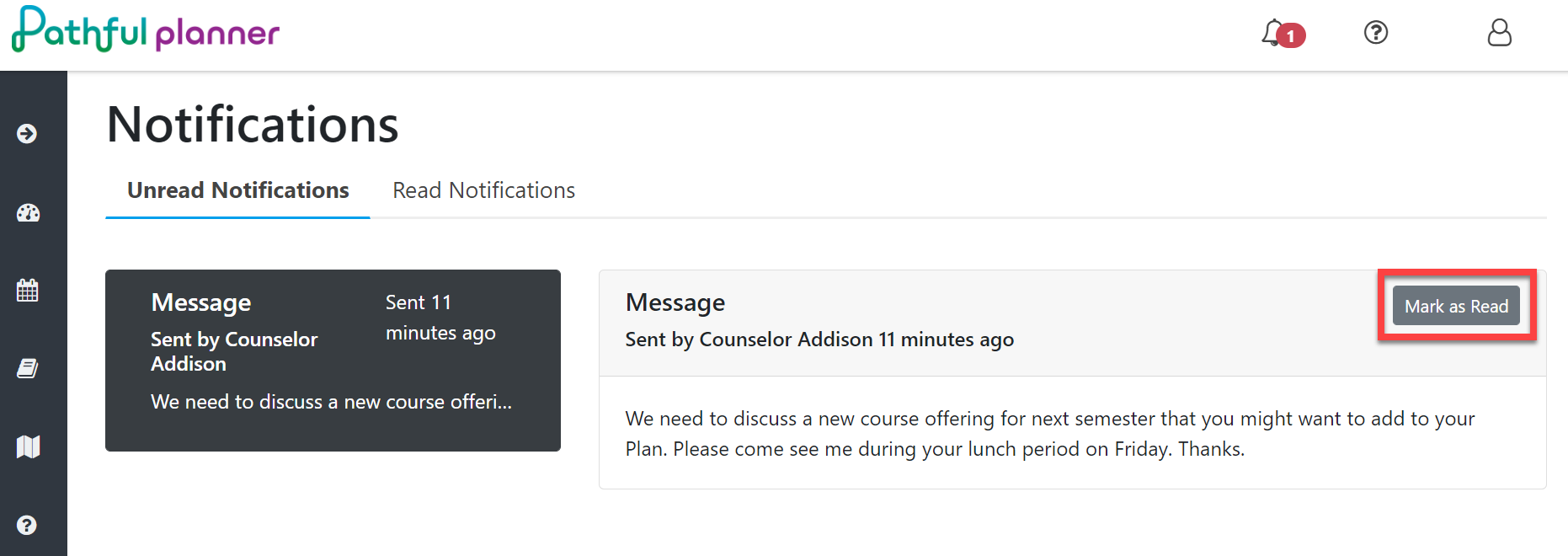
You will be directed to the Notifications page when you select the message. Here you can read the entire message and then select Mark as Read if you want to clear the notification.
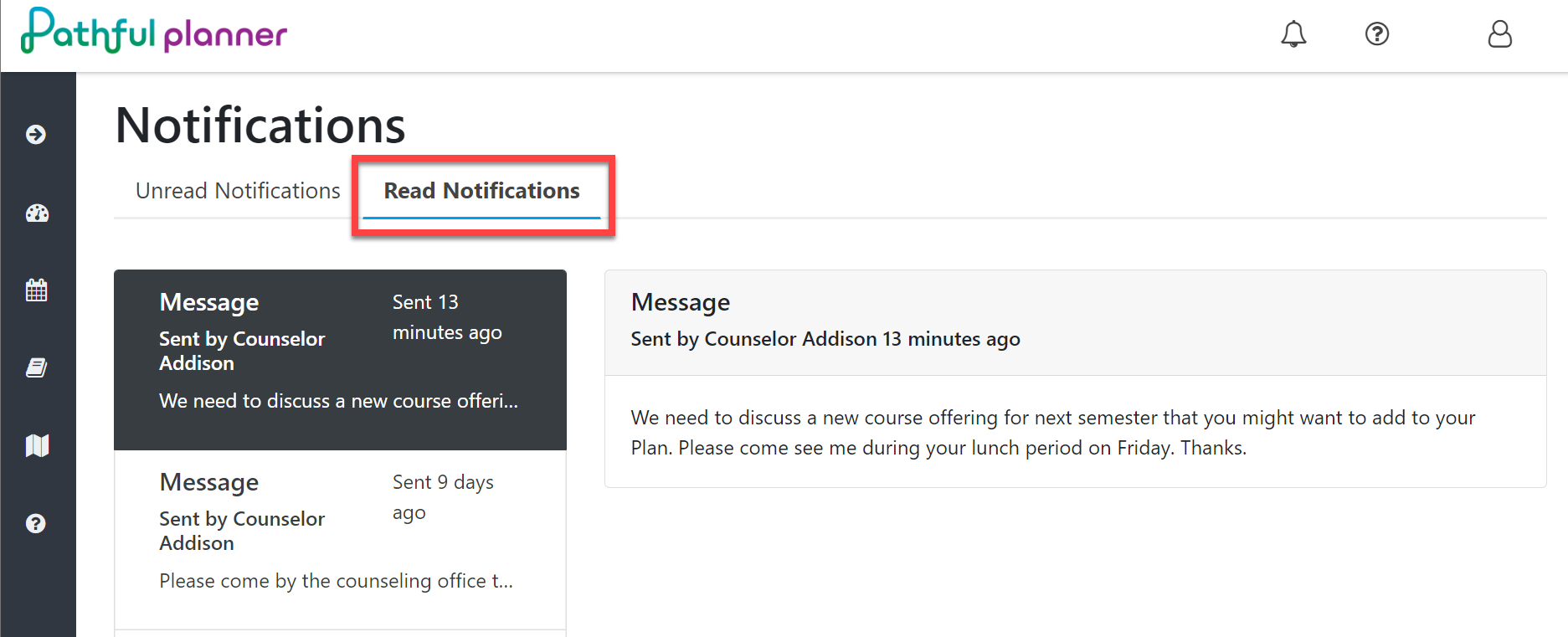
You can also select the Read Notifications tab to read past notifications.
A record of all of your notifications and Mark as Read actions are recorded in your Activity Log. Refer to View My Activity Log for more information.