Edit a Built-In FlexLesson
How to edit a cloned Built-In FlexLesson.
Last updated About 2 months ago
Edit a Built-In FlexLesson
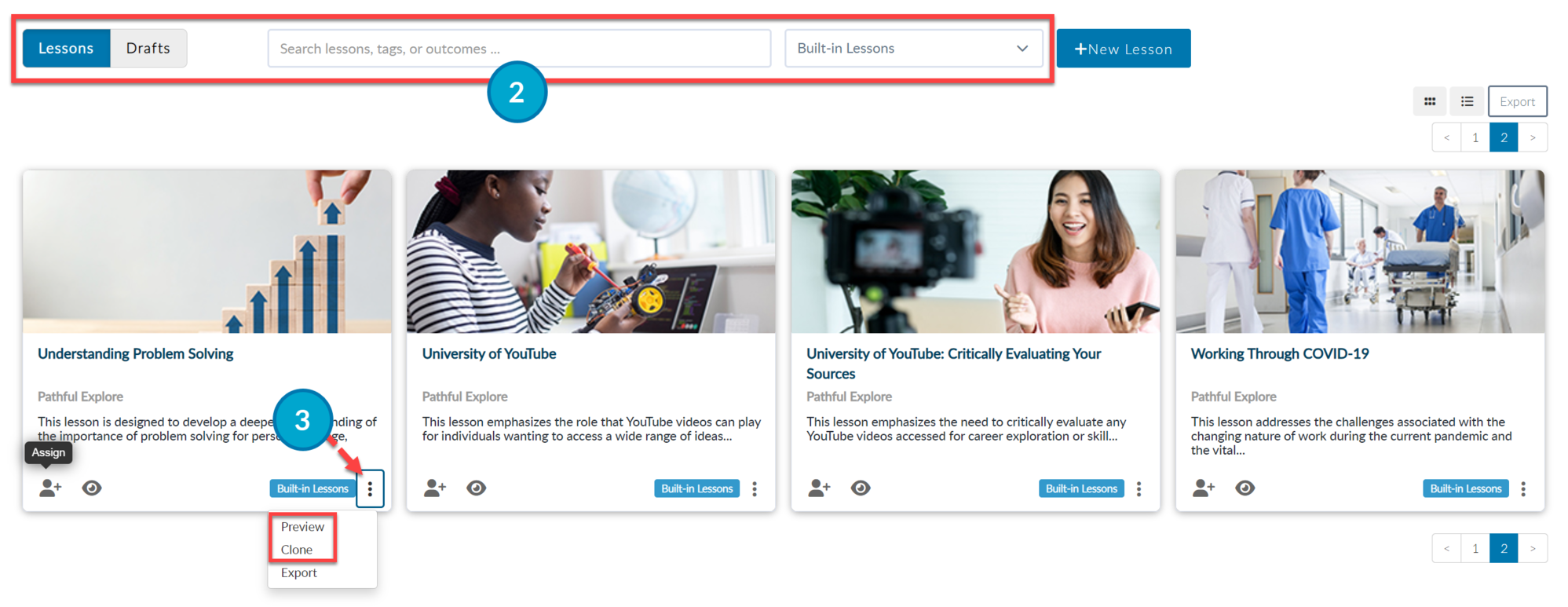
From the FlexCurriculum drop-down menu, select FlexLessons.
Sort by Lessons > Built-in Lessons.
On the card of the desired lesson, click the vertical ellipses in the bottom right corner.
Select Preview to view the lesson and decide if it is what you want to use.
Select Clone to copy the lesson.
Refer to Clone a FlexLesson for additional instructions.
Select Yes in the Please Confirm pop-out window.
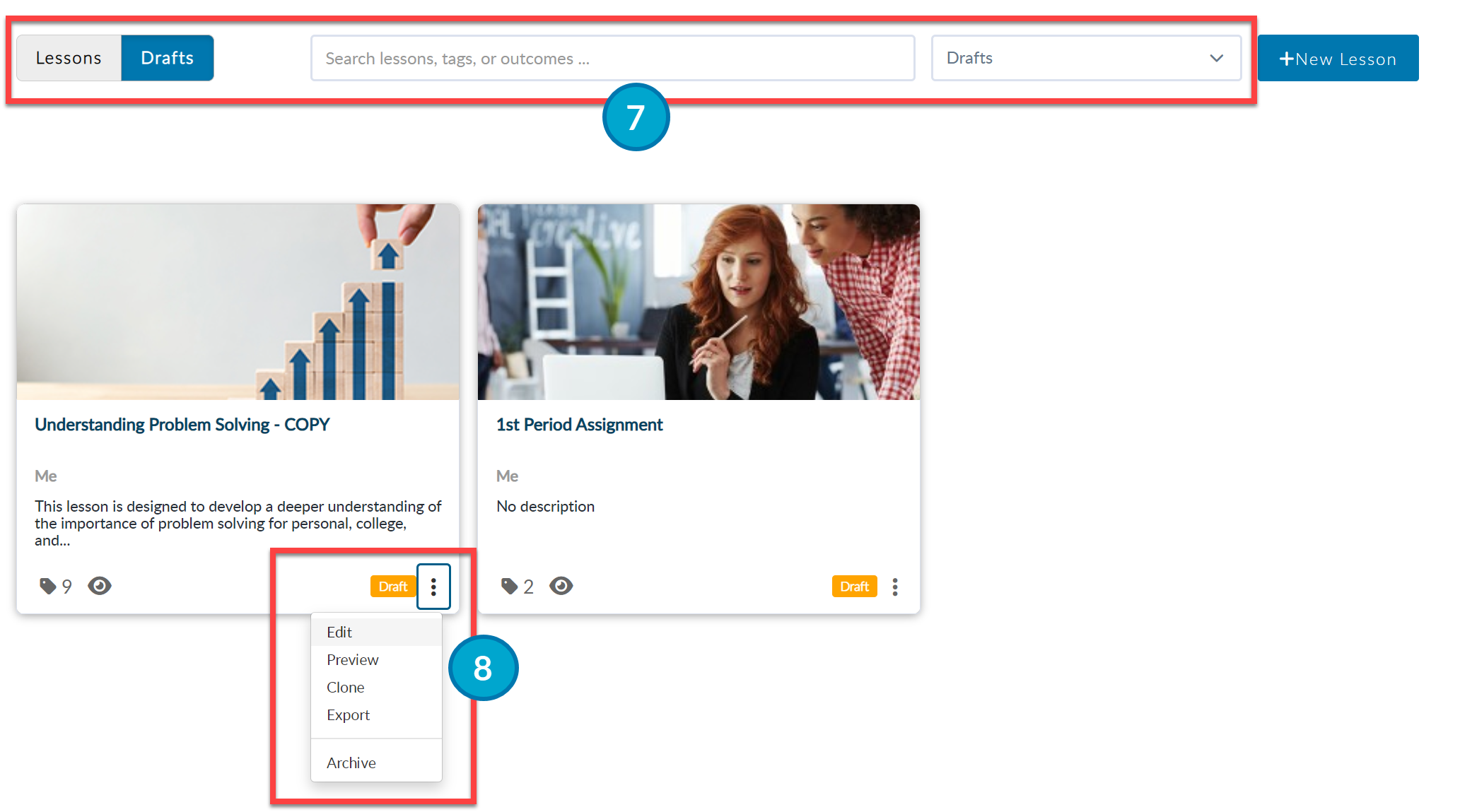
Sort by Drafts > Drafts to find the copy of the cloned Lesson.
Click the vertical ellipses and select Edit.
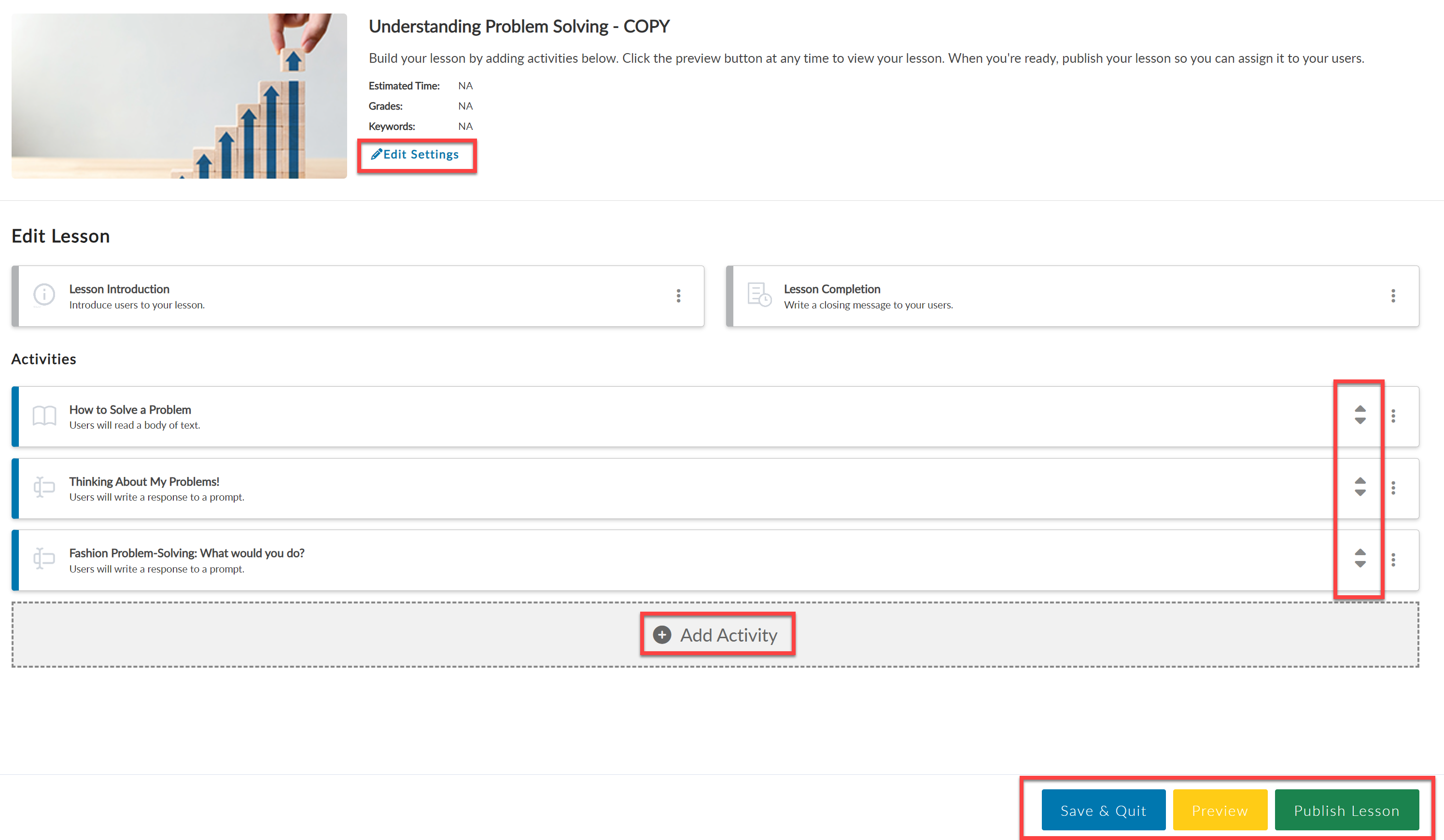
At the top of the next screen, select Edit Settings to change the lesson title.
You can now Edit the lesson as desired:
Add or Remove Activities by clicking the plus sign (+)
Change the order of Activities. (To do this, put your cursor on the up and down arrows at the end of any given row. A hand will pop up. Left-click your mouse, and drag and drop your activities where you want them.)
Click Preview at the bottom of the screen to preview the lesson anytime.
When you have completed editing the lesson:
Click Save & Quit to save your work and come back later.
Click Publish Lesson to publish the lesson.Once the lesson is published, it can be assigned to users. Refer to Assign a FlexLesson.
Was this helpful?
Still need help? Ask the team