UserWay Accessibility Tools
This article explains how to use the accessibility tools within Explore.
Last updated 4 months ago
UserWay Accessibility Tools
UserWay is an accessibility tool that is easy to use and available in Pathful Explore. All users can access UserWay.
Prior to logging in or after, select the UserWay icon at the bottom right of your screen.
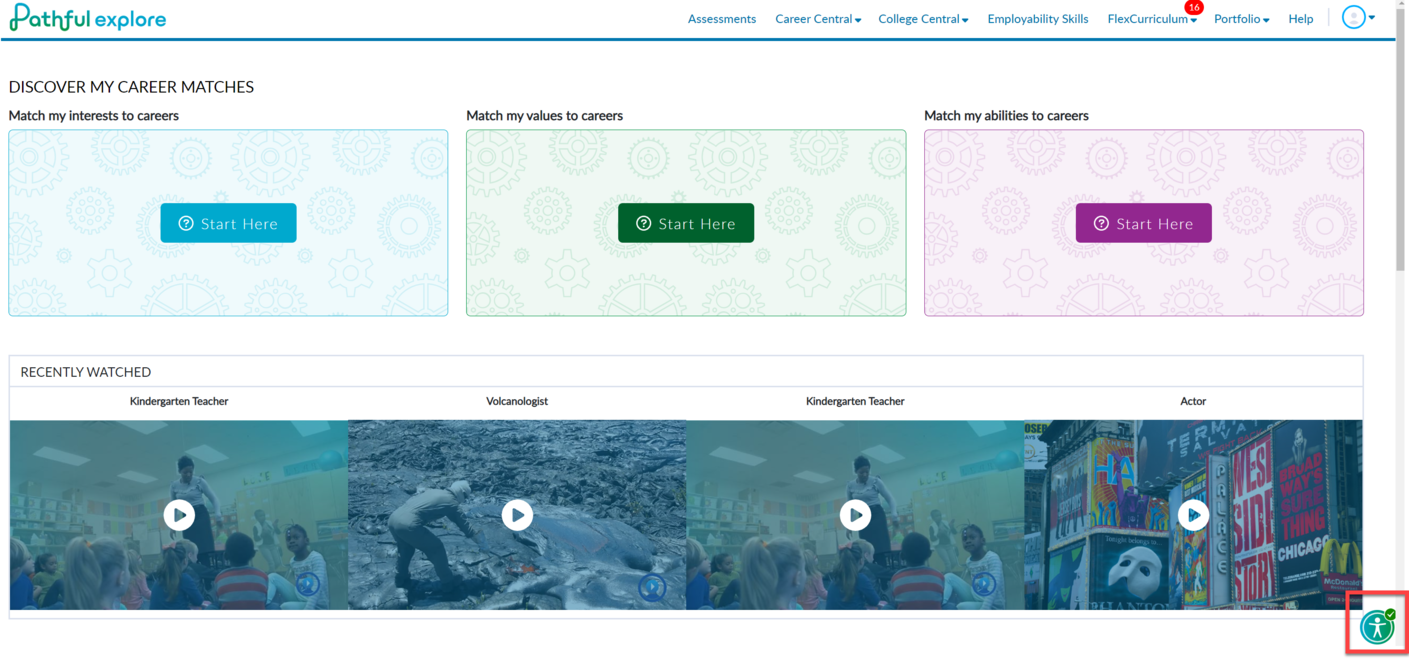
The UserWay widget will open on the right side of your screen.
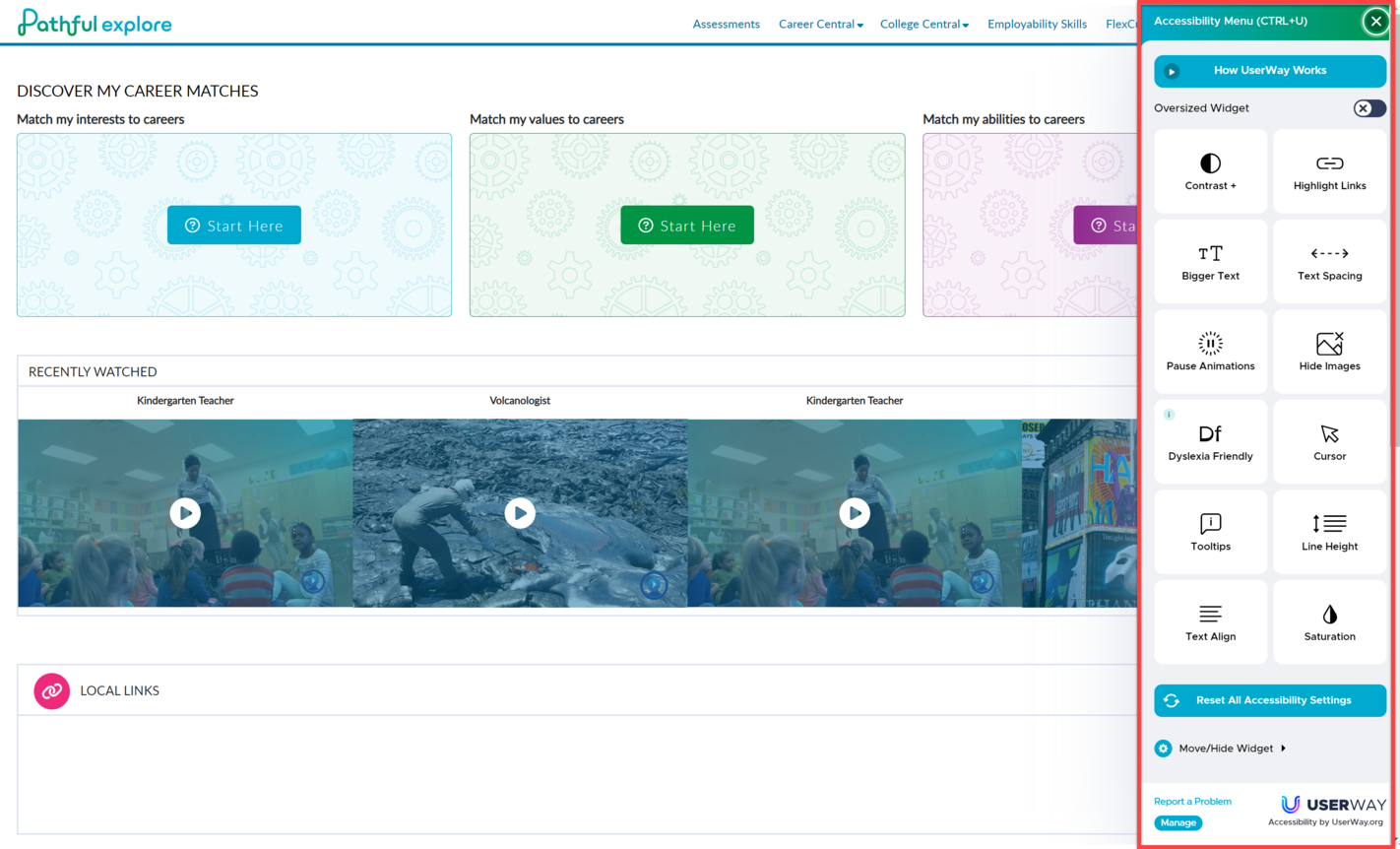
Select the Oversized Widget toggle to make it bigger.
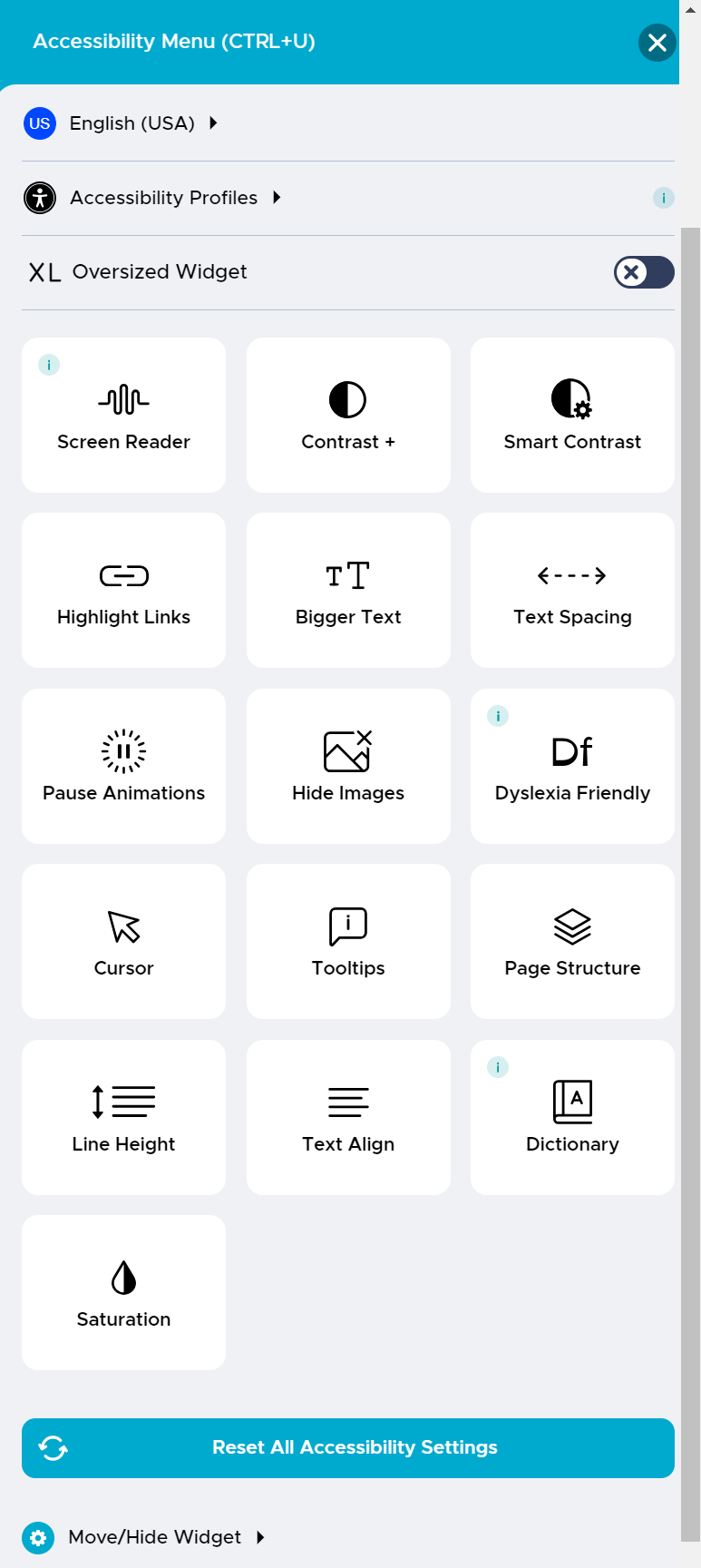
Choose an Accessibility Profile or any of the individual options.
Accessibility Profiles include the following:
Motor Impaired
Blind
Color Blind
Dyslexia
Visually Impaired
Cognitive & Learning
Seizure & Epileptic
ADHD
Other options include the following:
Contrast
Invert Colors
Dark Contrast
Light Contrast
Highlight Links
Bigger Text- 4 size options
Text Spacing- 3 spacing options
Pause Animations
Hide Images
Dyslexia Friendly- 2 font options
Cursor
Enlarge
Add a Reading Mask
Add a Reading Guide
Tooltips
Line Height- 3 options
Text Align- 4 align options
Saturation
Low
High
Desaturate
Select Reset All Accessibility Settings to remove any options and start over.
Was this helpful?
Still need help? Ask the team