Share a Group
It can be helpful to share groups with others on your license. You can share a group as you create it or share an existing group later. This article explains how to do both.
Last updated 4 months ago
Share a Group
You can share a new Group when you create it or share an existing Group.
To share a Group as you create it, refer to Create a Group.
Follow the steps below to share an existing Group:
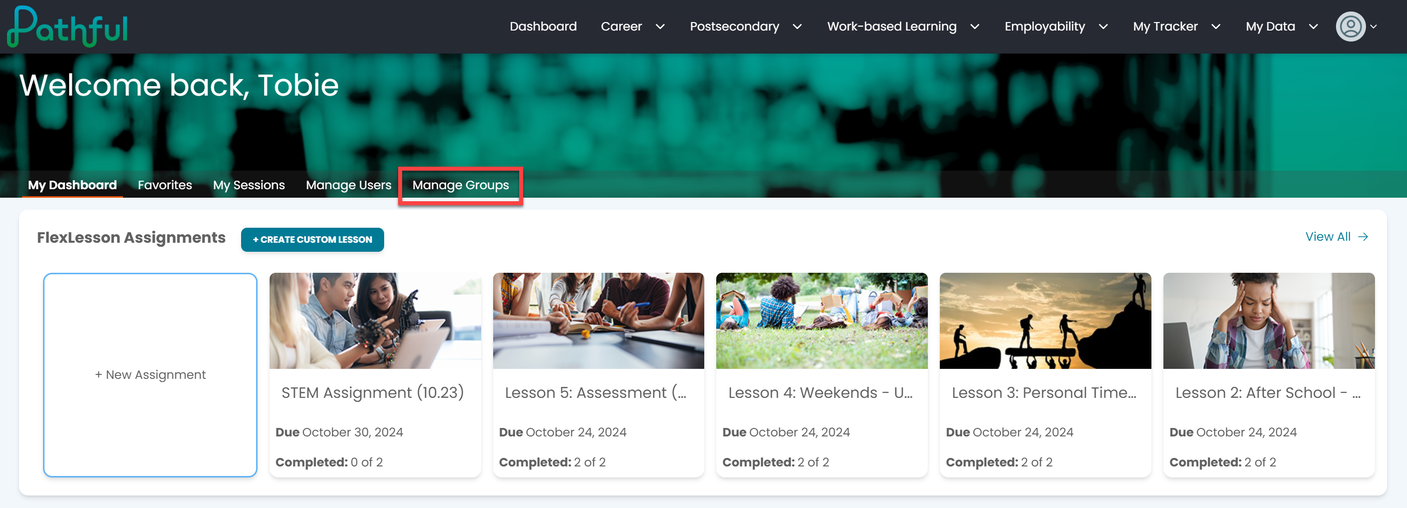
From your Dashboard, select the Manage Groups tab.
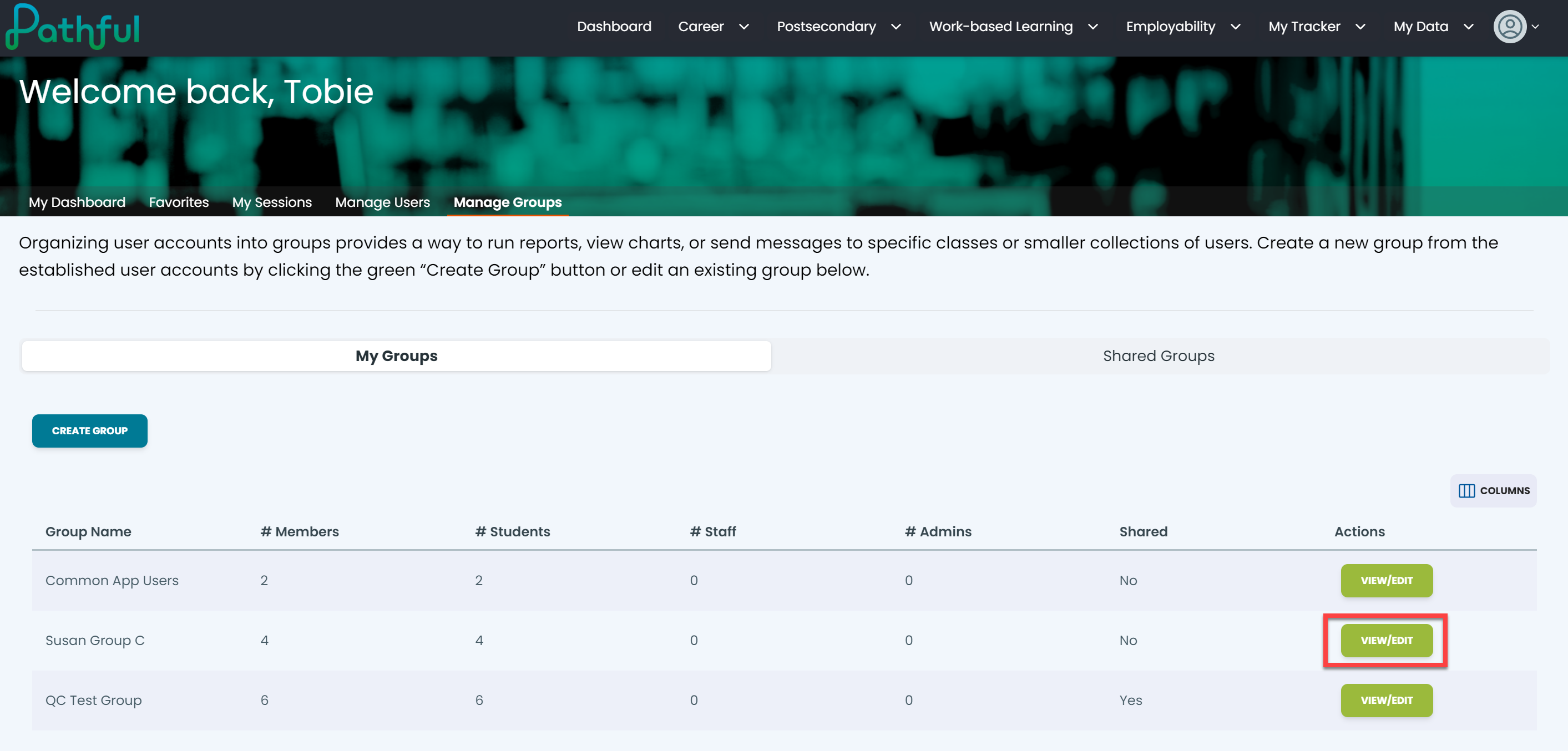
Locate the desired Group on the table.
Under the Actions column, select View/Edit.
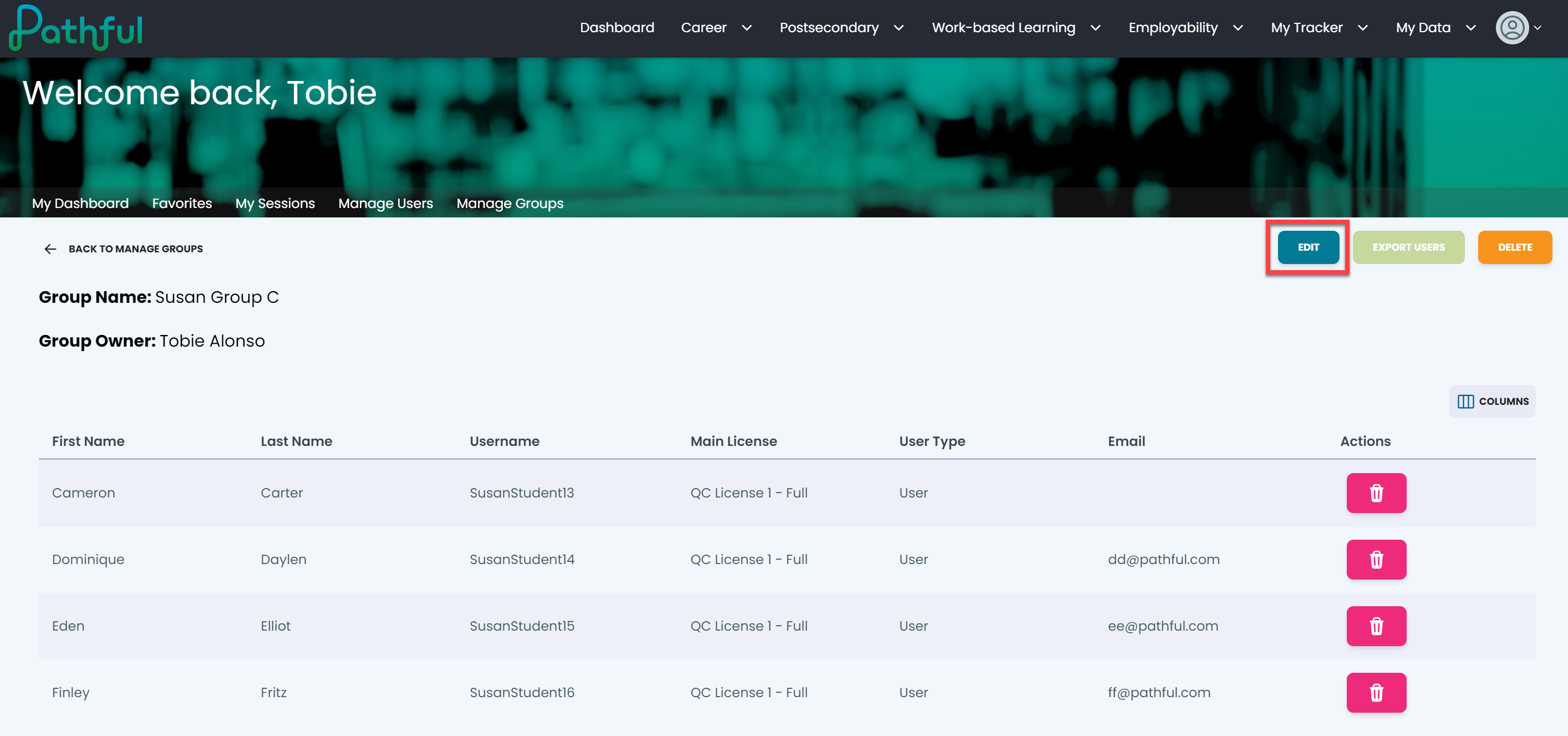
Select Edit on the Group details page.
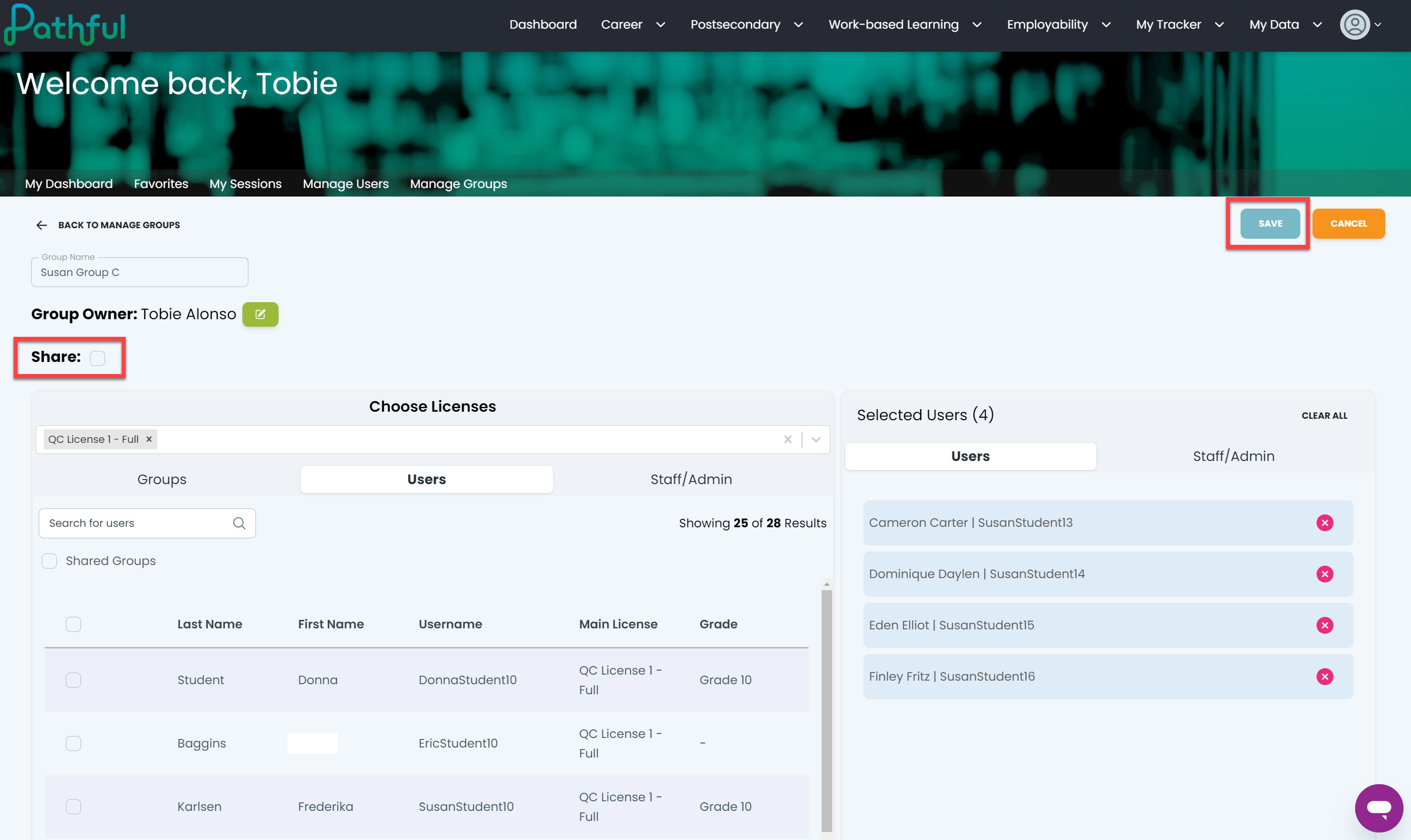
Select the Share checkbox. This will share your group with other Staff and Admin users on your license.
Select Save.
Was this helpful?
Still need help? Ask the team