How to Turn On Career Plan Review, Sign-Off, and Configuration
(Note: Configuration lives in System Configuration and can only be set up by a district or school admin)
Last updated About 1 month ago
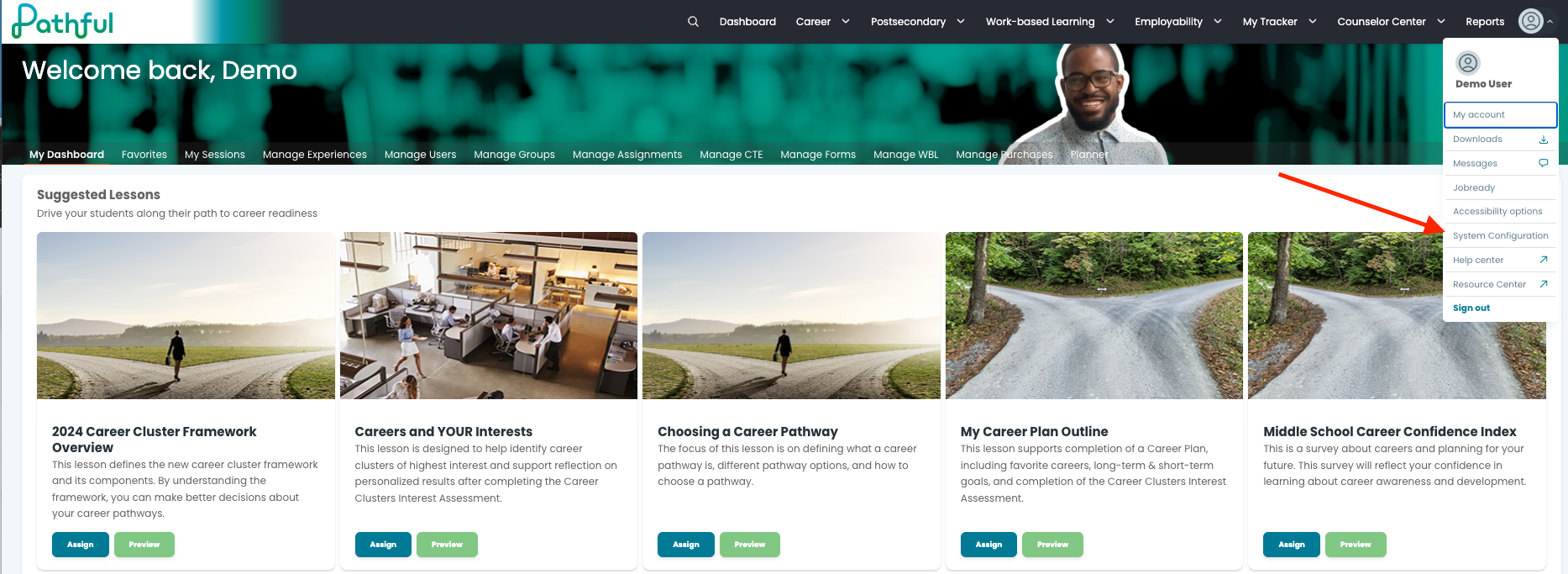
Open System Configuration and select Career Plan.
Create a Configuration Profile. You can start:
From scratch
From one of seven state starting templates: Tennessee, North Carolina, Texas, Maryland, South Carolina, Nevada, or Minnesota
From a copy of an existing profile
Name the plan. You can keep "Career Plan" or rename it to your state's official term, and choose whether to include the student's name in the title.
Choose which sections students see in their plan.
Set the review and sign-off rules:
The review schedule
Whether the plan locks after submission or after review
Whether students sign their plan
Whether a parent or guardian acknowledgment is required
Apply the profile to the license. The new behavior turns on only for the students on that license; nothing changes for anyone else.
Good to know
There is no automatic lookup of your state's official plan name. Type in the name your district uses.
State starting templates exist for the seven states listed above. Districts in other states start from scratch or copy an existing profile.
Was this helpful?
Still need help? Ask the team