Open or Close an Assignment
Open or close assignments for learners as needed.
Last updated About 2 months ago
Open or Close an Assignment
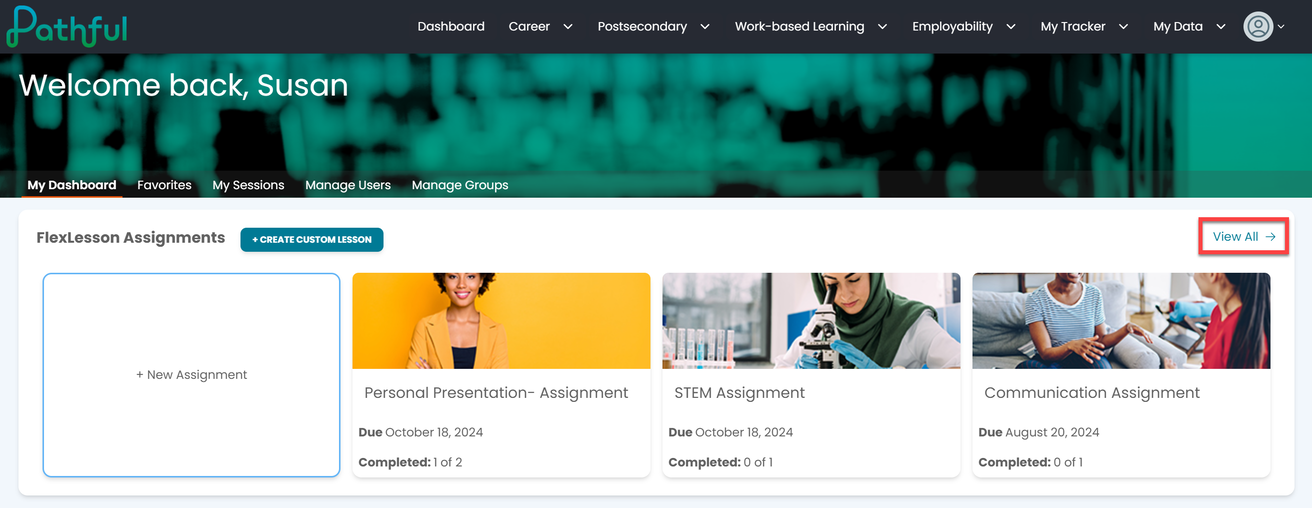
Select View All from the FlexLessons Assignment box on your dashboard.
Select the cog icon under the Actions column.
Select Close.
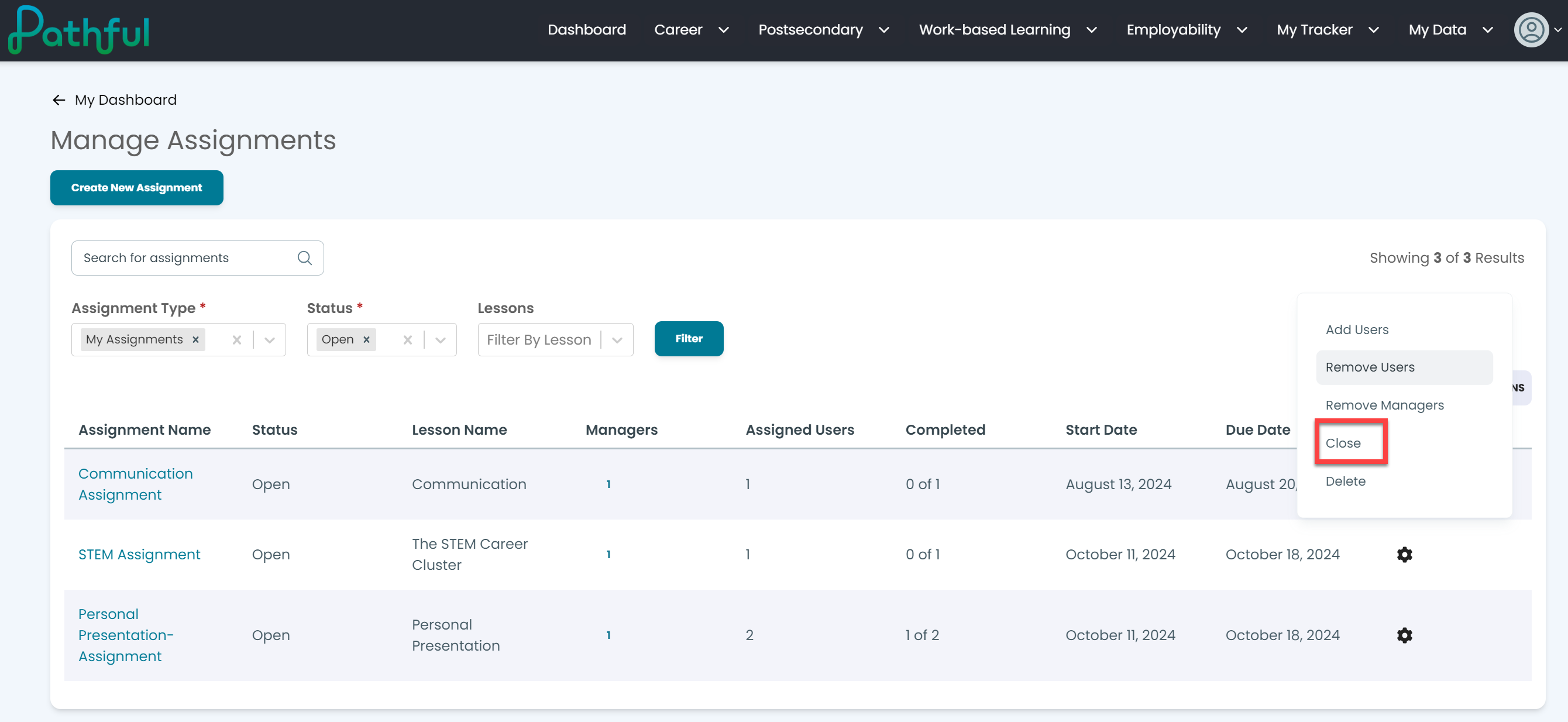
To reopen the assignment, follow the steps above and select Open.
Warning:
When you close an assignment, you can no longer edit, add users, or accept submissions. The assignment will be closed for all students, including those not on your license (if the assignment has been across licenses).
When you open a previously closed assignment, any previously submitted assignments become unsubmitted.
Was this helpful?
Still need help? Ask the team