Canvas - Adding Course Navigation LTI External Tool
Last updated About 2 months ago
Canvas - Adding Course Navigation LTI External Tool
Below are the steps for setting up an LTI External tool to your course navigation in Canvas.
Step 1: Pathful representative will provide you with LTI credentials through email. Below is an example of the information provided.
Example LTI Credentials
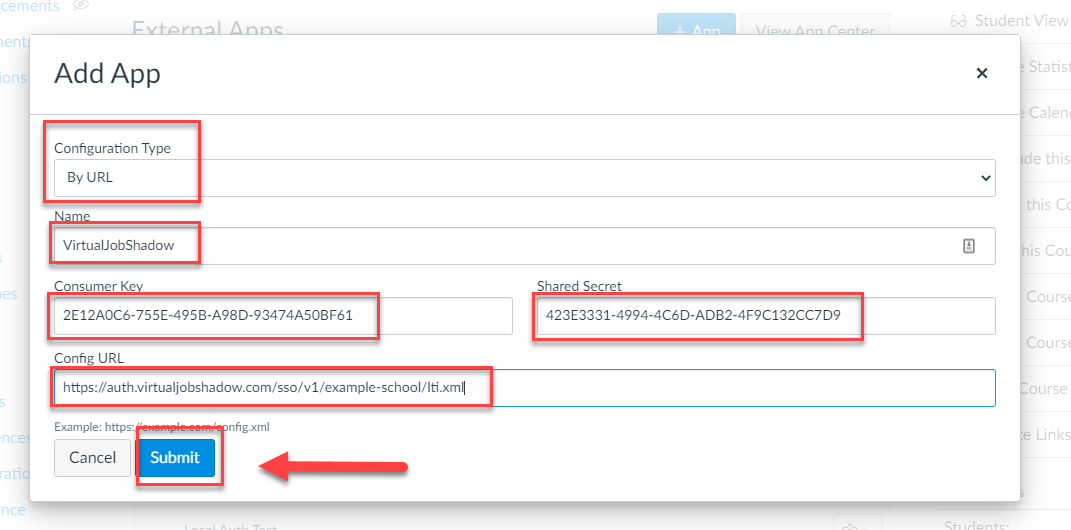
Configuration Type: By URL
Name: VirtualJobShadow
Consumer Key: 2E12A0C6-755E-495B-A98D-93474A50BF61
Shared Secret: 423E3331-4994-4C6D-ADB2-4F9C132CC7D9
Config URL: https://auth.virtualjobshadow.com/sso/v1/example-school/lti.xml
Step 2: Login to Canvas and navigate to the course you would like to add the course navigation.
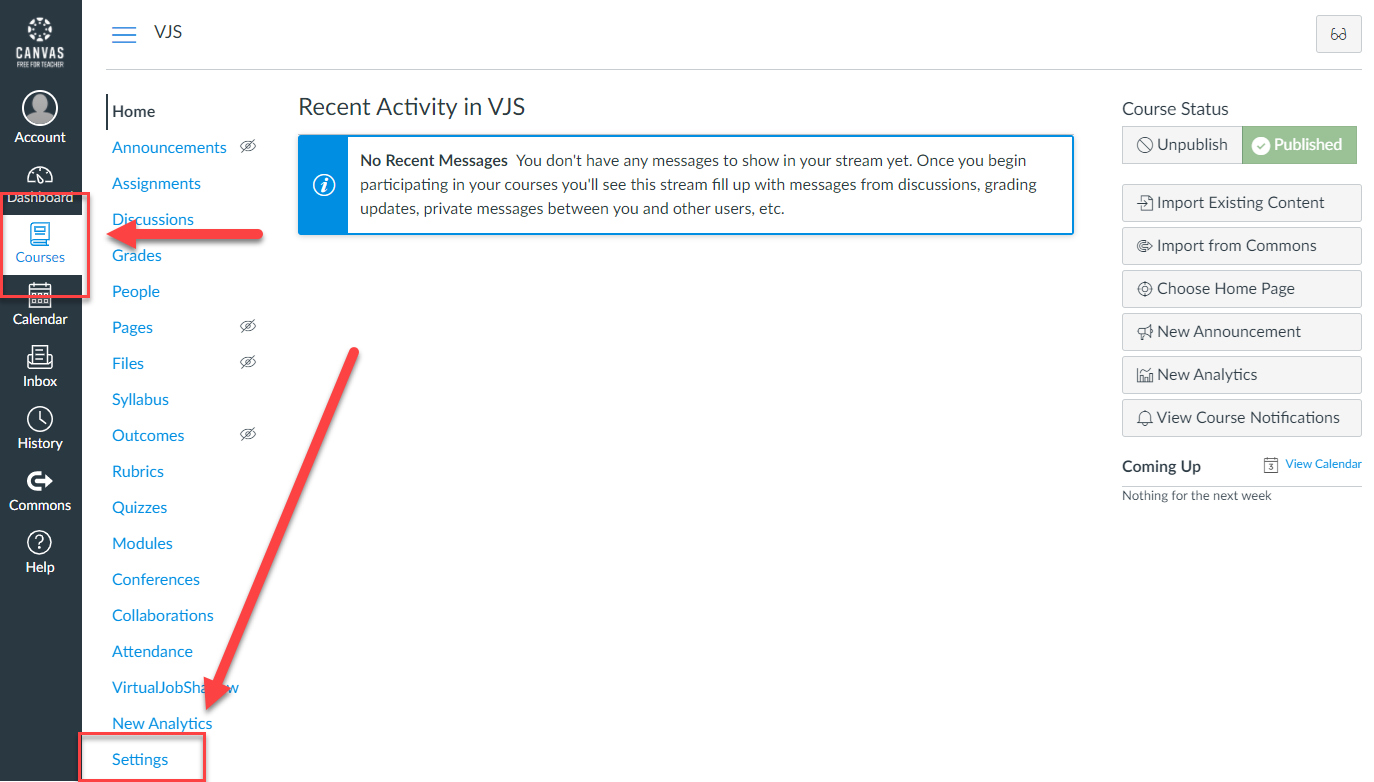
Step 3: When on the course, navigate to the Settings section.
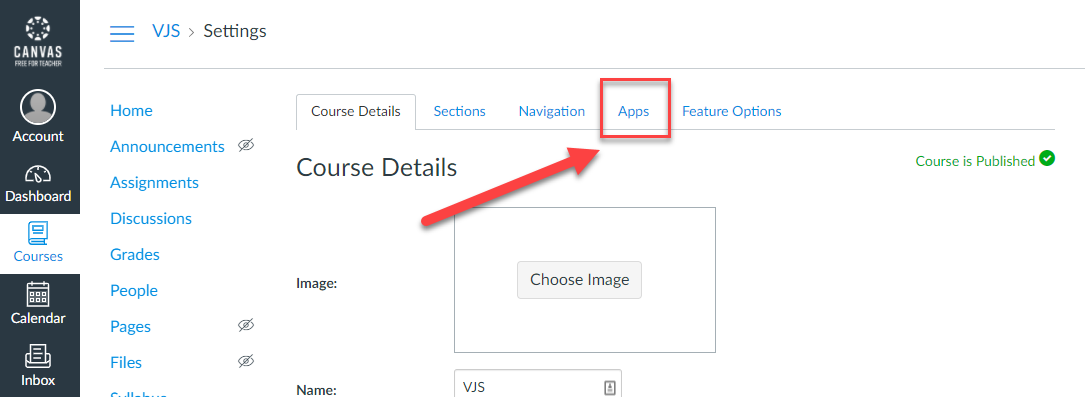
Step 4: Navigate to the Apps tab.
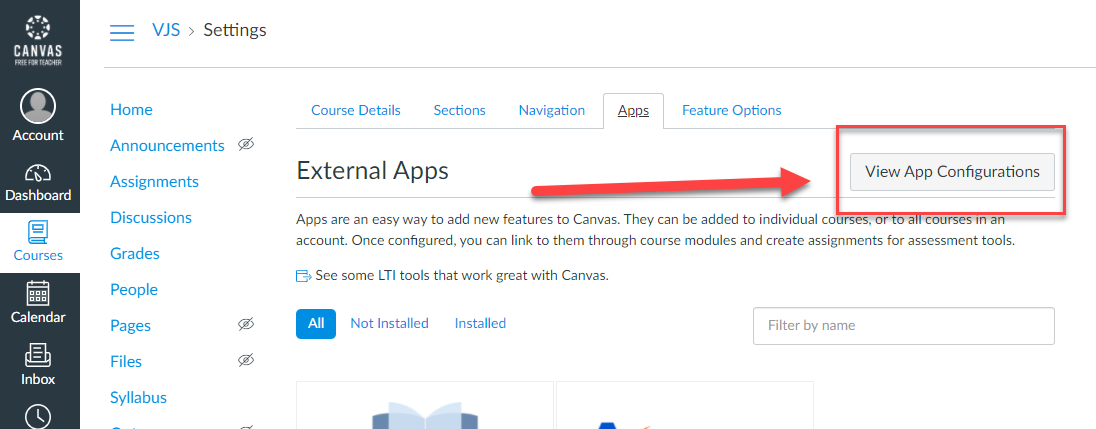
Step 5: Click on View App Configurations.
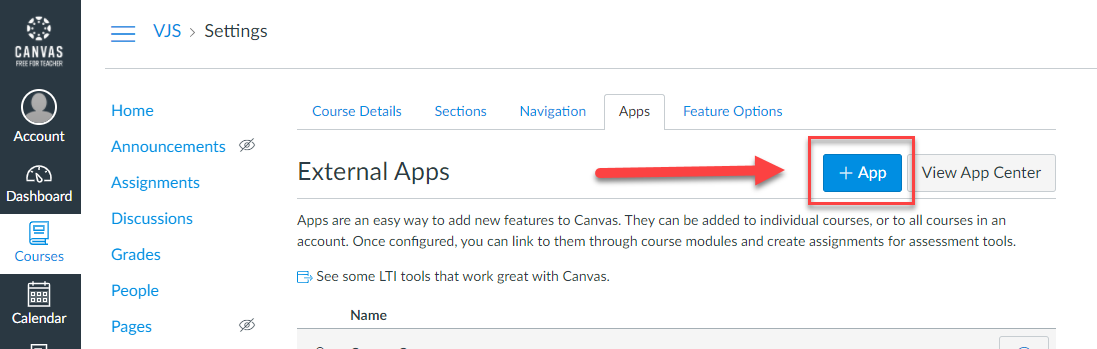
Step 6: Click on + App, in order to add a new app.
Step 7: Fill in the app form using the credentials provided by the Pathful representative.
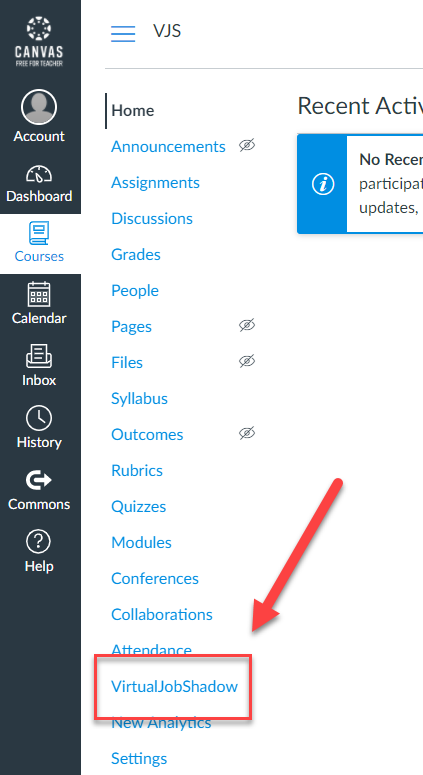
Step 8: After adding the app, the VirtualJobShadow navigation link should be visible on the course.
Was this helpful?
Still need help? Ask the team