How to Manage Purchased Courses and Enrollment Keys
This help article provides step-by-step instructions for managing purchased courses, redeeming enrollment keys, configuring proctor keys, adding managers, and managing student redemptions within the platform.
Last updated 23 days ago
1. Navigating to Manage Purchased Courses
To access your course management tools:
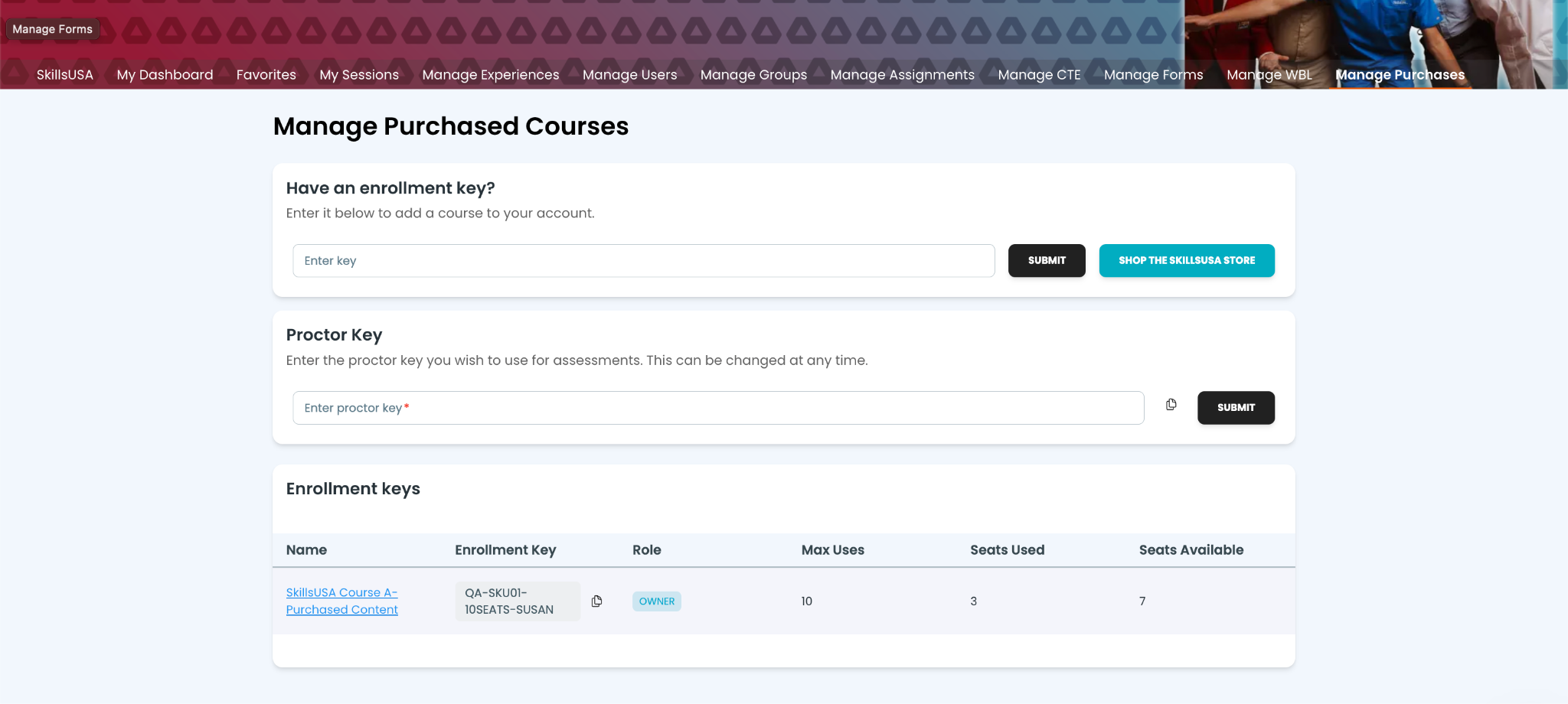
Log in to your dashboard.
Click on Manage Purchases from the top navigation menu.
The Manage Purchased Courses dashboard will open, displaying options for enrollment keys, proctor keys, and your active license inventory.
2. Redeeming an Enrollment Key
If you received an enrollment key to unlock course access:
On the Manage Purchased Courses page, locate the Have an enrollment key? section.
Type or paste your enrollment key into the Enter key field.
Click Submit to add the course to your account.
If you need to purchase new licenses, click Shop the Store.
3. Configuring a Proctor Key
Proctor keys are used to secure and facilitate student assessments:
Locate the Proctor Key section on the Manage Purchased Courses page.
Enter your preferred key into the Enter proctor key field.
Click Submit. You can update this proctor key at any time as needed.
4. Viewing Course Details and Adding Managers
To view detailed license usage or assign co-managers:
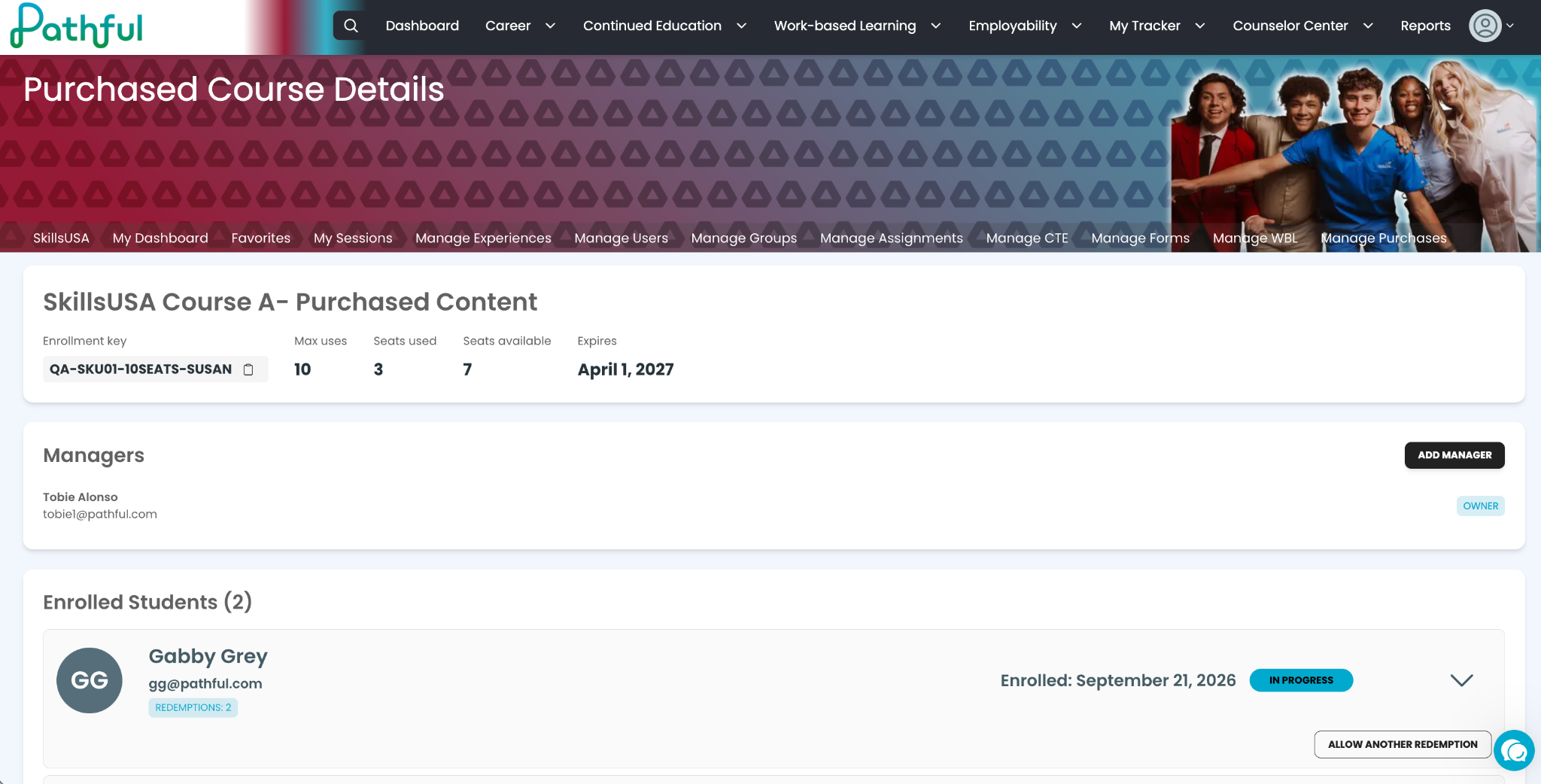
Under Enrollment keys, click the title of the course (e.g., SkillsUSA Course A - Purchased Content).
The Purchased Course Details page displays:
Enrollment key string
Max uses, Seats used, and Seats available
Expiration date
Adding Course Managers
Staff, admins, and teachers sharing your organization's license can be assigned as course managers:
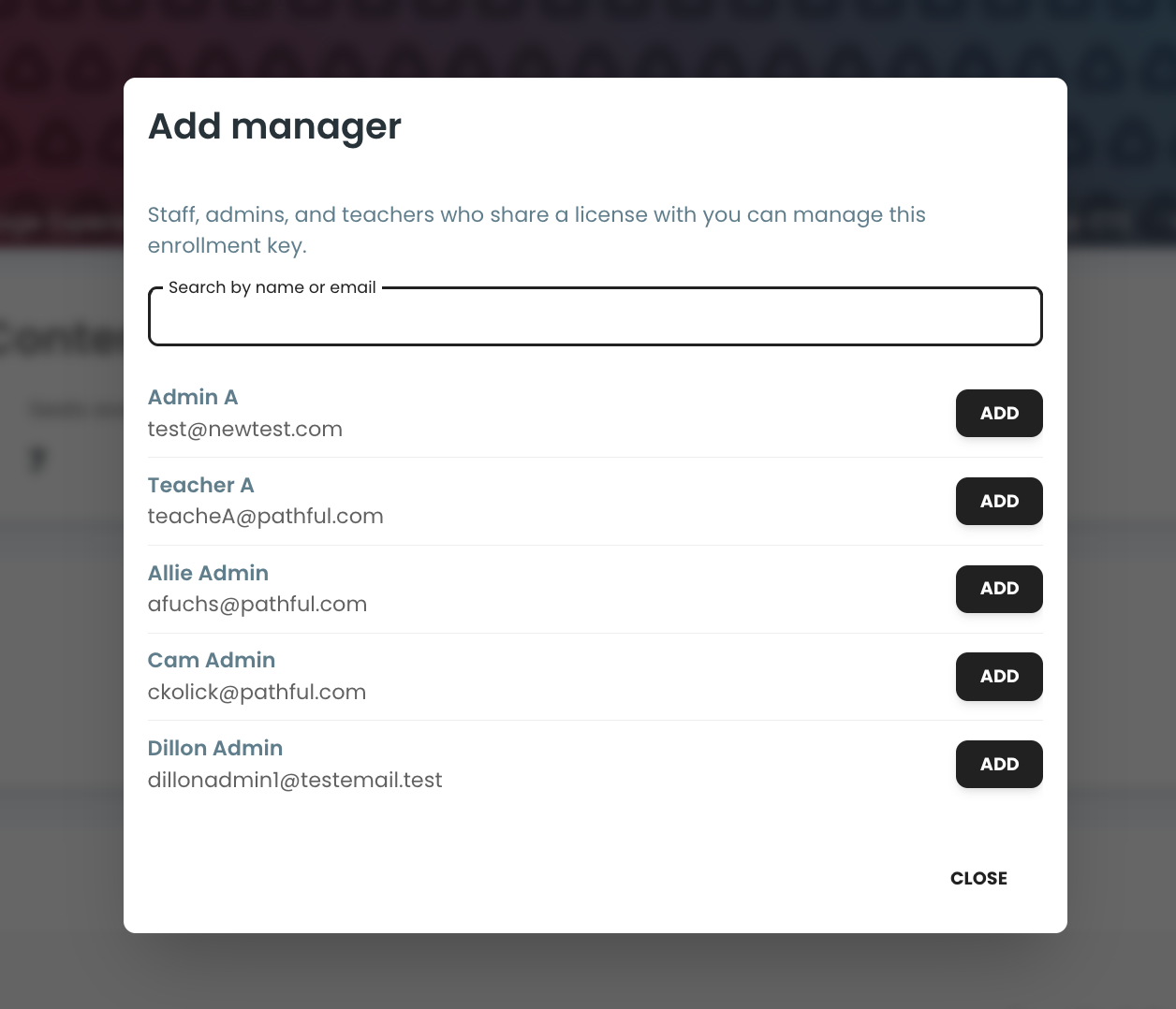
In the Managers section, click Add Manager.
Search for the person by name or email address in the search box.
Click Add next to their name.
Click Close once added.
5. Tracking Enrolled Students & Allowing Additional Redemptions
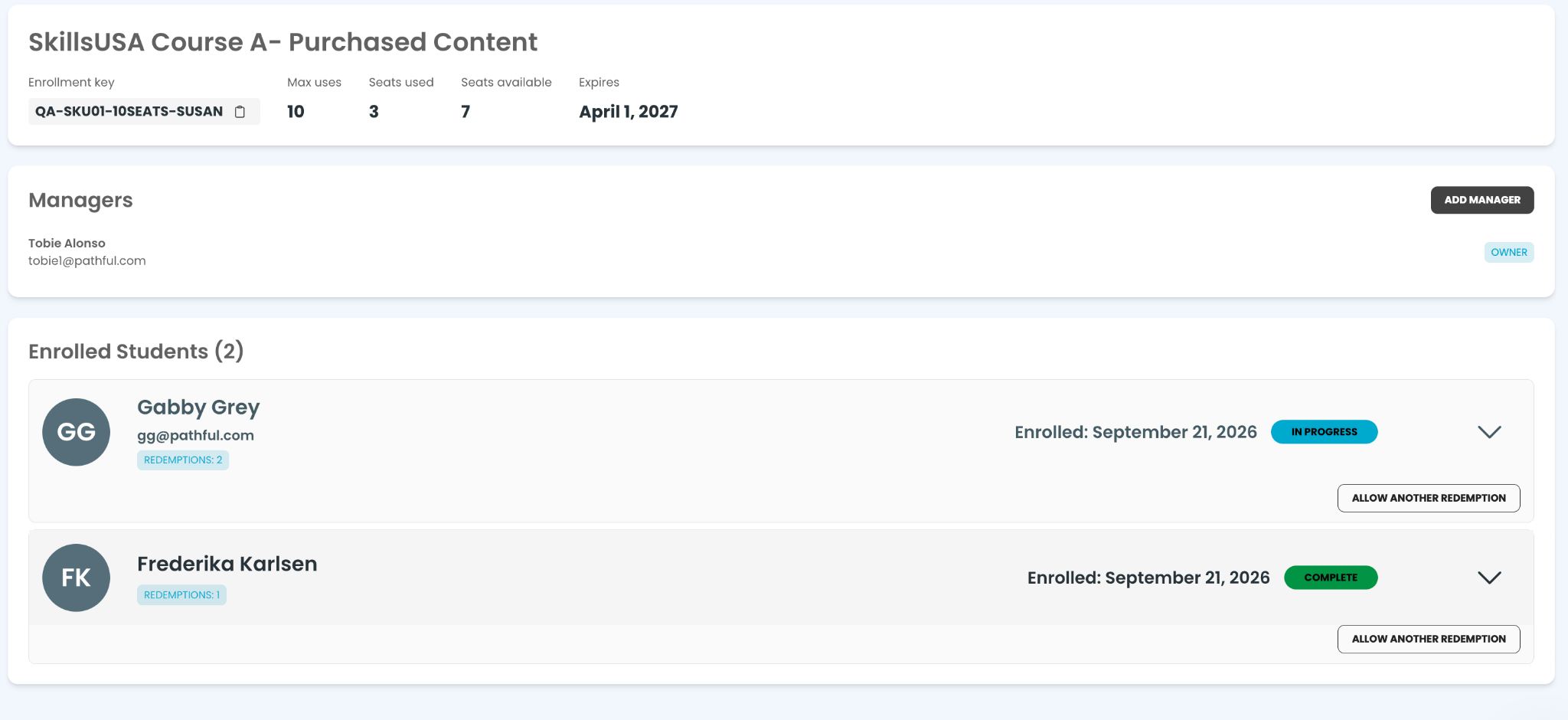
The Enrolled Students section lists all individuals currently enrolled via the key:
Review each student's enrollment date, current status (In Progress or Complete), and total redemption count.
If a student requires an additional redemption (for example, to re-enroll or re-access assessment materials):
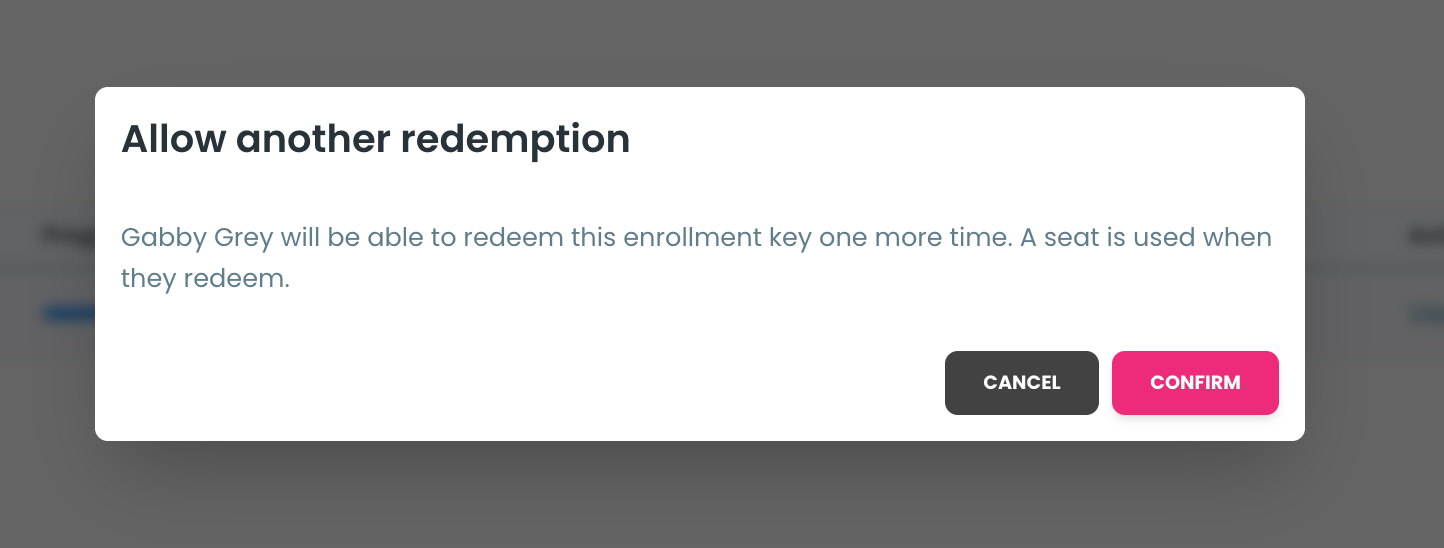
Click Allow Another Redemption next to the student's name.
Review the confirmation popup stating that granting another redemption consumes one available seat.
Click Confirm to complete the action.
Was this helpful?
Still need help? Ask the team