Non Members access to Reports
Last updated About 1 month ago
If you're a teacher using purchased content, you can track your students' progress right from the Reports section of Pathful. This article walks you through finding the report and understanding what it shows.
Where to Find Your Reports
Log in to Pathful and click Reports in the top navigation bar.
You'll see several report categories across the top: Usage reports, FlexLesson & Assignment reports, Activity reports, Student Artifact reports, and Assessment reports.
Scroll to find the Employability Course Progress Report and click Open report.
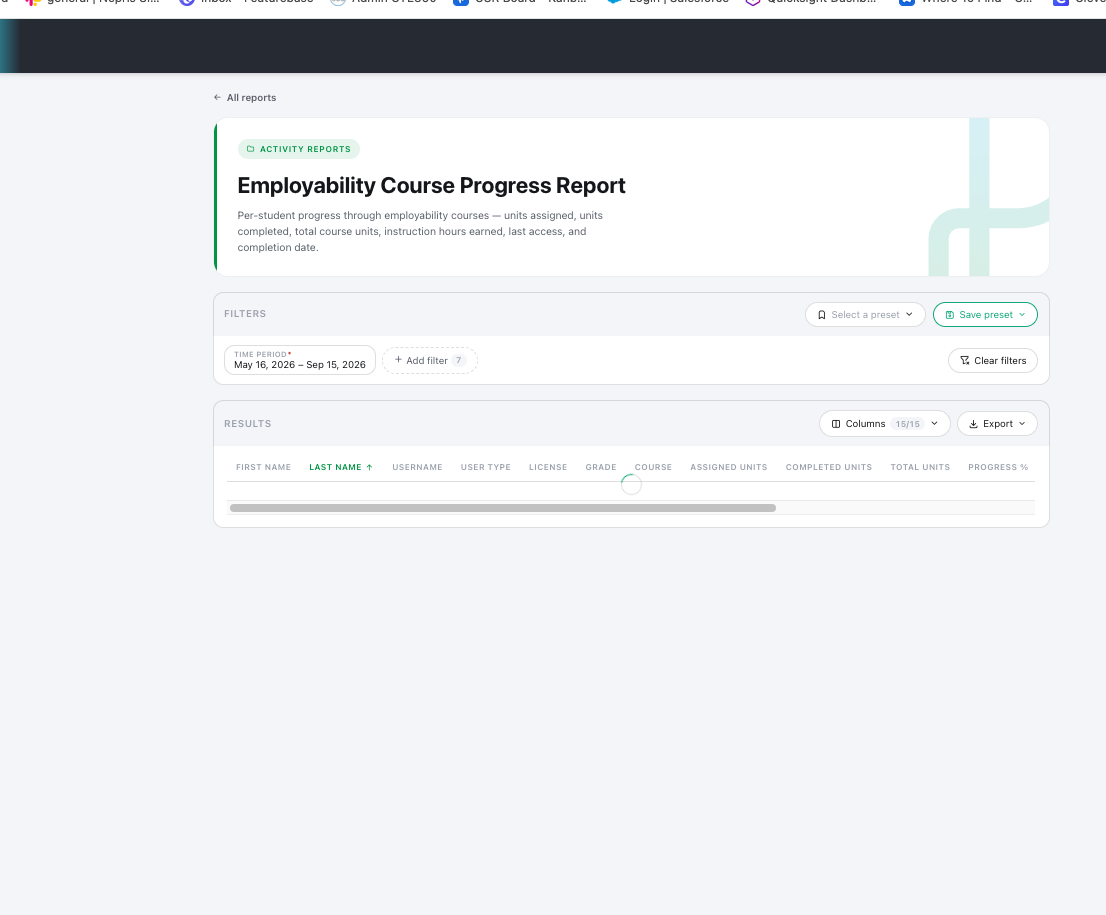
What the Employability Course Progress Report Shows
This report gives you a per-student view of progress through your employability courses, including:
Units assigned
Units completed
Total course units
Instruction hours earned
Last access date
Completion date
This is the report most teachers with purchased content will want, since it shows exactly how each student is moving through the course material you've assigned.
Viewing or Exporting the Report
Once the report opens, you have two options:
View on screen to review progress directly in your browser.
Export/download the report if you'd like to save a copy or share it outside Pathful.
Need Help?
If you don't see the report you're looking for, or have questions about what a specific column means, reach out to Pathful Support
Was this helpful?
Still need help? Ask the team