Google - How to Update Certificate
Last updated 4 months ago
Google - How to Update Certificate
This article will describe how to update/verify your SAML Certificates.
Step 1: Go to Google Workspace (G-Suite) and Login. https://workspace.google.com/
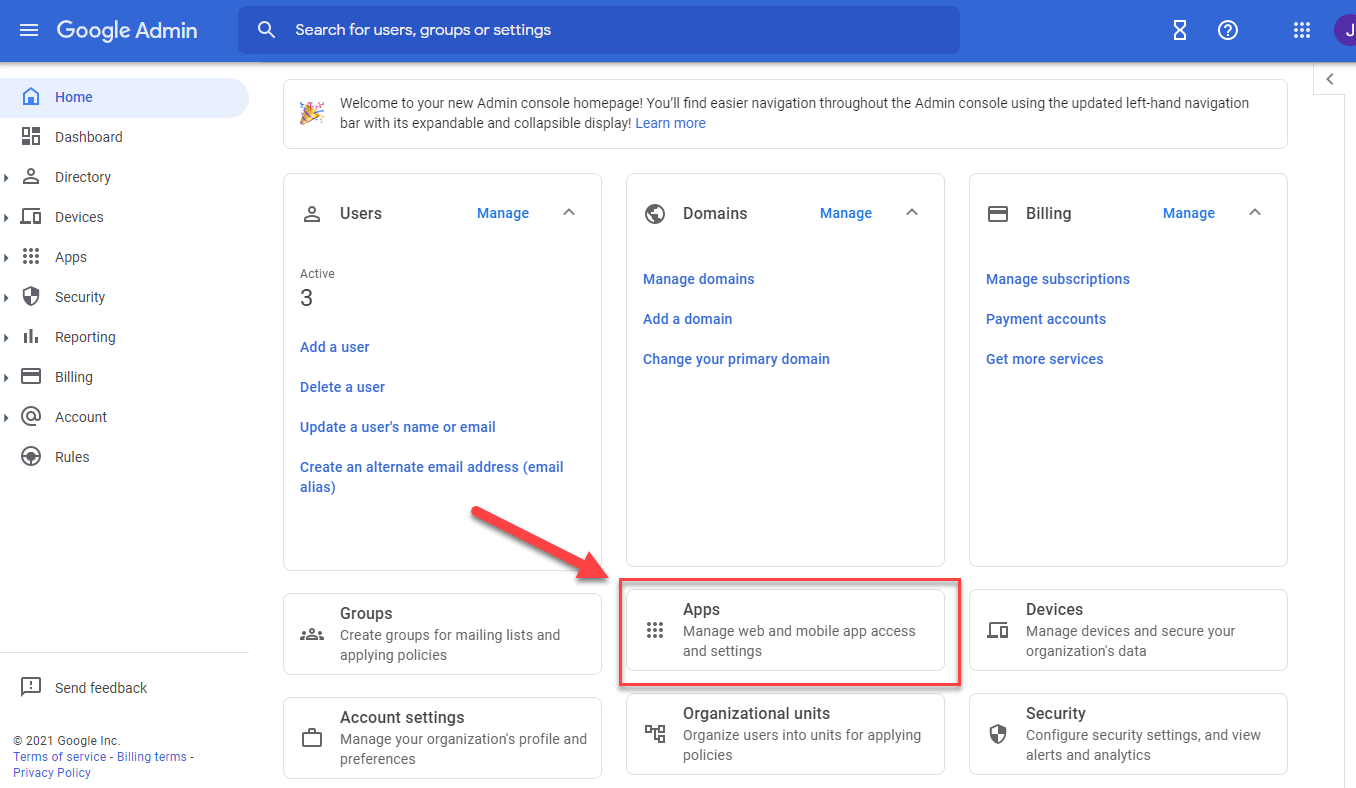
Step 2: Navigate to Apps, on the dashboard.
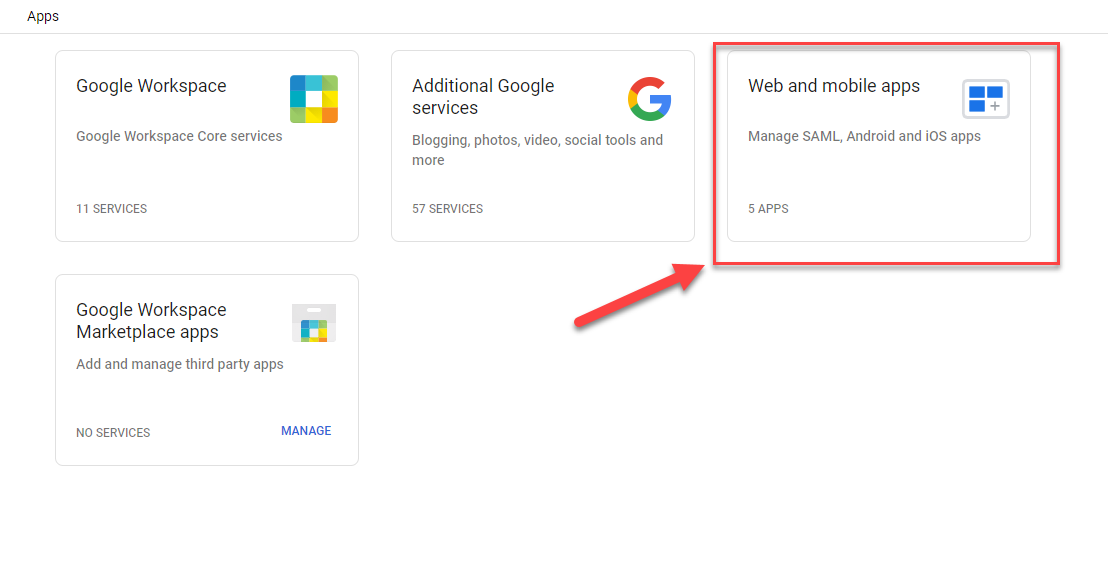
Step 3: Navigate to Web and Mobile Apps. (If using the old system, it would say Custom SAML Apps)
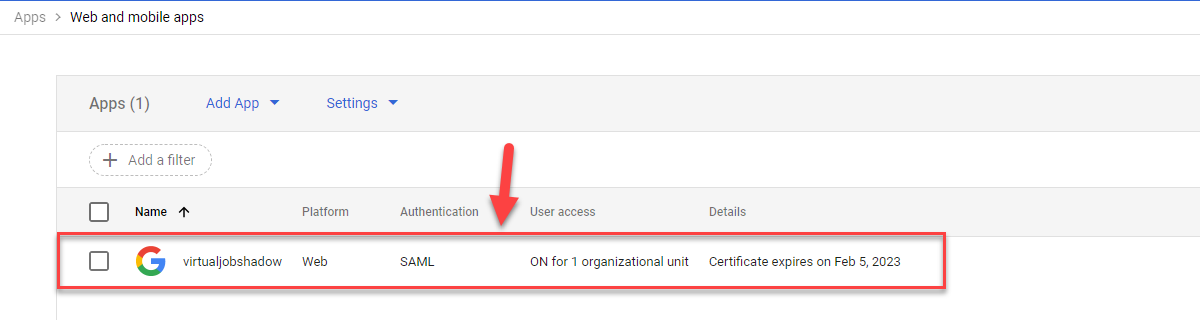
Step 4: Find the VirtualJobShadow.com application in the list, and click on the application.
Step 5: Click on Service Provider Details.
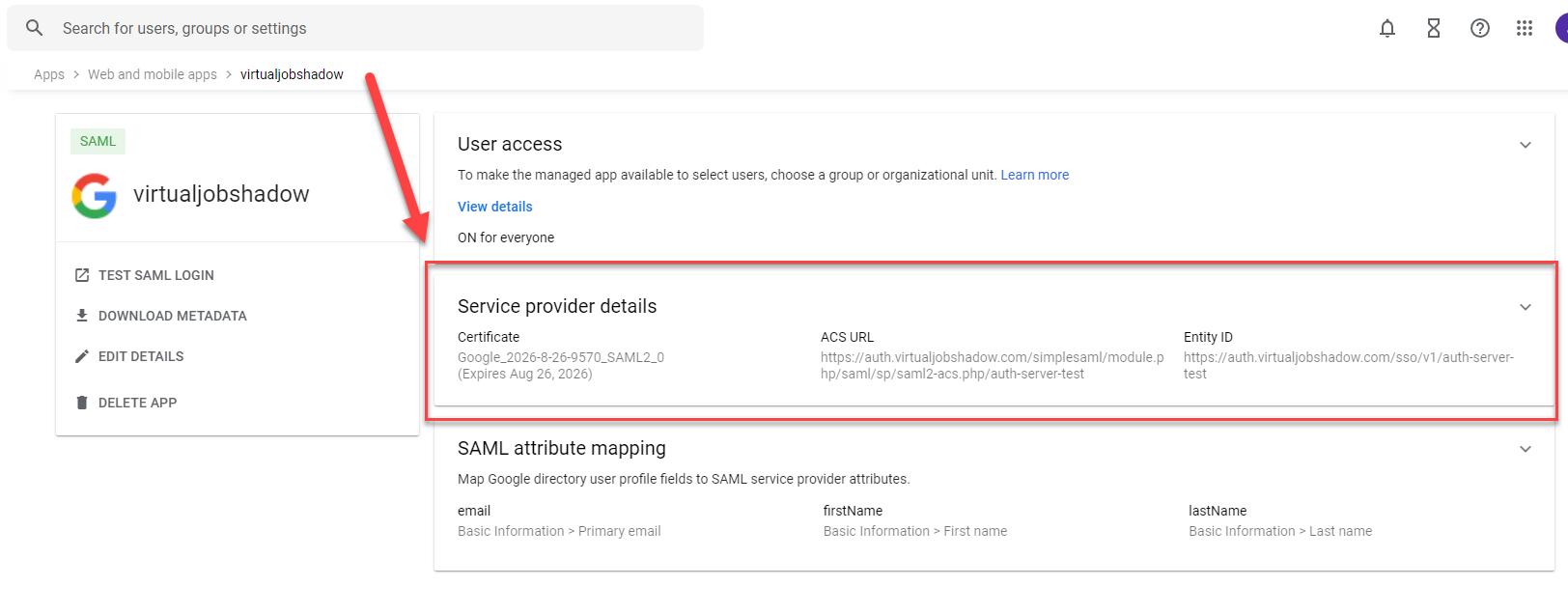
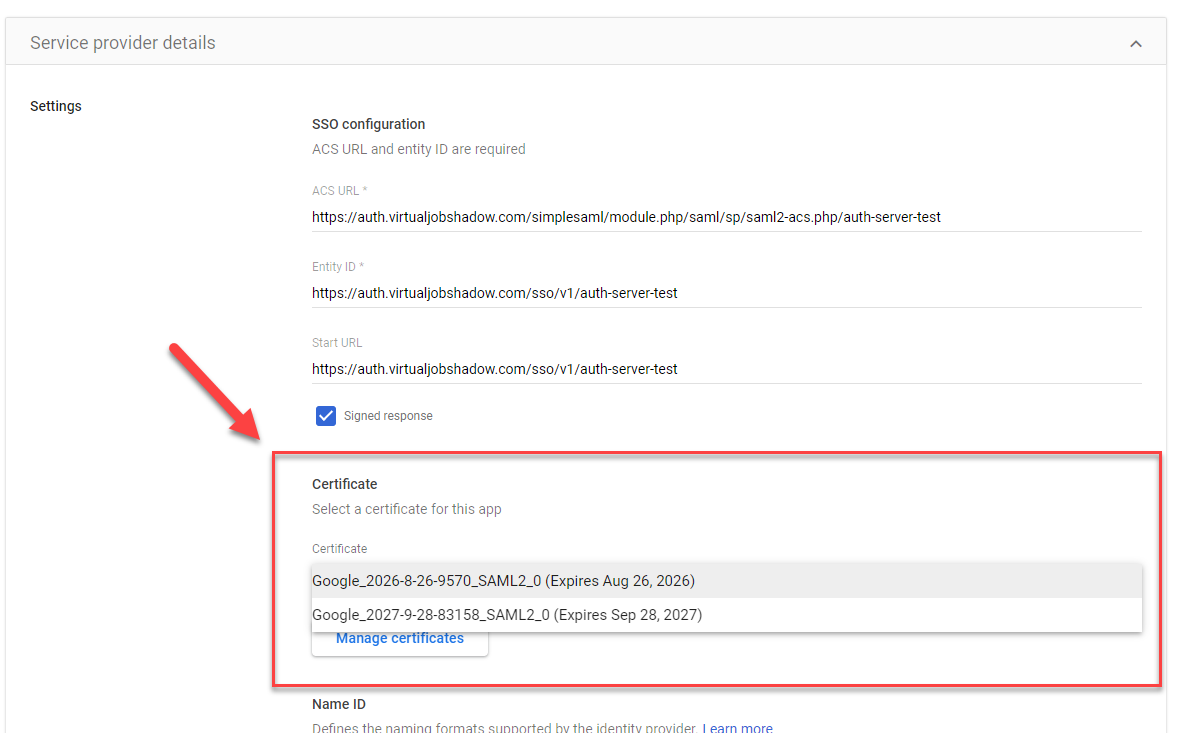
Step 6: Scroll down to the Certificates section, and verify the expiration of your current certificate. If expired, please choose an unexpired certificate from the dropdown and move to Step 8. If there is only one certificate and/or all the certificates are expired, move to Step 7.
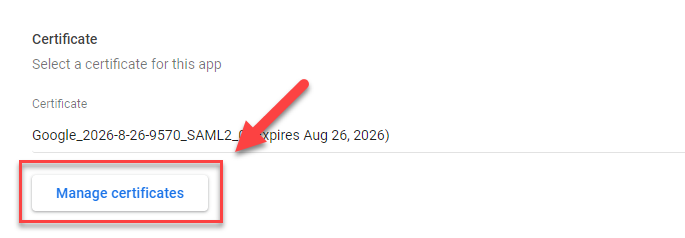
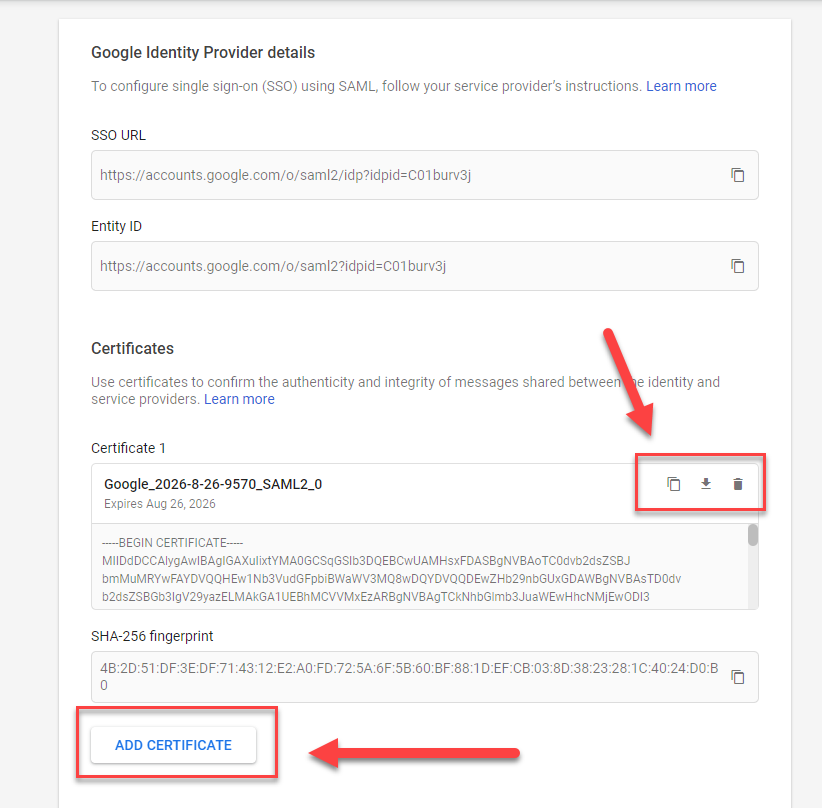
Step 7: Click on Manage Certificates. On the manage certificates page, you can delete old certificates and add new certificates. There is a max of 2 certificates. If there are already 2 certificates, you must delete a certificate before a new one can be created. Once a valid certificate is created, go back to Step 6 to update the application.
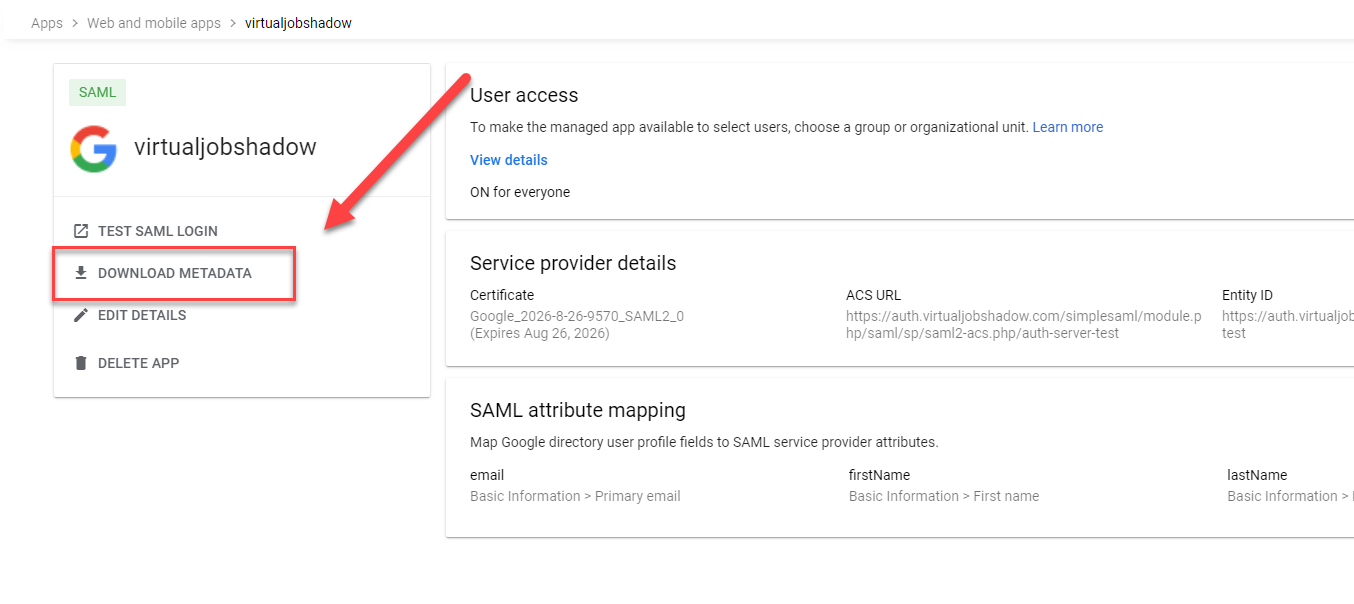
Step 8: Download and send the new metadata.xml file to the Pathful team member.
Was this helpful?
Still need help? Ask the team