Canvas - Uninstalling Application
Last updated About 2 months ago
Canvas - Uninstalling Application
Below are the steps for uninstalling the VirtualJobShadow.com application from Canvas.
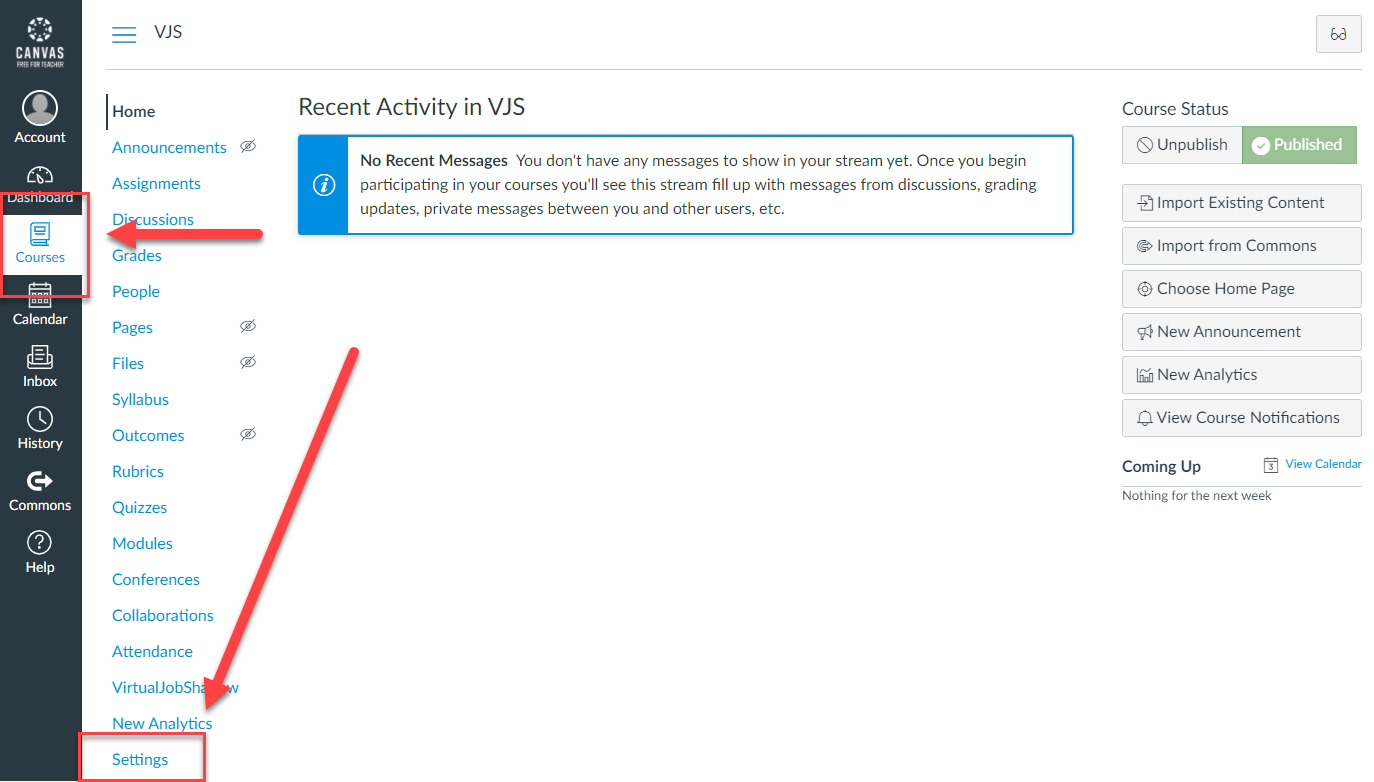
Step 1: Login to Canvas and navigate to the course where the application is installed, or to the global settings page.
Step 2: When on the course, navigate to the Settings section.
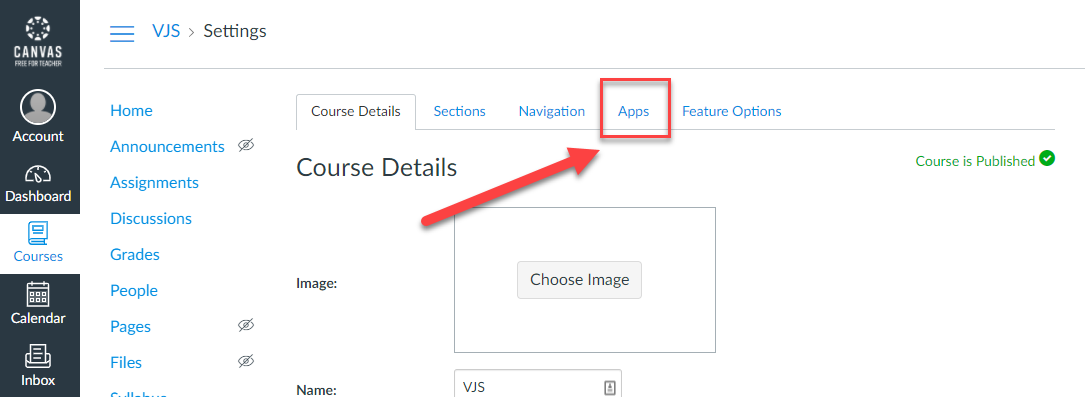
Step 3: Navigate to the Apps tab.
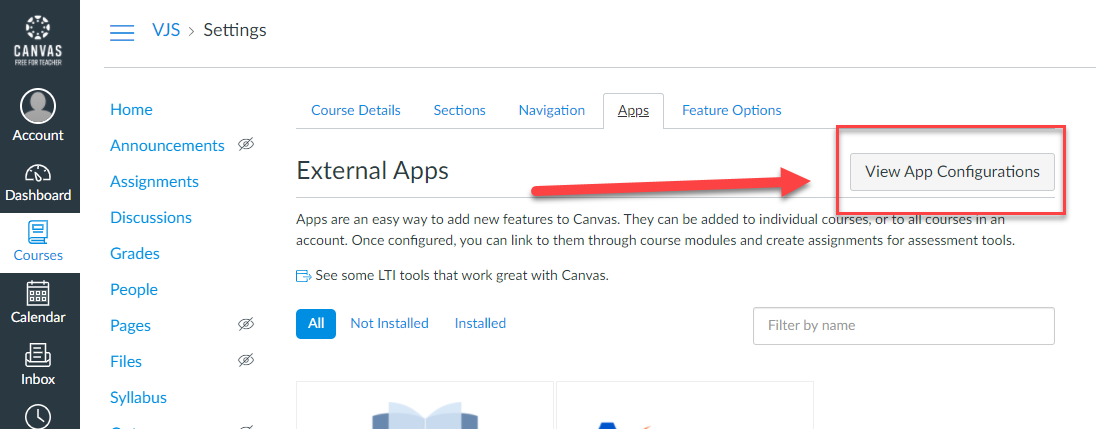
Step 4: Click on View App Configurations.
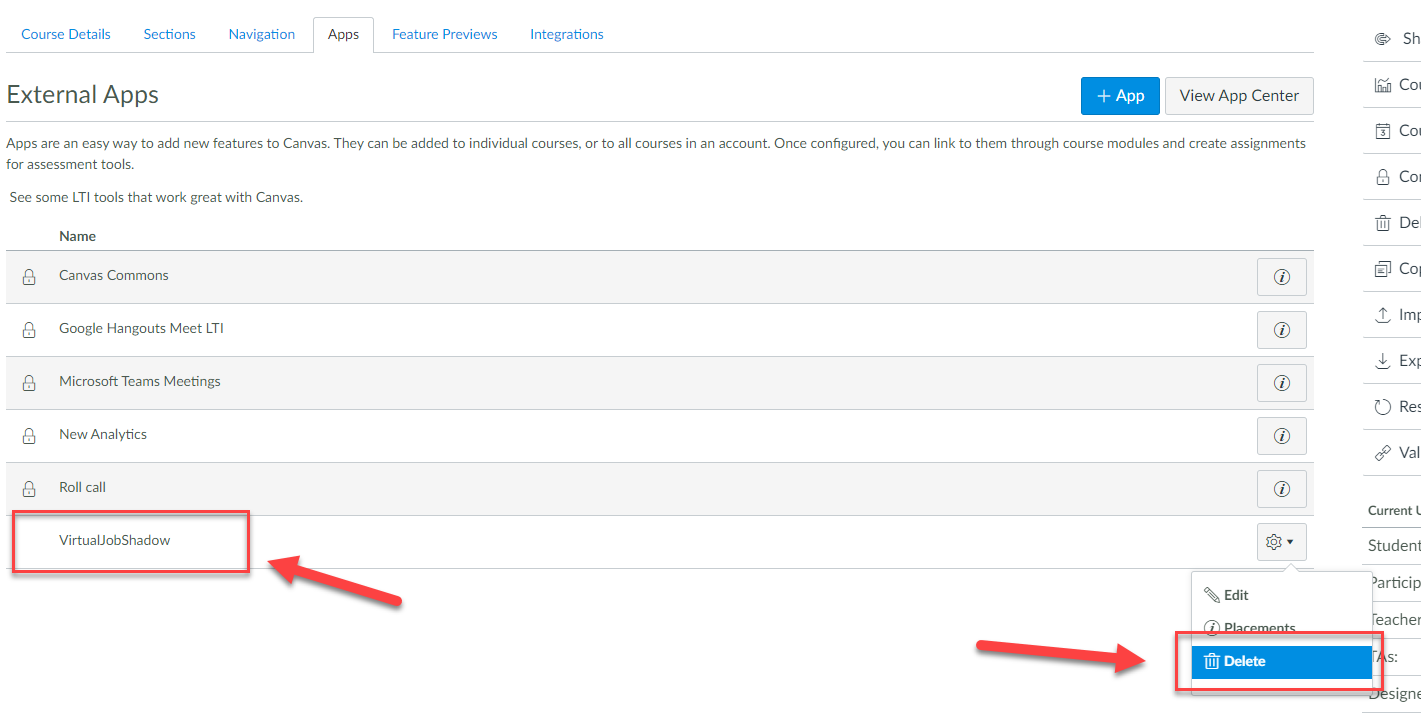
Step 5: The applications should be displayed in a list below. Find the VirtualJobShadow application.
Step 6: Click on the dropdown on the right of the application row and choose delete, then confirm the delete.
Step 7: After removing the application, the VirtualJobShadow navigation link should not be visible on the course.
Was this helpful?
Still need help? Ask the team