Add or Remove Group Members
Add or remove group members as needed. Note: Groups can only be edited if they were not created using a rostering service (Clever, Classlink, Google, etc).
Last updated About 2 months ago
Getting Started
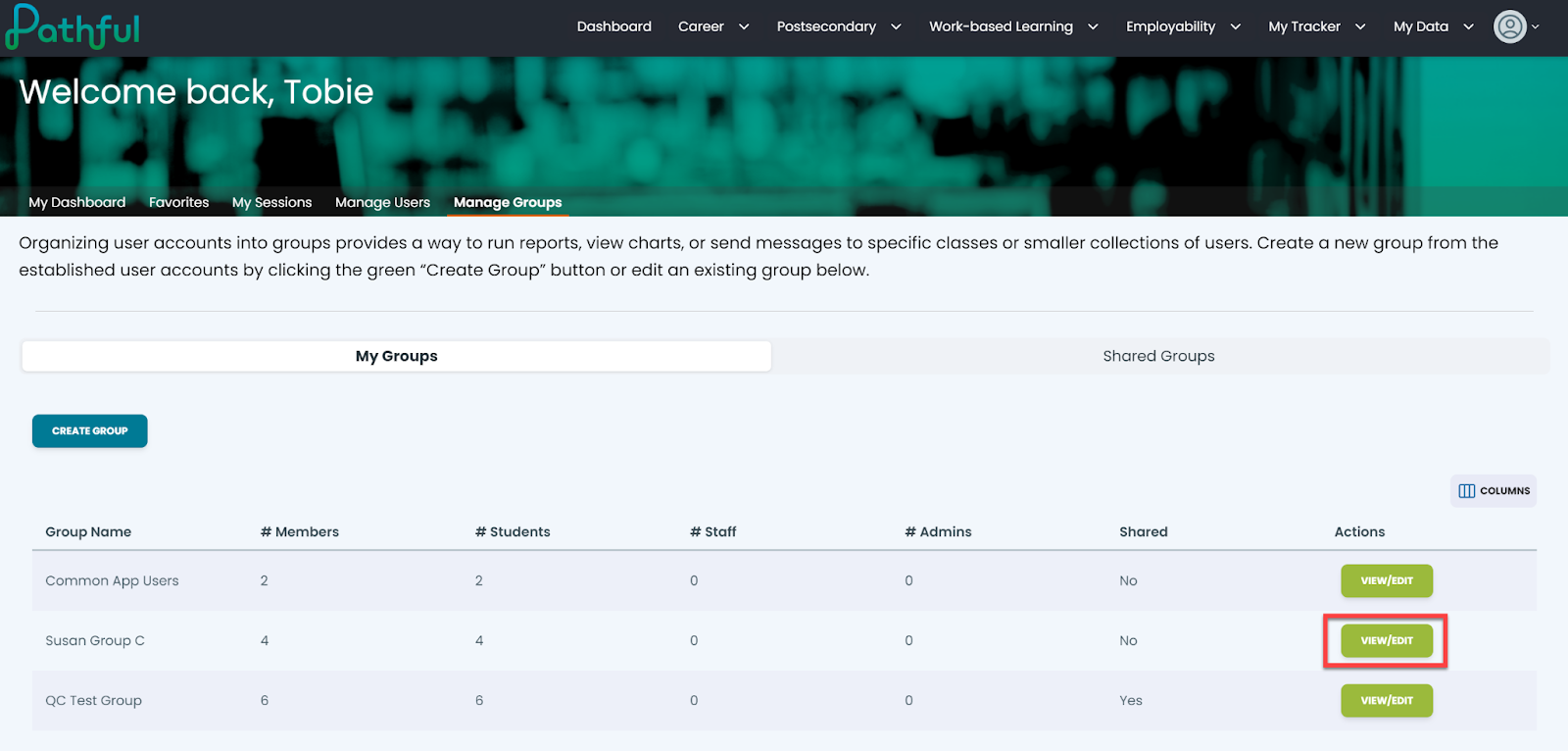
From your Dashboard, select the Manage Groups tab.

Locate the desired Group.
Under the Actions column, select View/Edit.
Remove Group Members
To remove existing members from a group:
Locate the user you want to remove in the group member list.
Select the trash can icon on the row of that user.
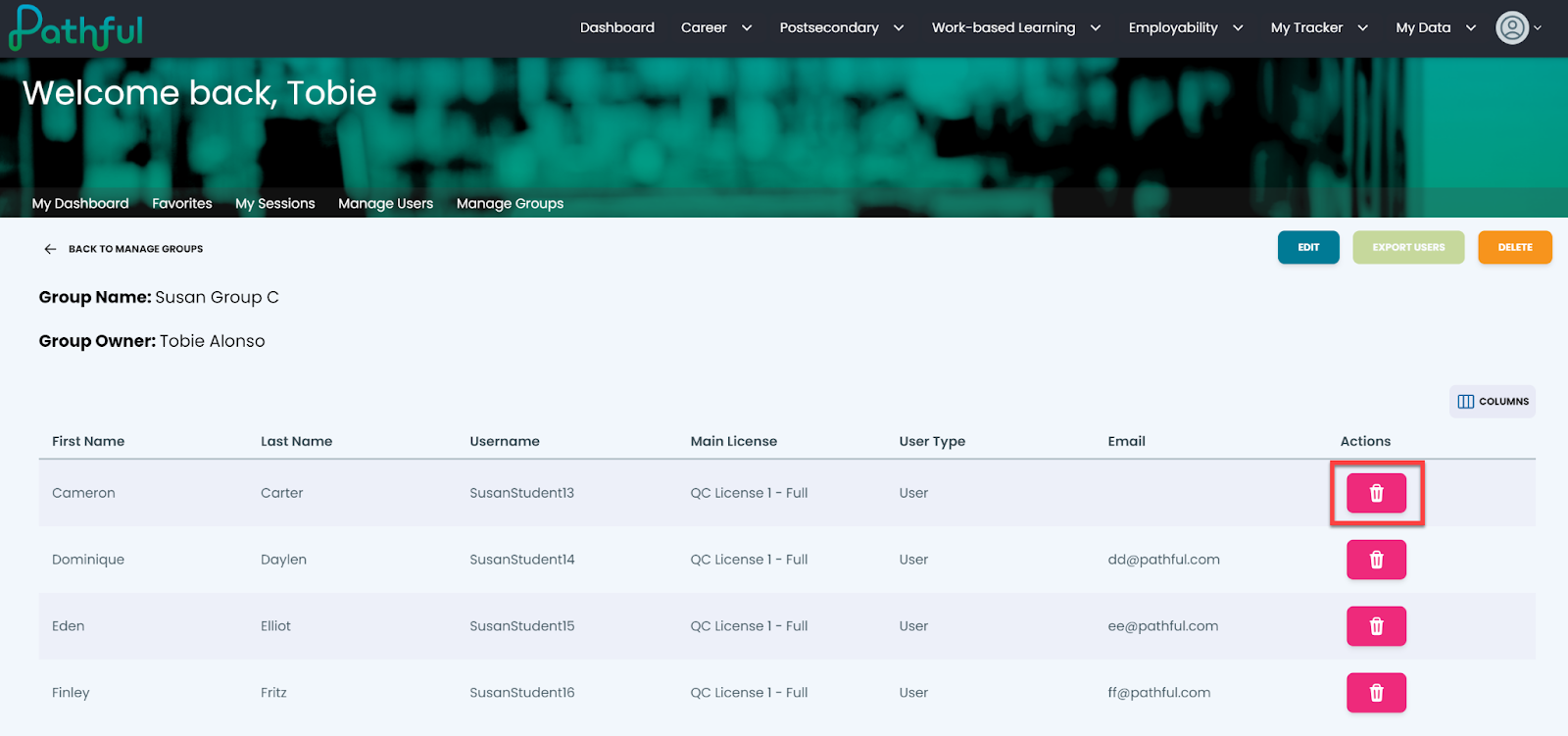
Confirm the removal when prompted.
Save your changes.
Add Group Members
To add new members to a group:
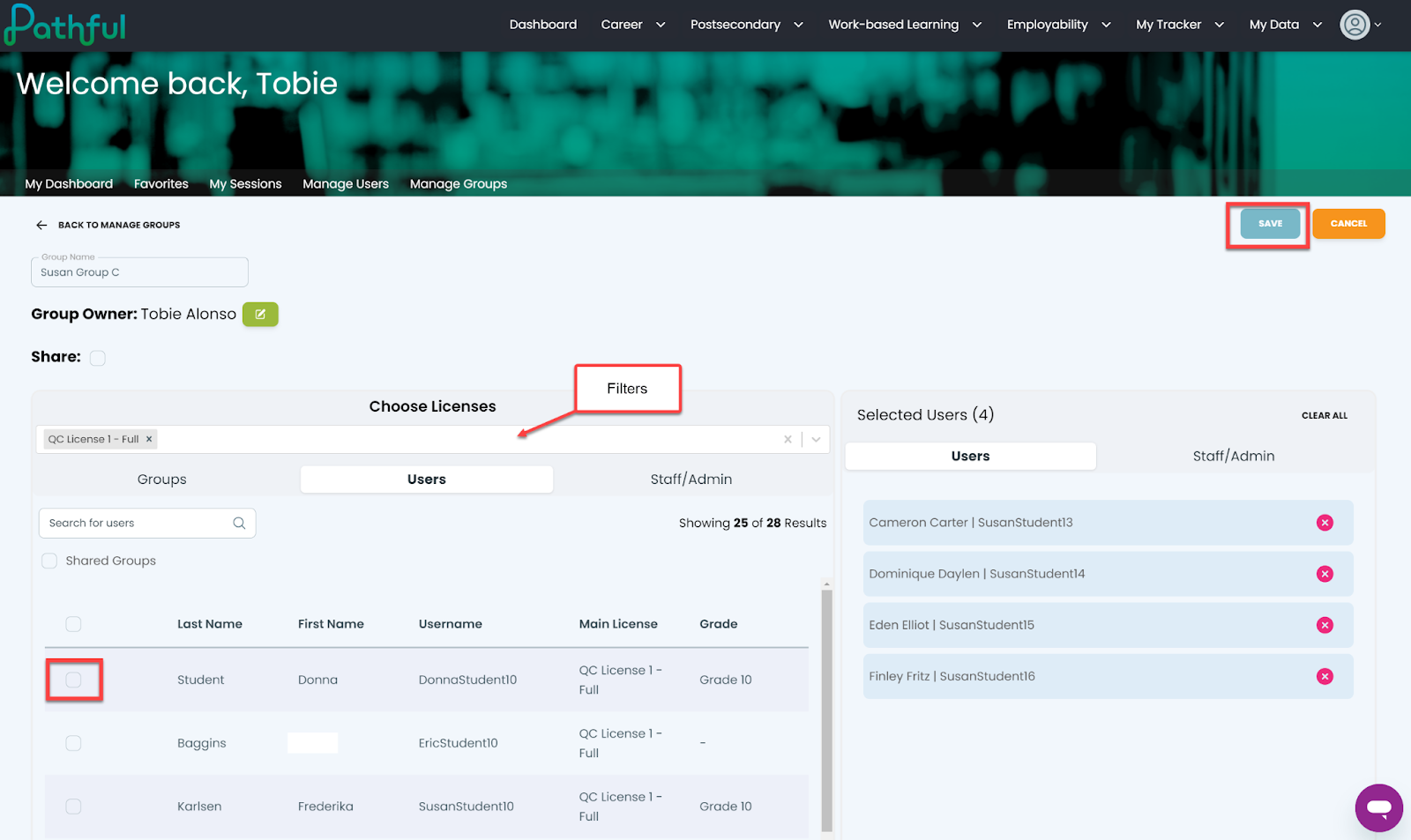
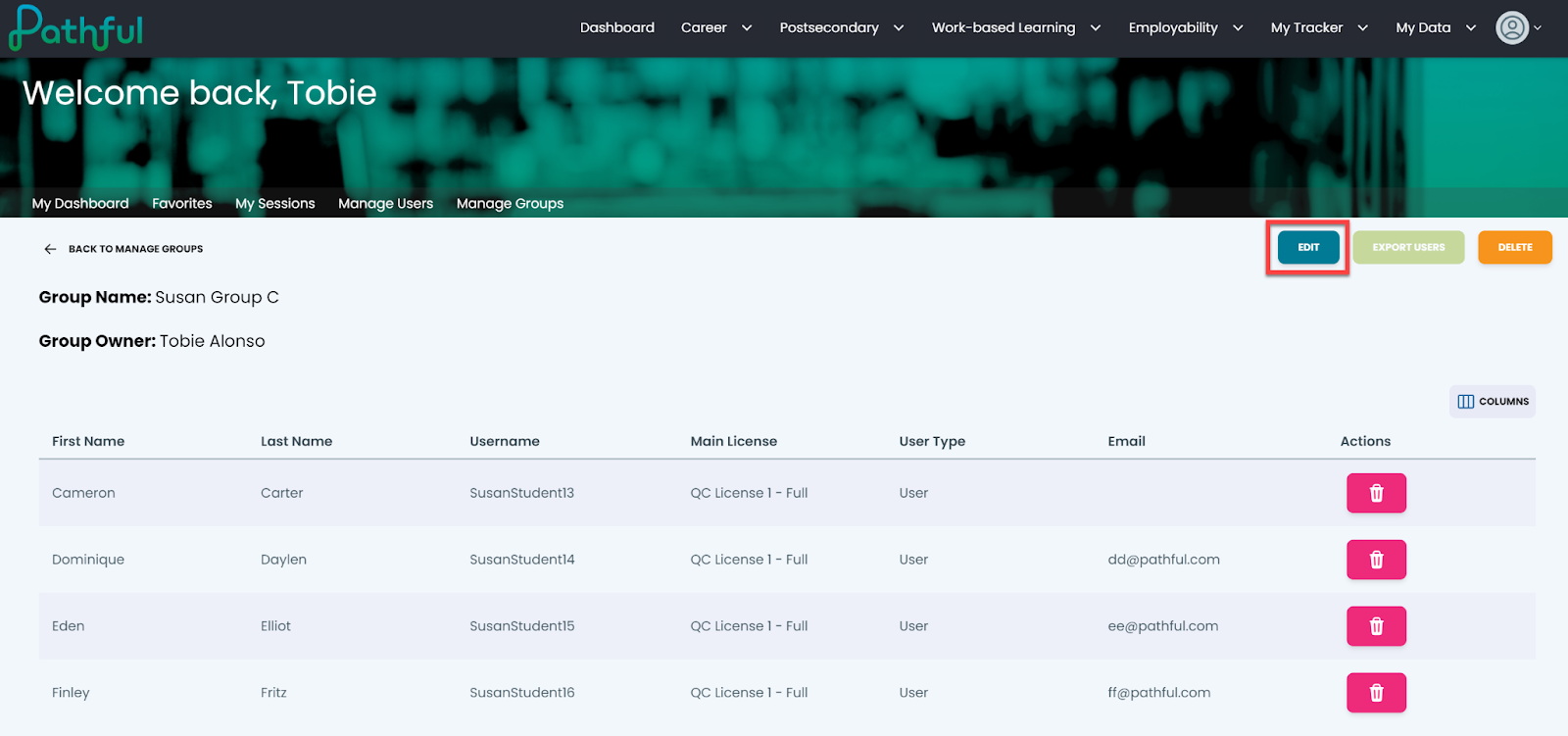
Select the Edit button to access the user selection interface.
Use the filters to help you locate the user(s) you want to add to the group.
Select the checkbox next to each user you want to add.
Save your changes to add the selected users to the group.