Edit a Group
A step-by-step guide for how to edit a group, and add and remove group members.
Last updated About 6 hours ago
Edit a Group
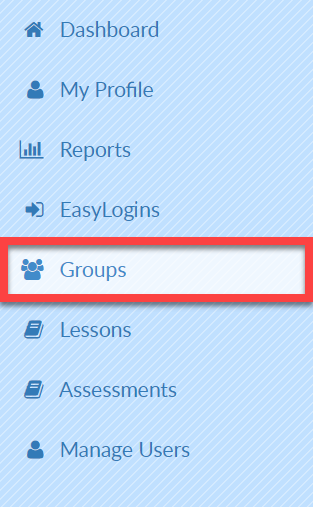
Select Groups on the left menu.
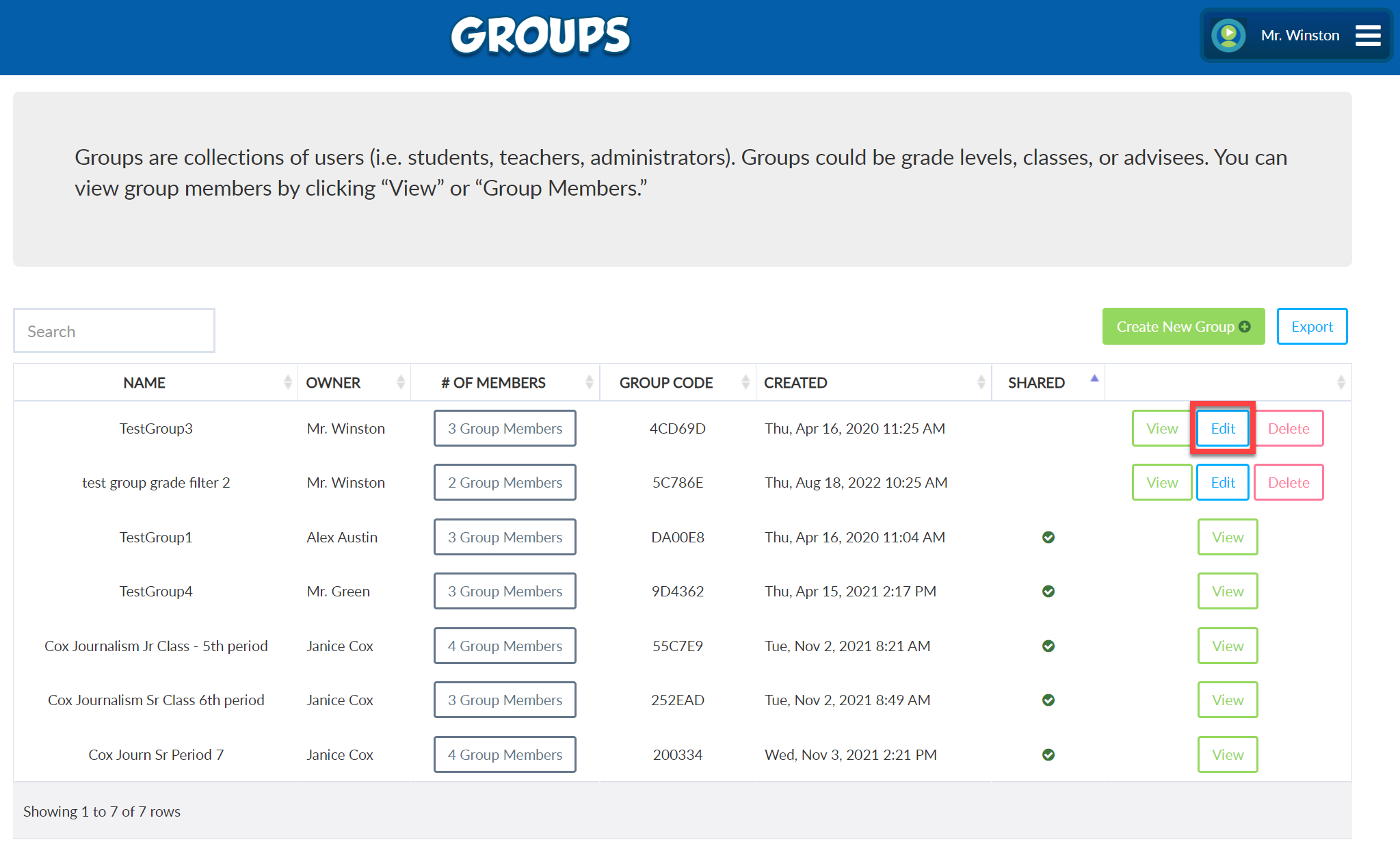
Select Edit to the right of the desired Group.NOTE: you can only edit a group that you own.
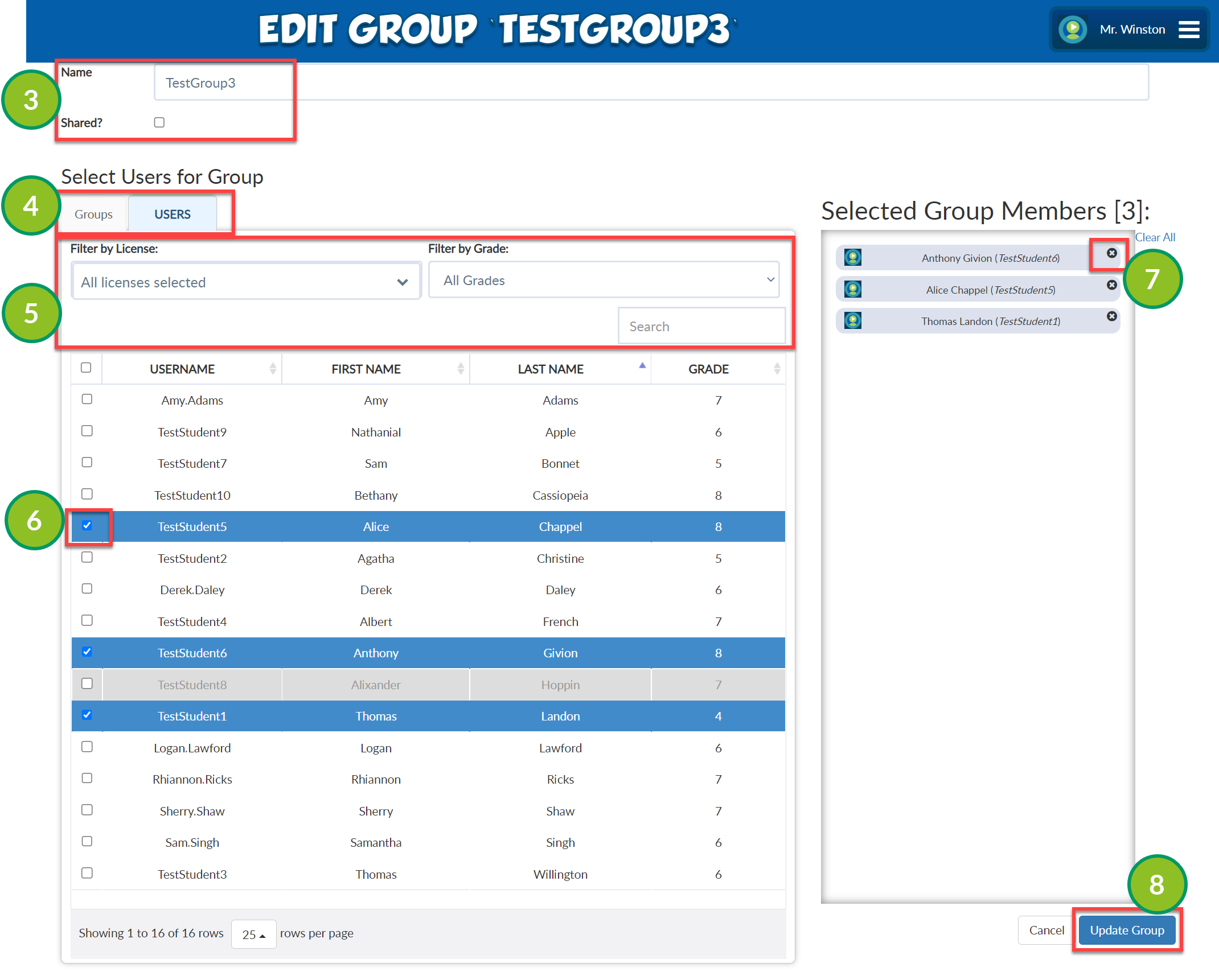
Edit the Group Name and Shared status as needed.
Use the Groups and Users tabs to locate the desired students.
Apply Filter by License and Filter by Grade as needed or type directly into the Search box.
To add students or groups of students, select the checkbox next to the desired student or Group.
To remove students from the Group, click the "X" to the right of the student's name.
When all edits have been made, select Update Group.