Edit a User
A step-by-step guide for how to edit a user's account, contact, and personal information.
Last updated About 6 hours ago
Edit a User
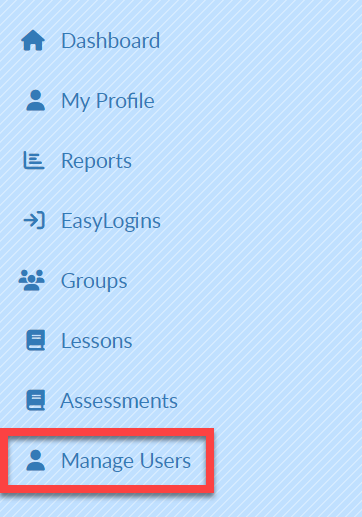
Select Manage Users on the left menu bar.
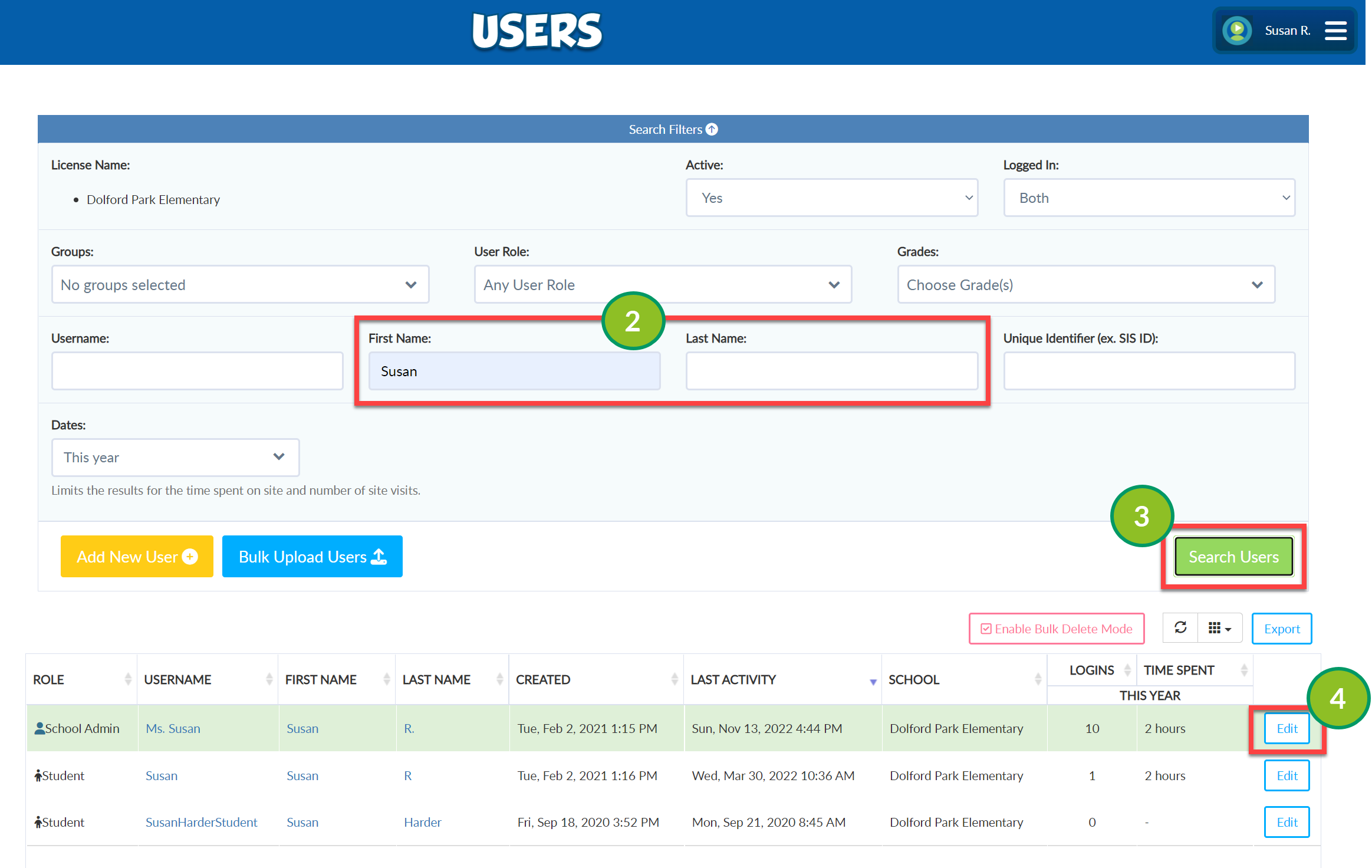
Type the name of the user in the search box(es).
Select Search Users.
Select Edit to the right of the student's name.
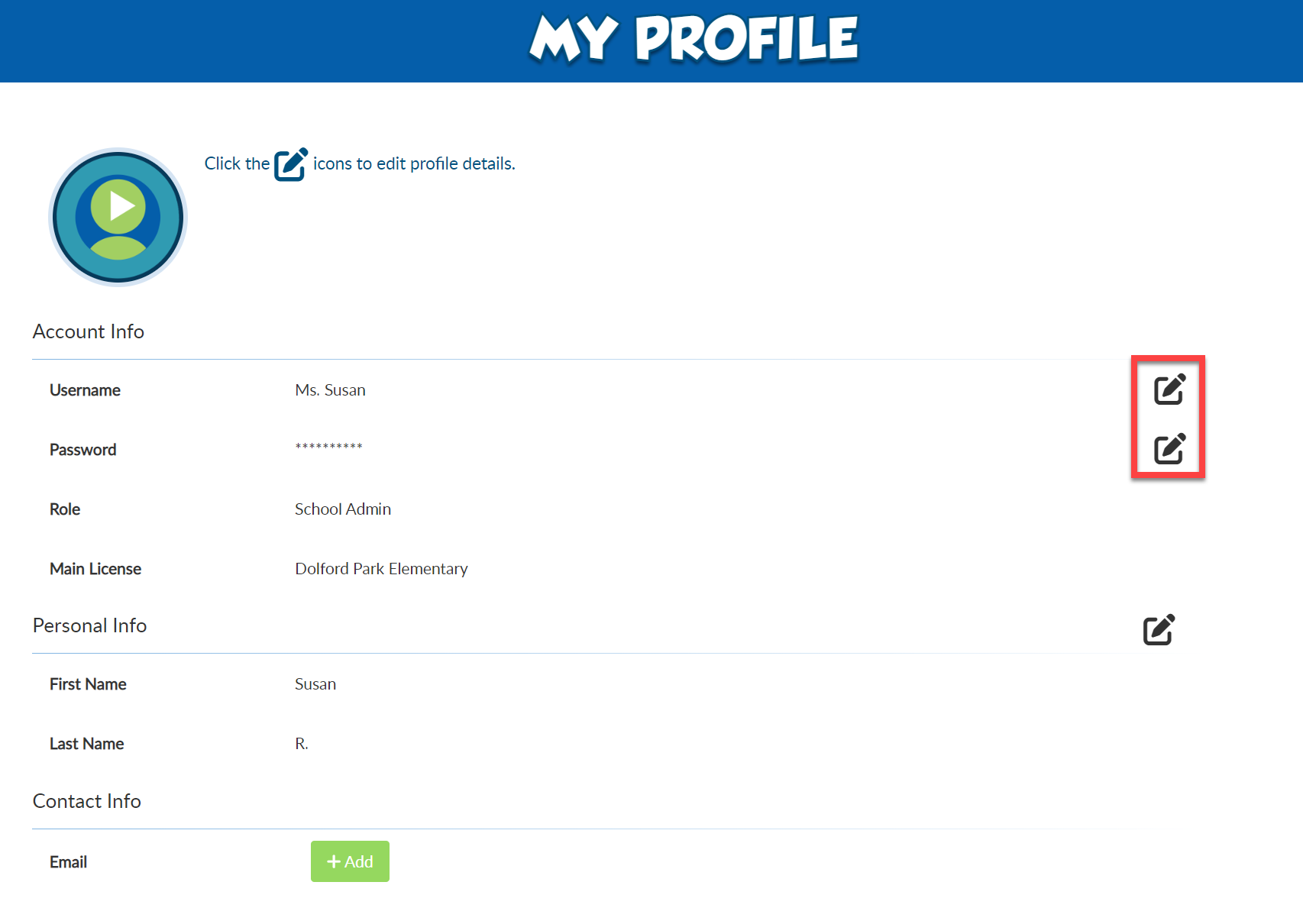
Select the Edit icon from the User Profile screen to edit Account Info, Personal Info, or Contact Info.Note: By default, students can edit their own usernames and passwords. If you prefer that your students NOT have this option, please contact your Account Manager, and we will remove this functionality from students' accounts.
Select Save in each section where you have made edits.