Manage Users: User Profile
This article explains how to Add and Delete users as well as how to Edit user information.
Last updated About 2 months ago
Manage Users: User Profile
The Manage Users section allows you to apply search filters to search for individual students.
If your school has Rostering setup, information is automatically updated; you will not utilize the Add, Edit, or Delete.
If your school has Single-Sign-On (SSO), you can Delete. You will not utilize Add or Edit.
By default, students can edit their own usernames and passwords. If you prefer that your students NOT have this option, please contact your Account Manager, and we will remove this functionality from students' accounts.
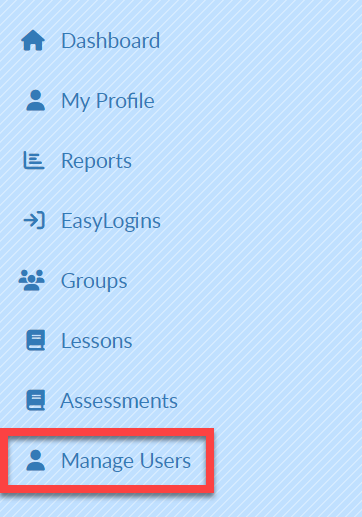
Select Manage Users on the left menu bar to perform the task below.
User Profile
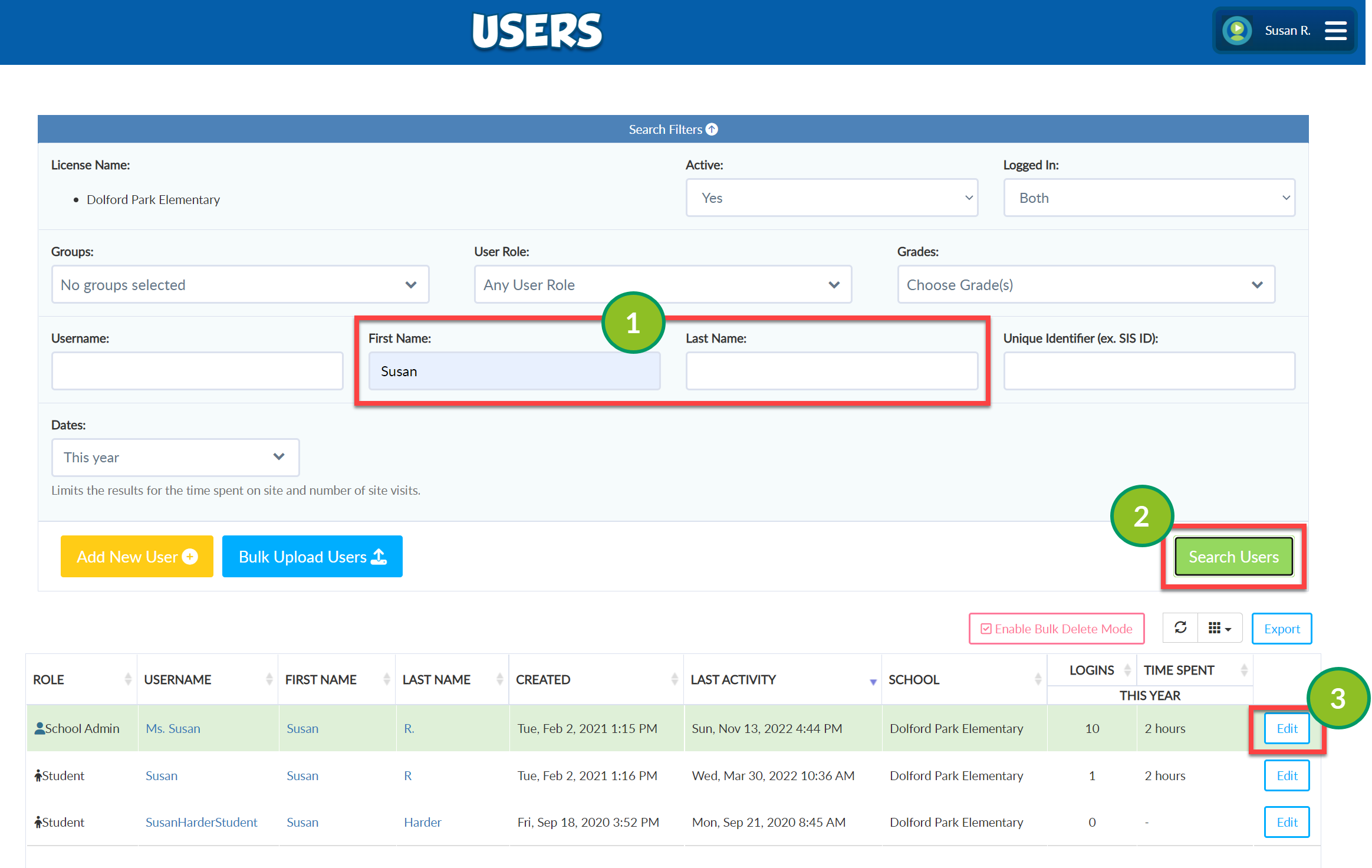
Enter the name of the desired user.
Select Search Users.
Select Edit to the right of the desired user's name.
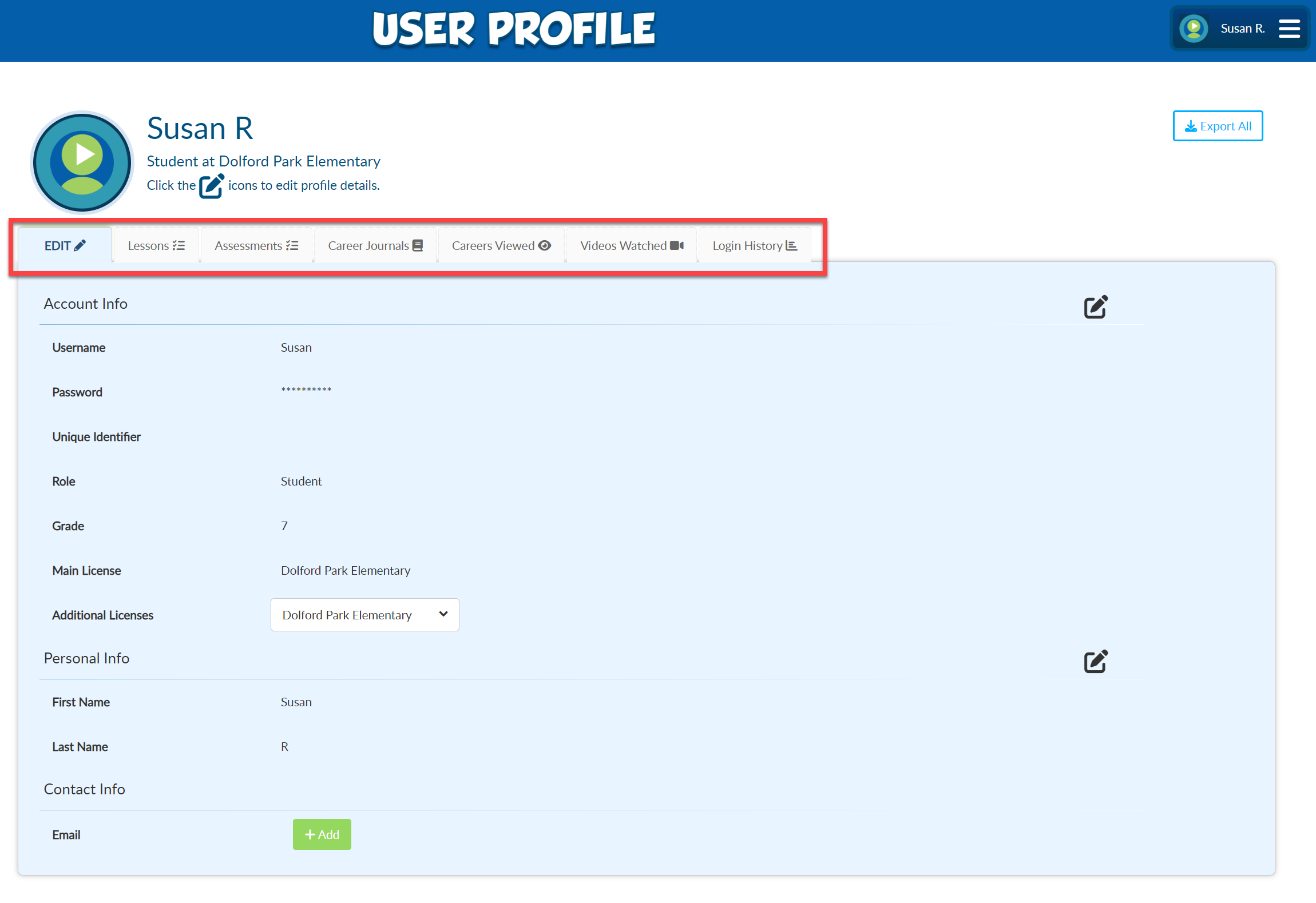
There are multiple tabs in the User Profile:
Edit: allows you to edit basic information about a user.
Lessons: shows details about all Lessons assigned to the selected student.
Assessments: shows details about all Assessments taken by the selected student. Click See Results or See Partial Results to view the assessment results for that student.
Career Journals: shows information about Career Journal entries created by the selected student.
Careers Viewed: shows which careers the selected student has viewed.
Videos Watched: shows a list of the career videos the selected student has viewed.
Login History: this chart provides details about when the selected student has logged in to the platform and the duration of each login. Hover over the colored boxes to see the data for that login.
Video Tutorial
Your browser does not support HTML5 video.