View and Download an Attachment on a Student's Experience
This article explains how to view and download an attachment on a student's experience.
Last updated 4 months ago
1. From your Dashboard, select Manage Experiences.
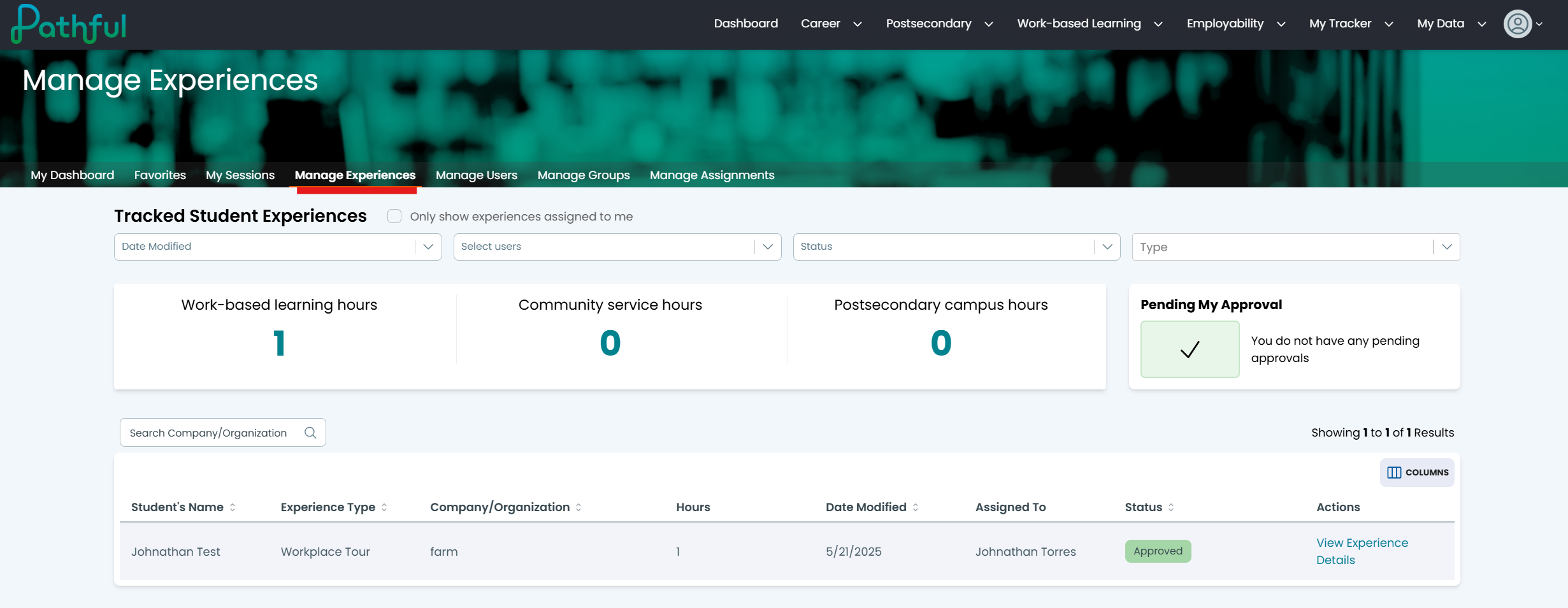
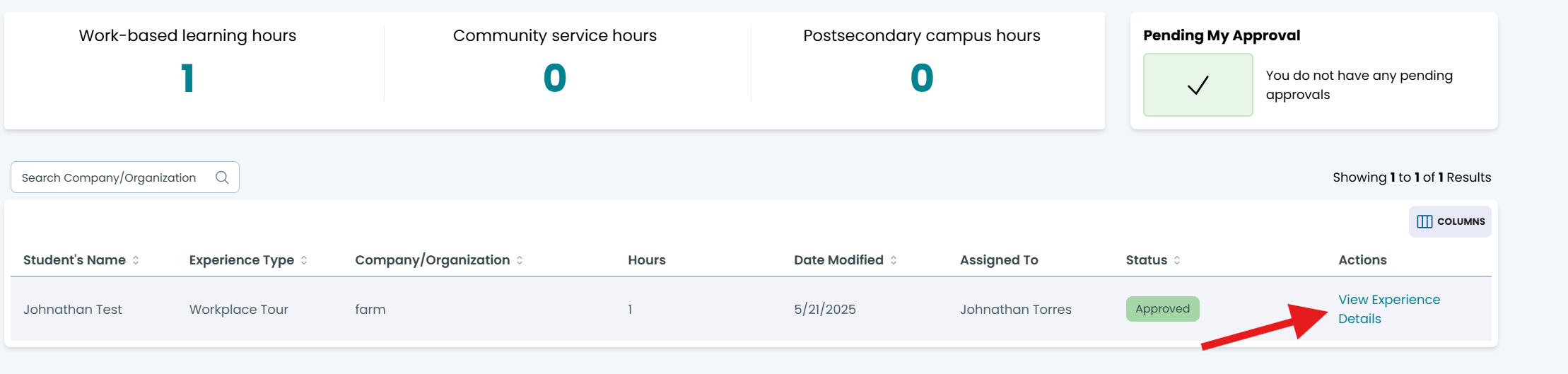
2. Select the desired student's Experience by clicking "View Experience Details" next to the student's name:
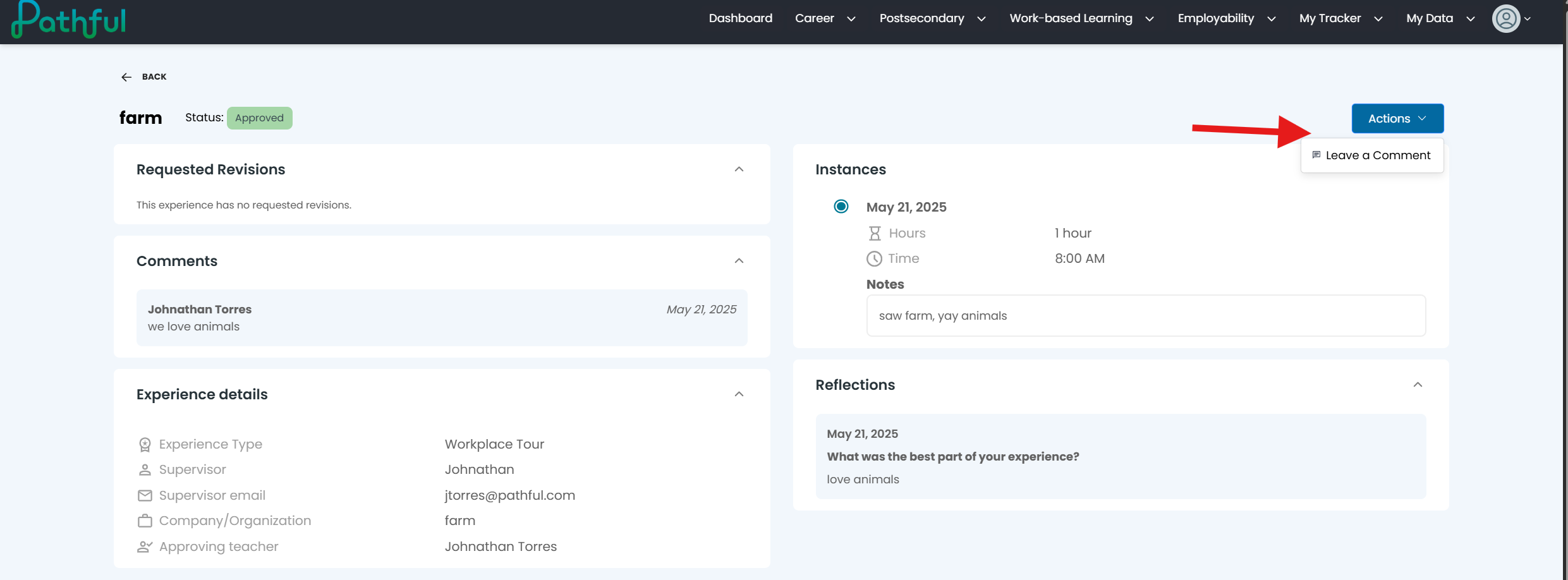
3. The next page gives you the student's data and from here you can leave a comment on the experience:
Was this helpful?
Still need help? Ask the team