How to Download Google Chrome Logs
Last updated 4 months ago
How to Download Google Chrome Logs
This article will describe how to download console data from the Google Chrome browser. This data is used to help solve possible issues with our applications and Google Chrome.
Step 1: Open Google Chrome.
Step 2: Go to the web page causing the issue.
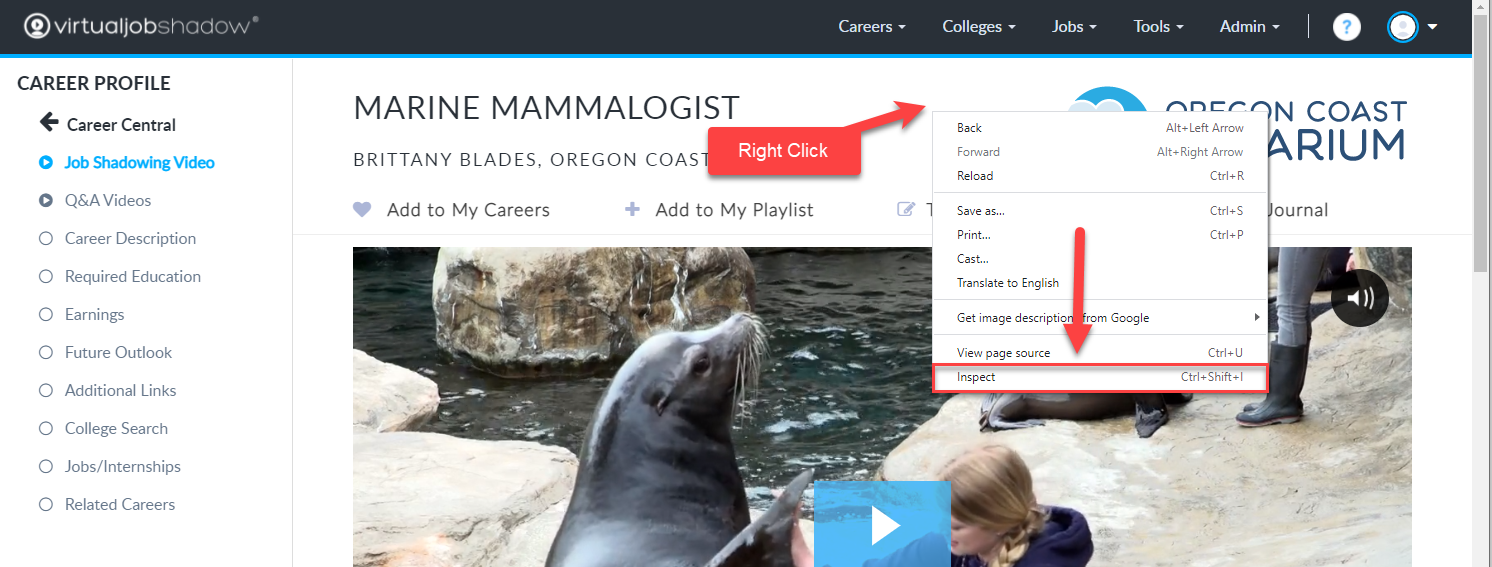
Step 3: Right click on the page, and then choose Inspect. (side note: do not right click directly on the video)
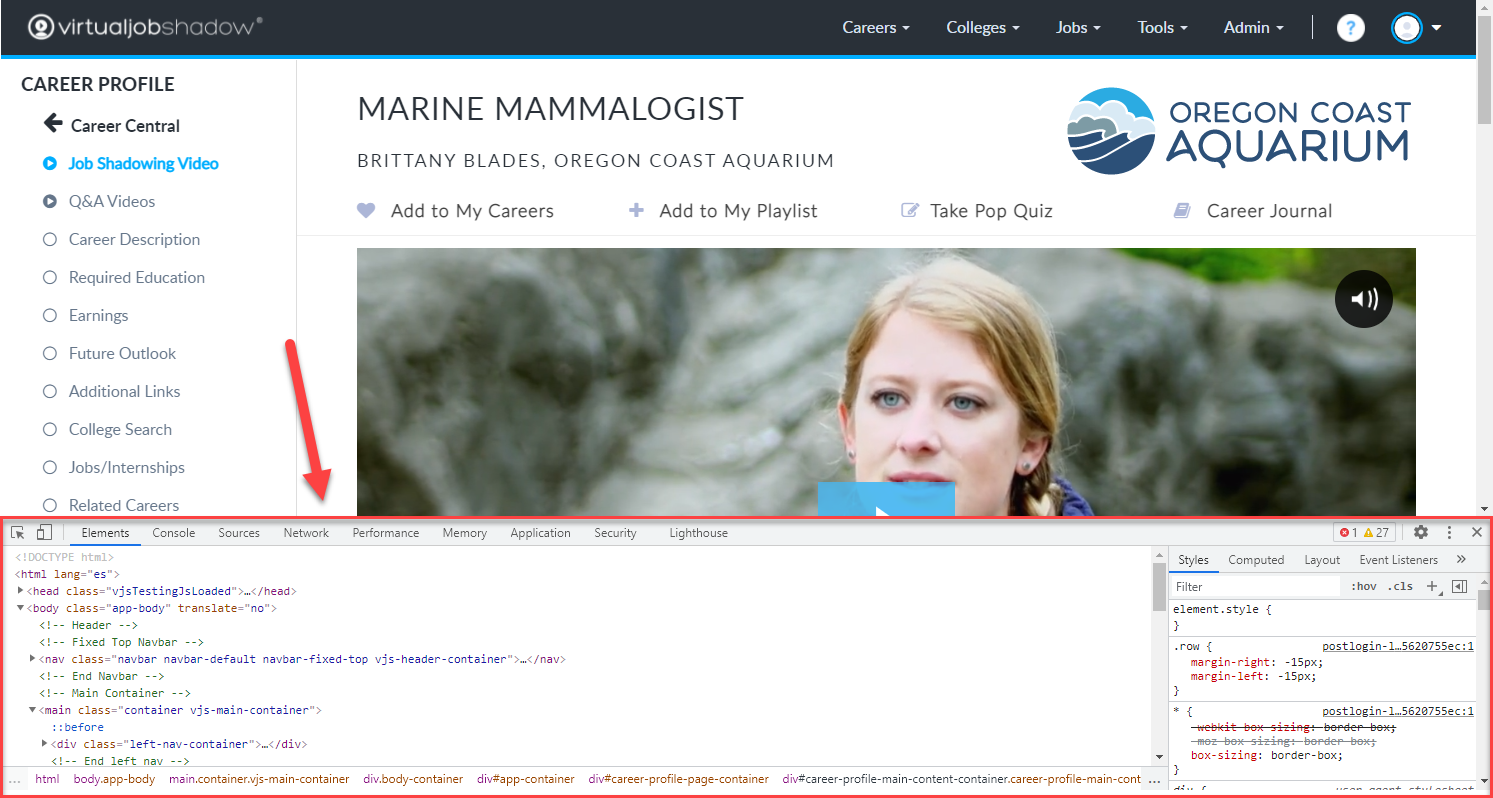
Step 4: A section will appear at the bottom of the browser.
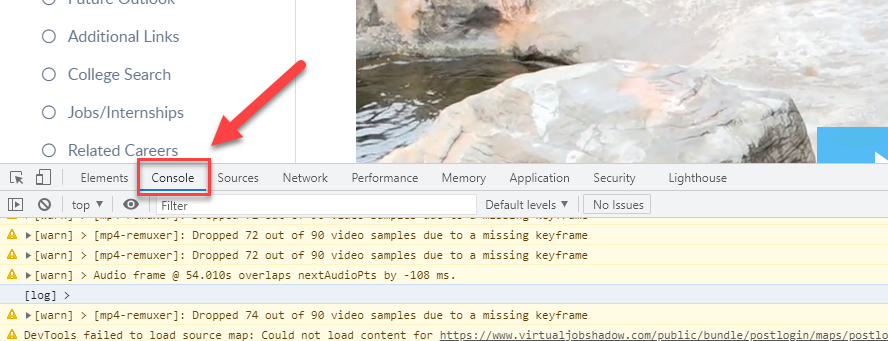
Step 5: Click on the Console tab in the box at the bottom of the screen.
Step 6: Refresh the page, and take the action that causes the issue on the page.
Step 7: With the Console tab selected, right click in the bottom section, and choose Save as ...
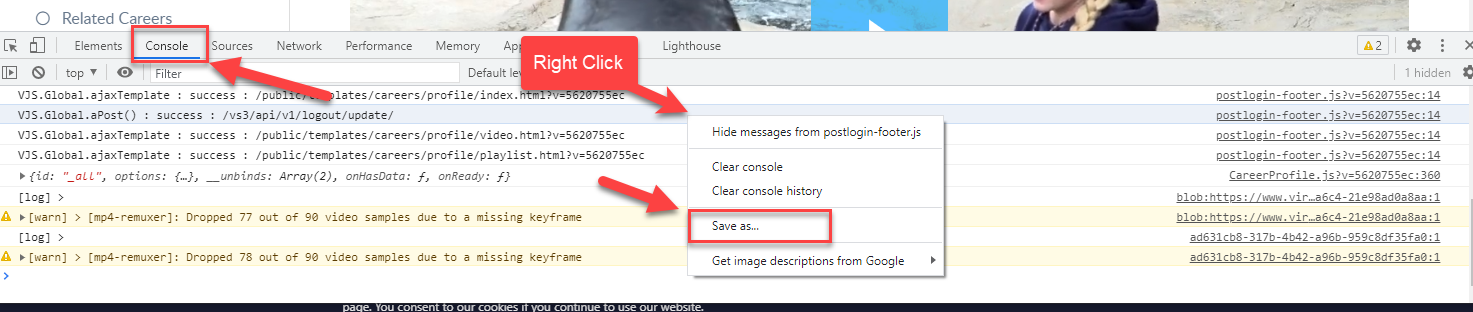
Step 8: Save the .log file, and send to the Pathful representative.
Was this helpful?
Still need help? Ask the team