Canvas - Adding LTI External Tool to a Module
Last updated About 2 months ago
Canvas - Adding LTI External Tool to a Module
Below are the steps for adding an LTI external tool to a module.
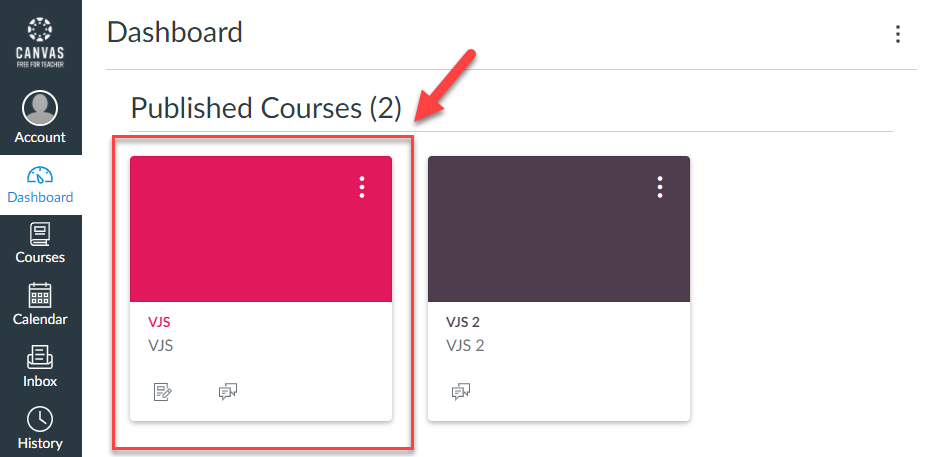
Step 1: Navigate to the Course where you need to add the module item.
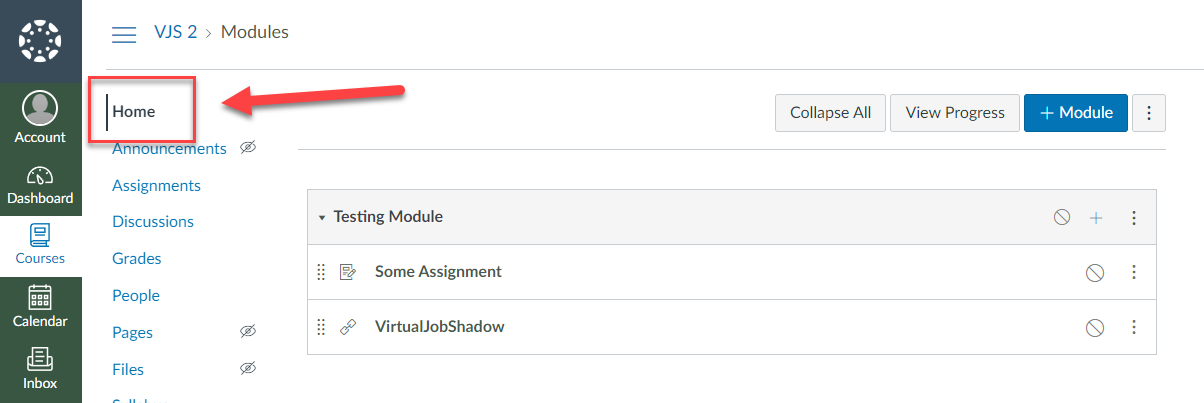
Step 2: Click Home from the left navigation.
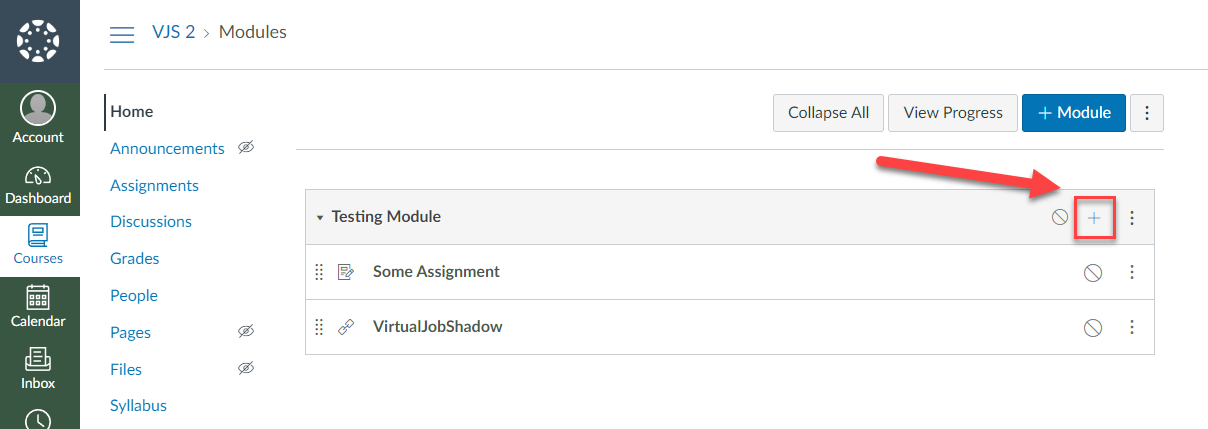
Step 3: Click on + Icon on the Module to add the VirtualJobShadow External Tool.
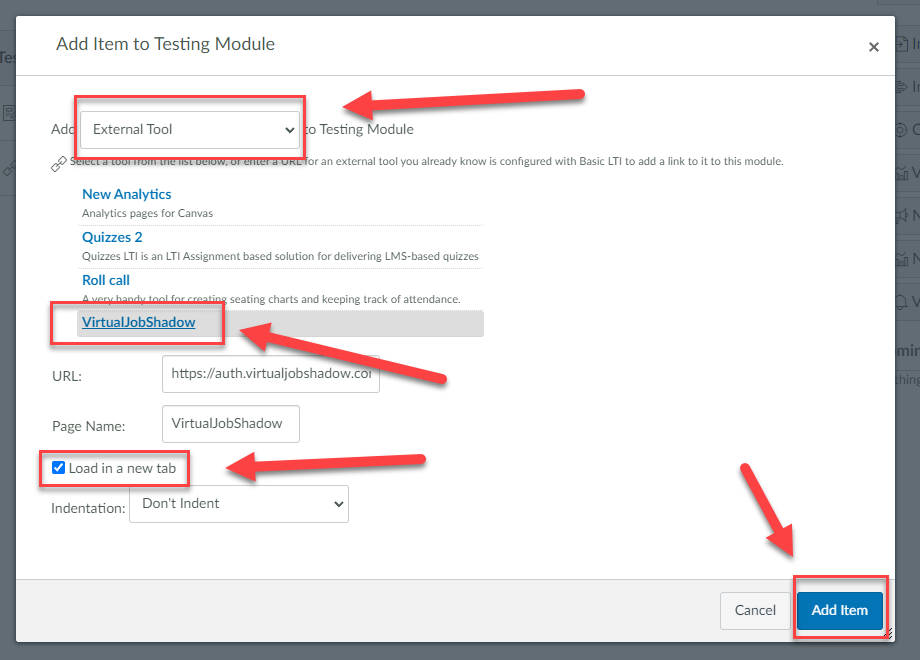
Step 4: Fill in the details for the Item.
Choose External Tool from the dropdown.
Choose VirtualJobShadow from the list of tools.
IMPORTANT: Choose Load in new tab.
Click Add Item.
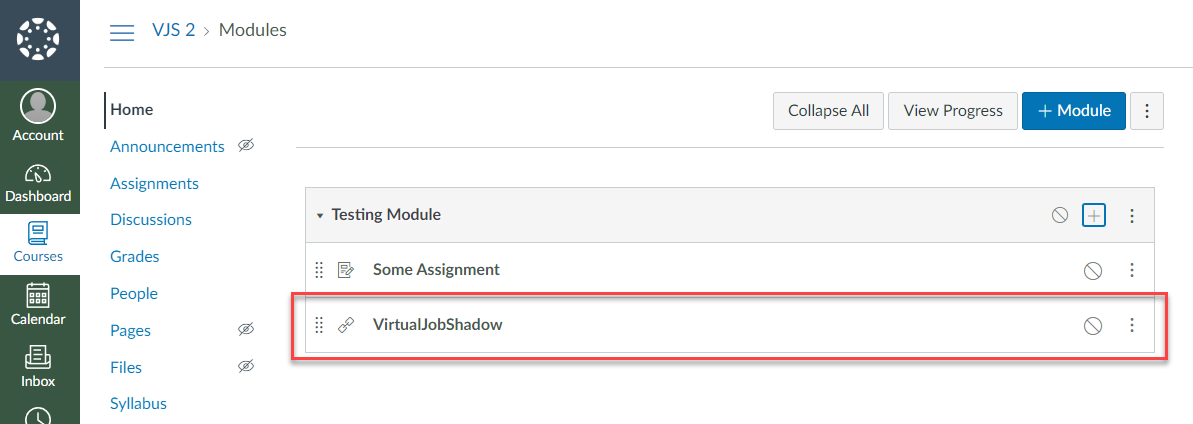
Step 5: VirtualJobShadow should be available as a link under the Module.
Was this helpful?
Still need help? Ask the team