Add or Remove Users on an Assignment
Quickly add and remove users in an assignment as needed.
Last updated 30 days ago
Add or Remove Users on an Assignment
From the submenu, click on Manage Assignments

Select the Assignment you’re looking to add changes to by clicking the title of the Assignment.
To add users to the assignment:
Select Add Users.
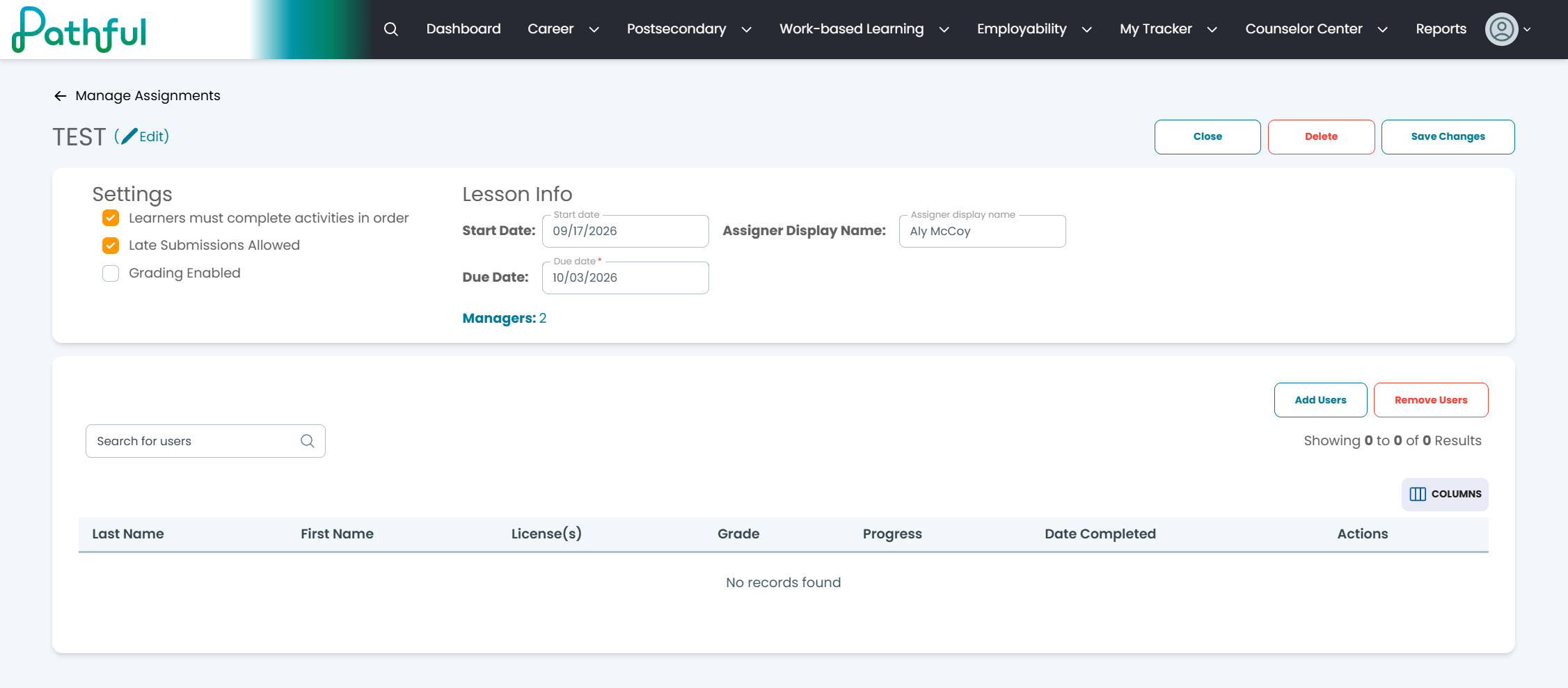
A new page will populate for the users.
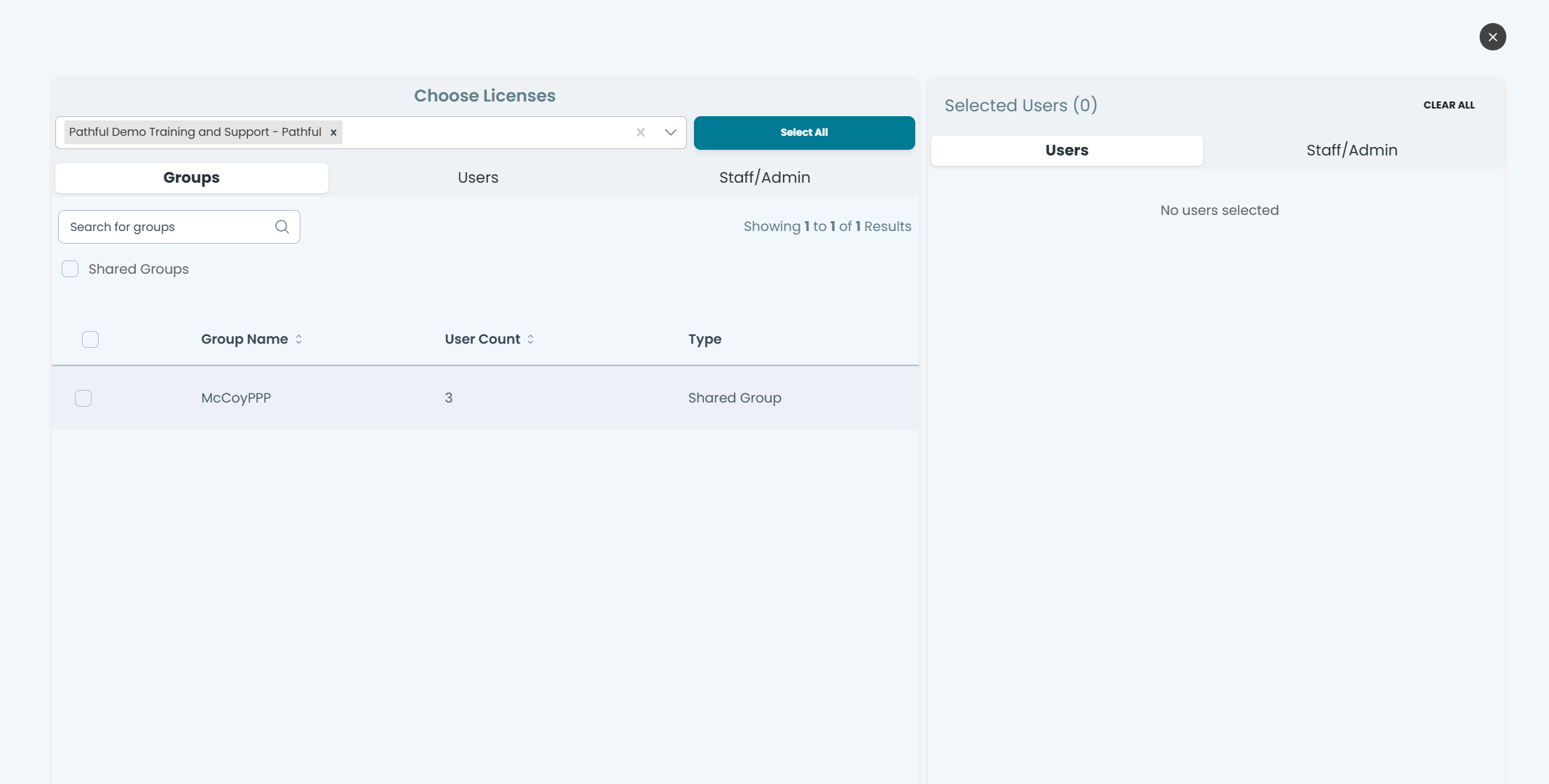
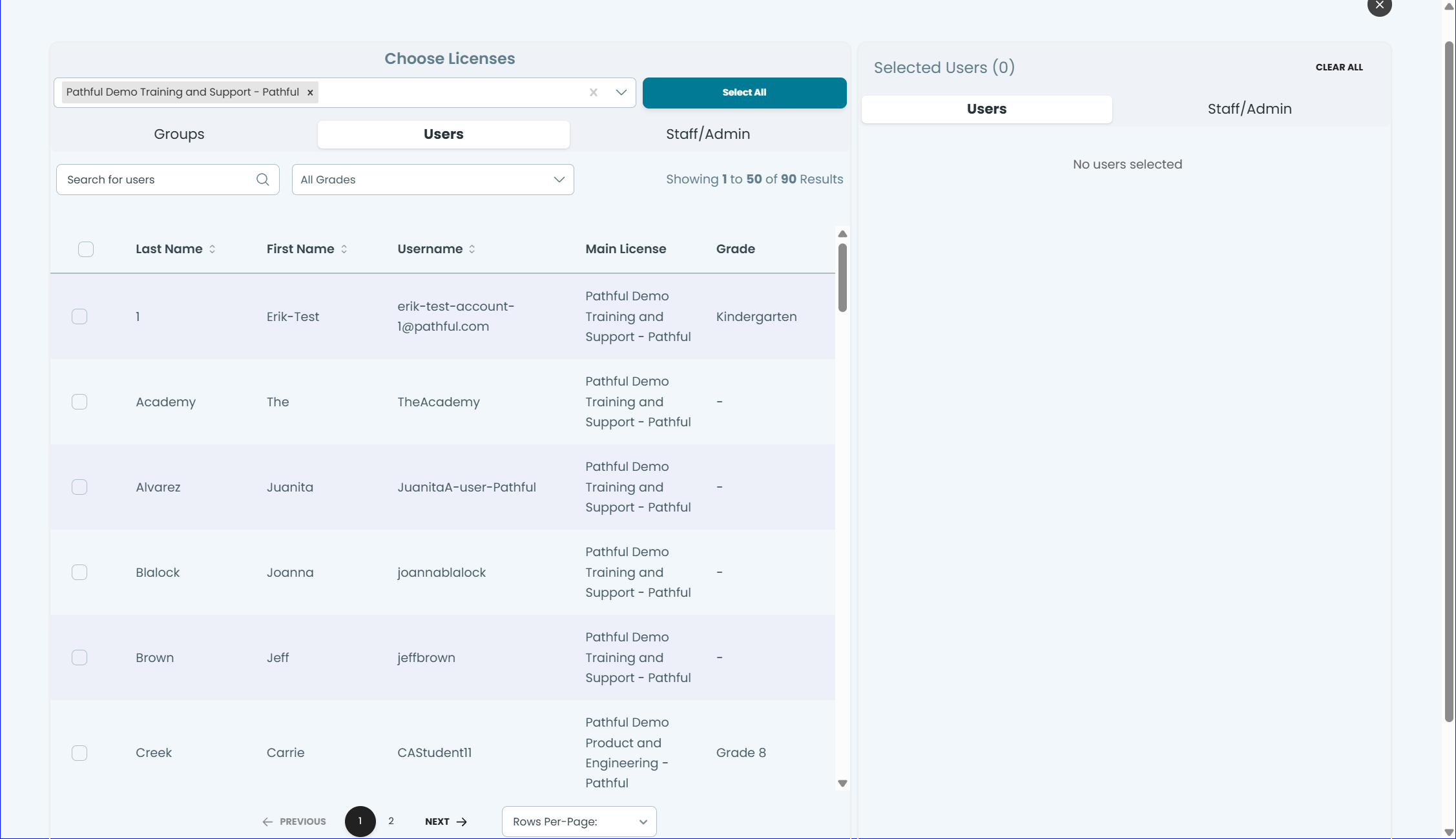
You can choose from three different categories to add users:
Groups
Users
Staff/Admin
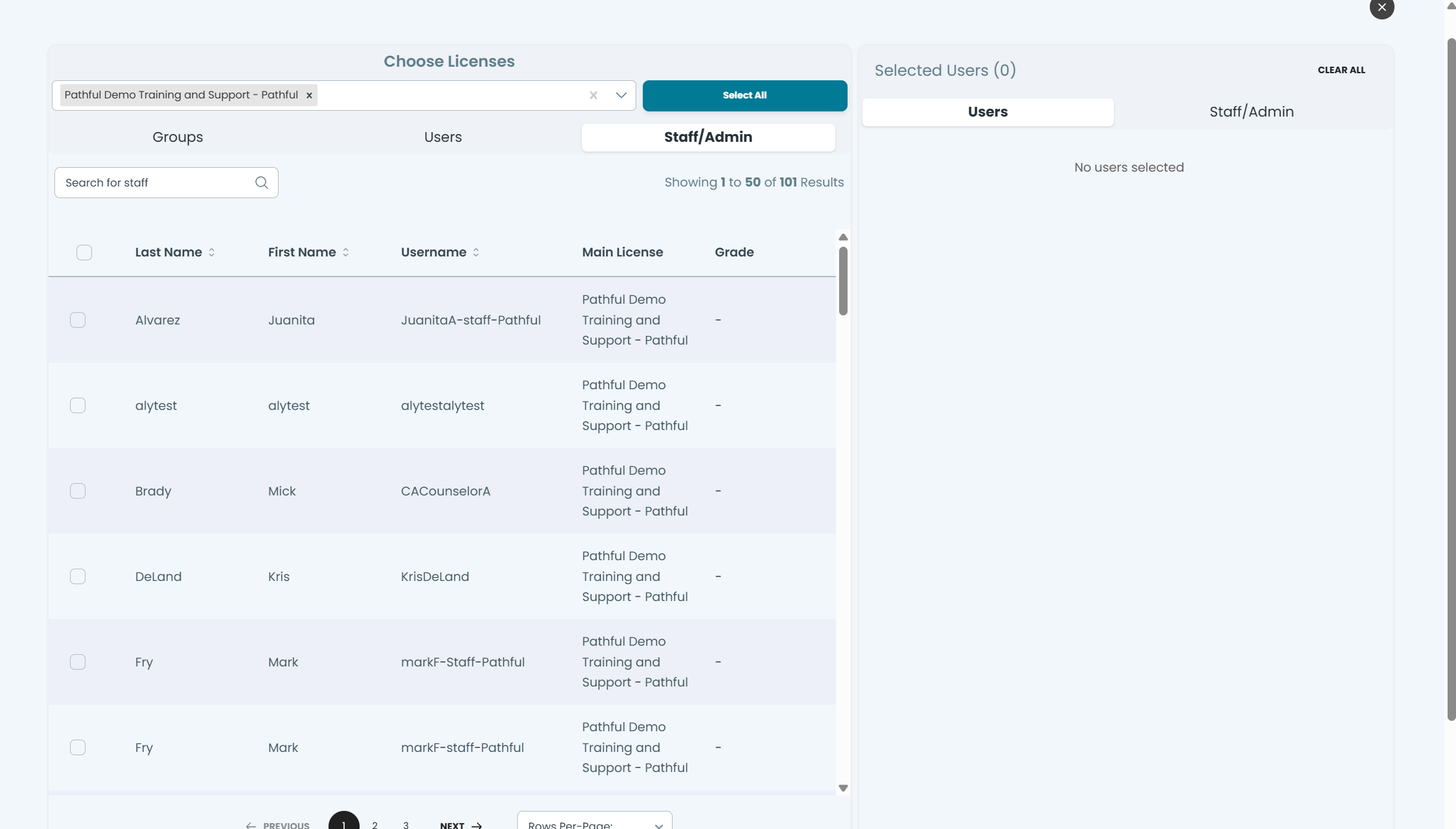
As you add an user, they will populate on the right side of the screen:
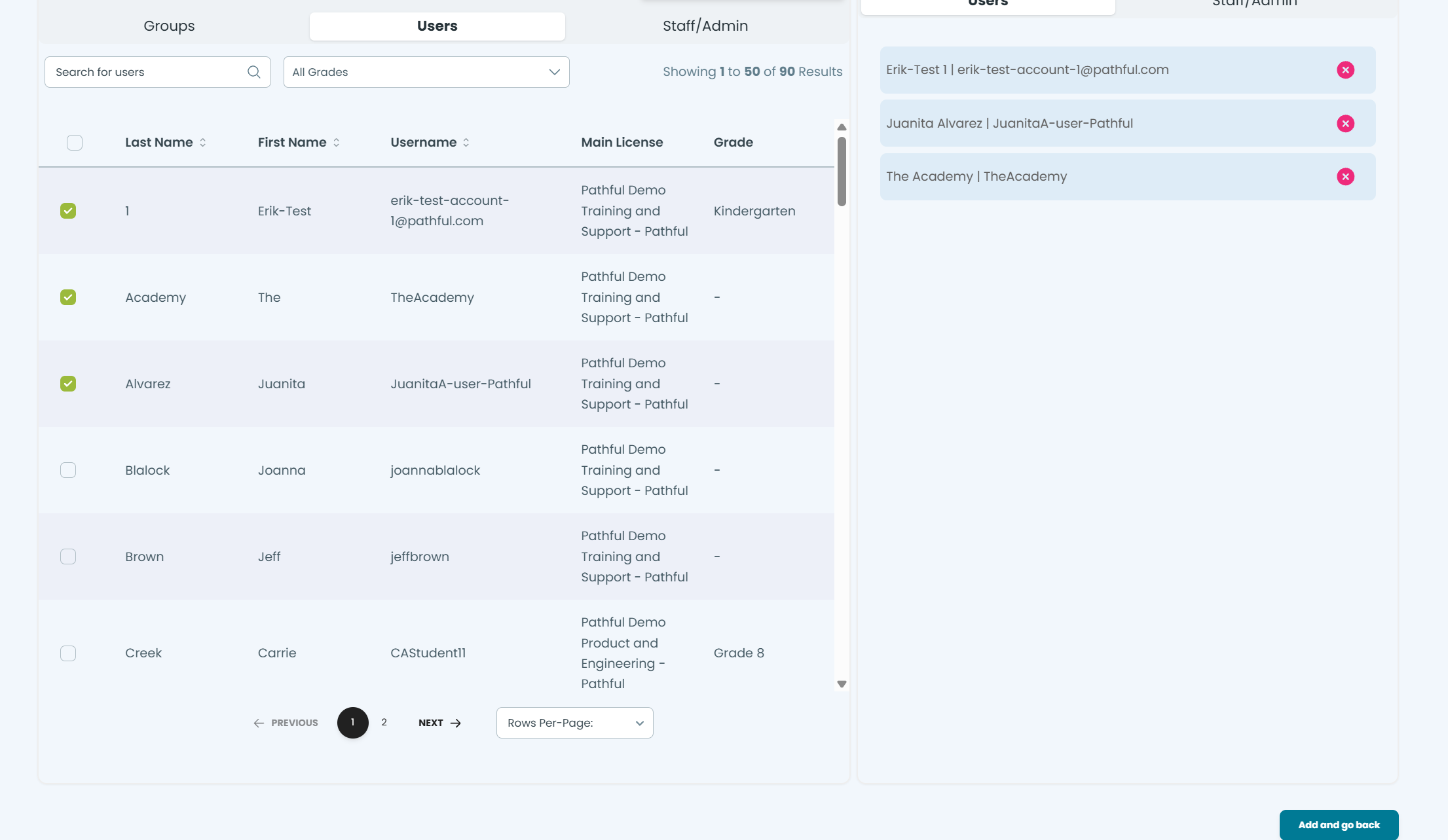
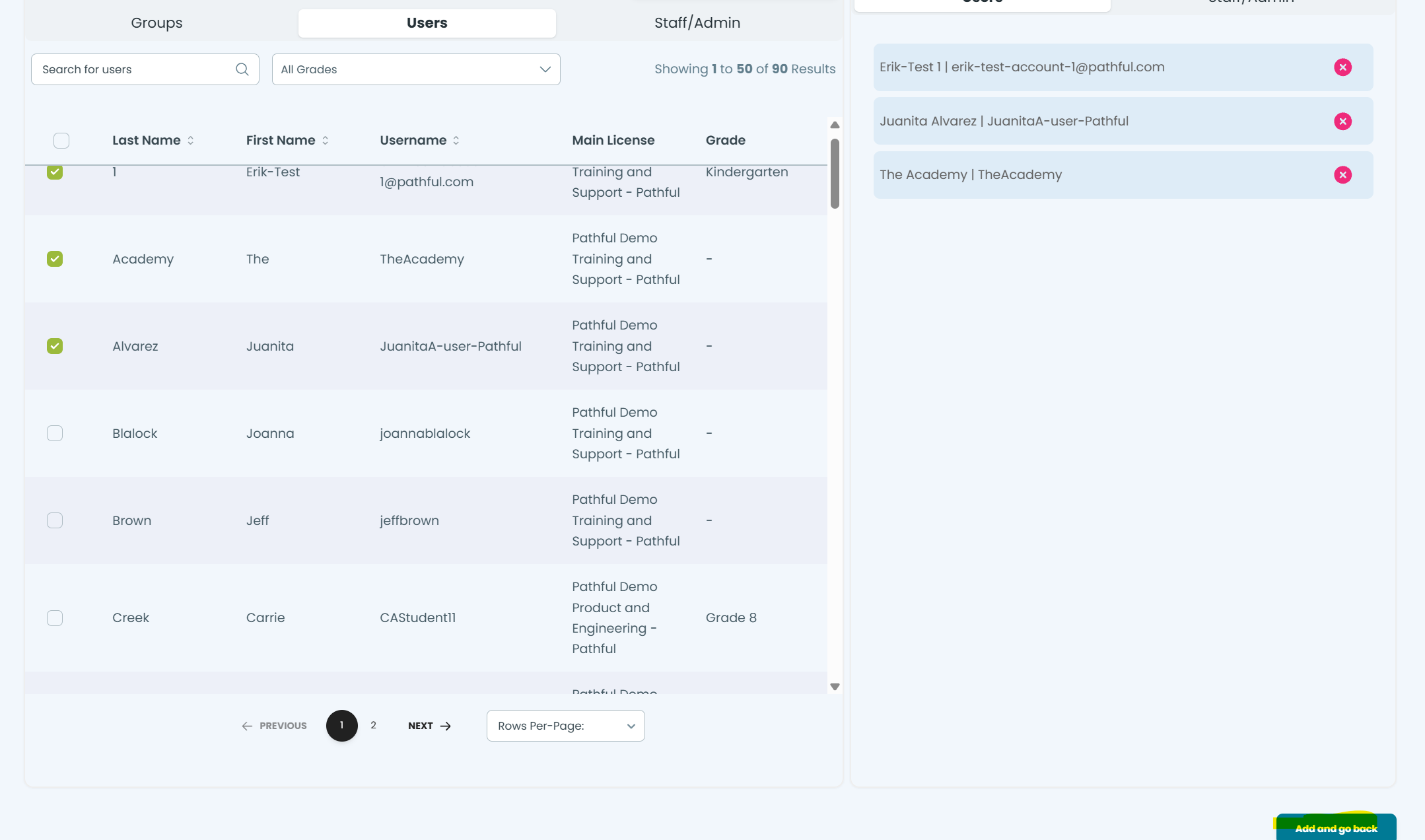
PLEASE NOTE: You will need to click the ‘Add and go back’ button on the bottom right side of the screen, highlighted below:
Remove Users from Assignment
To remove users, click the Remove Users button on the lesson:
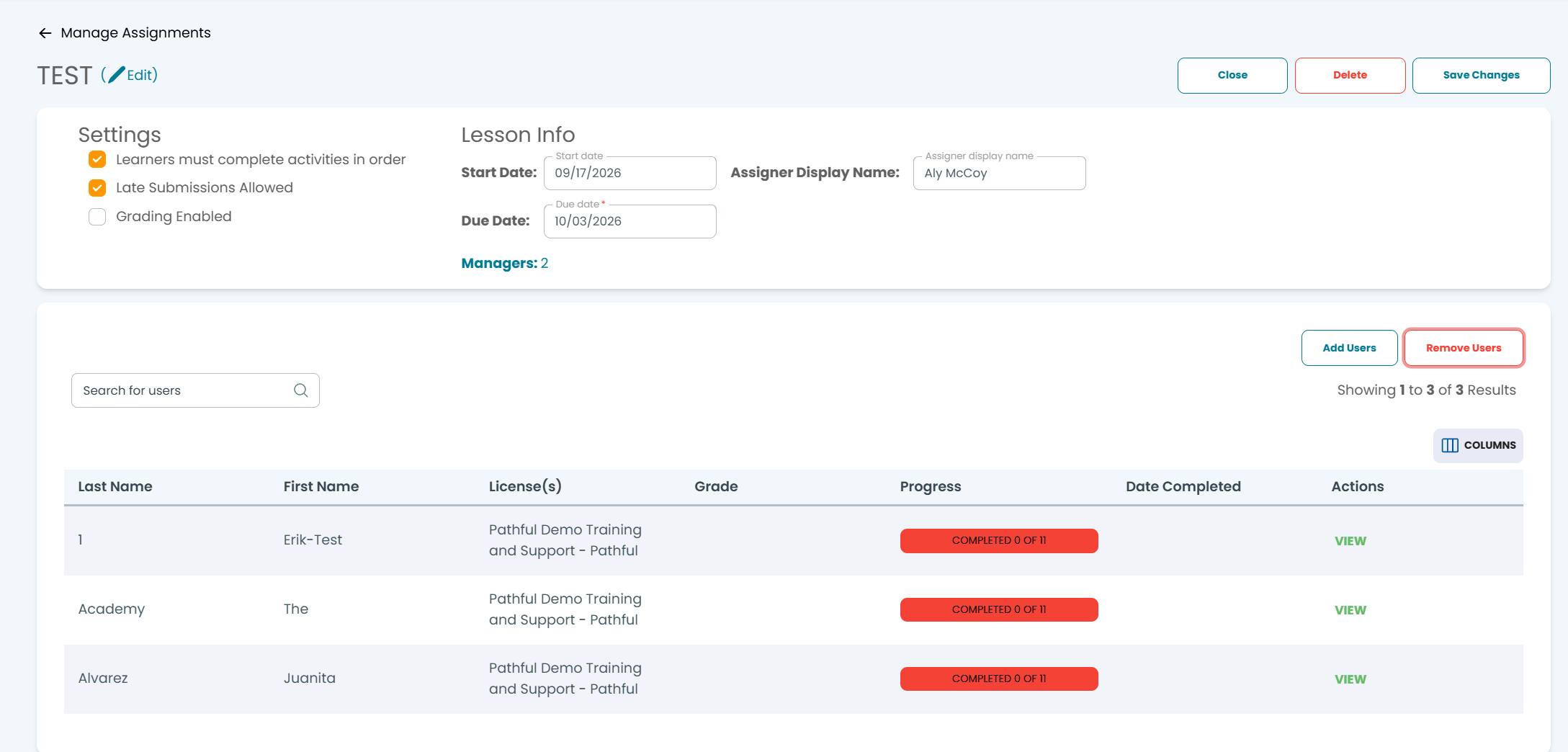
A small popup will appear with the users currently in the Assignment:
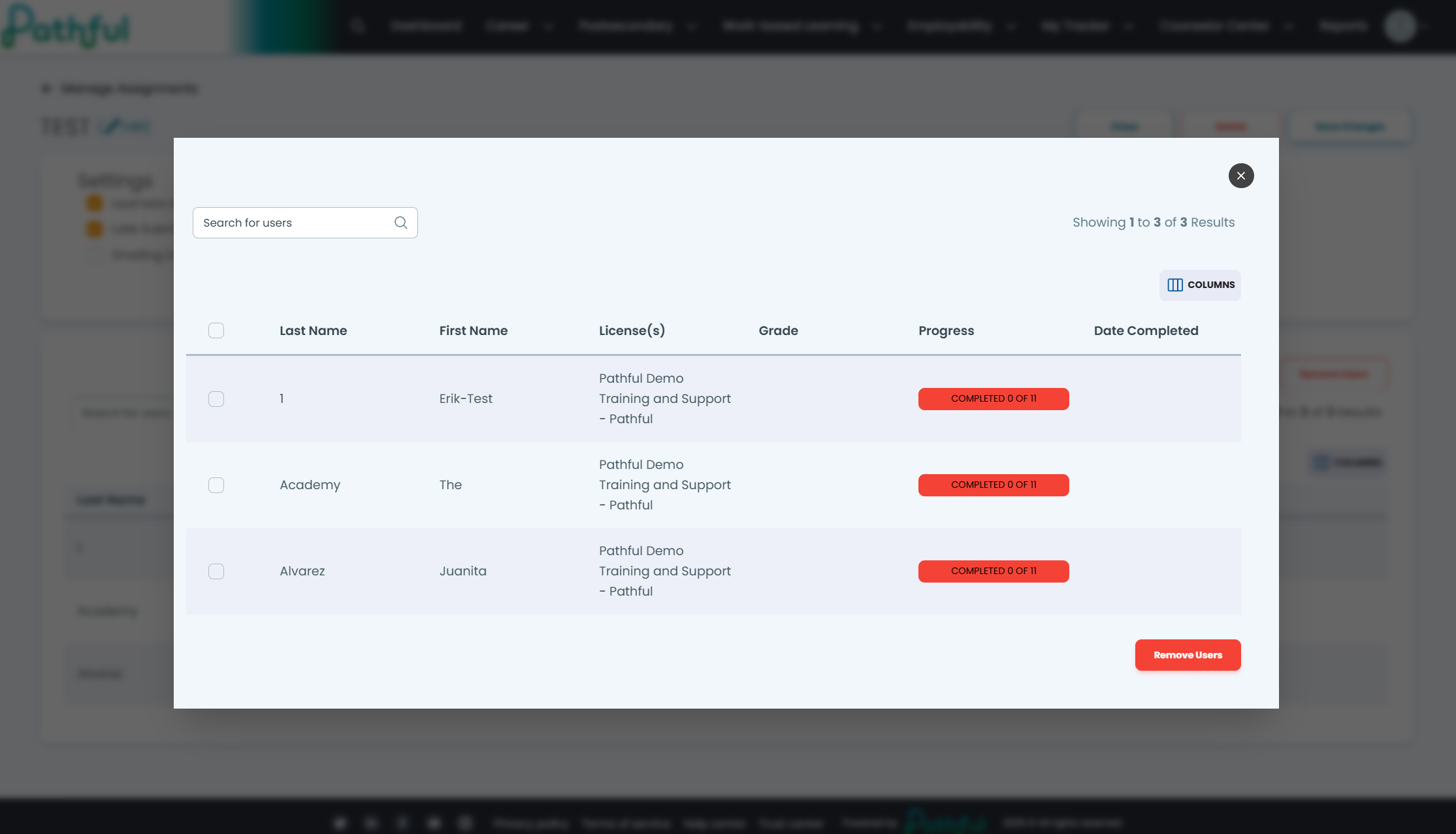
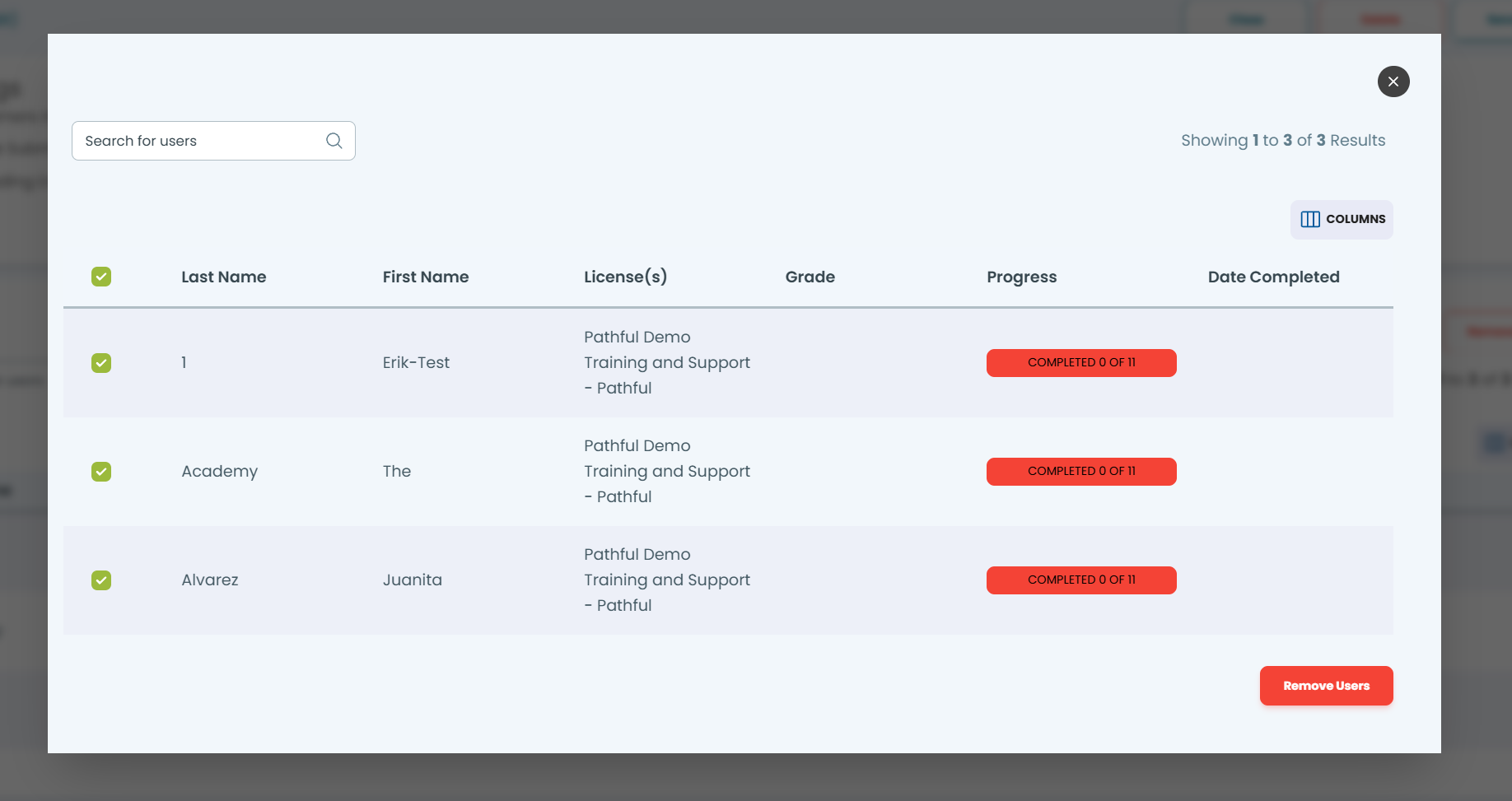
Select the users you’d like to remove, and then click Remove Users
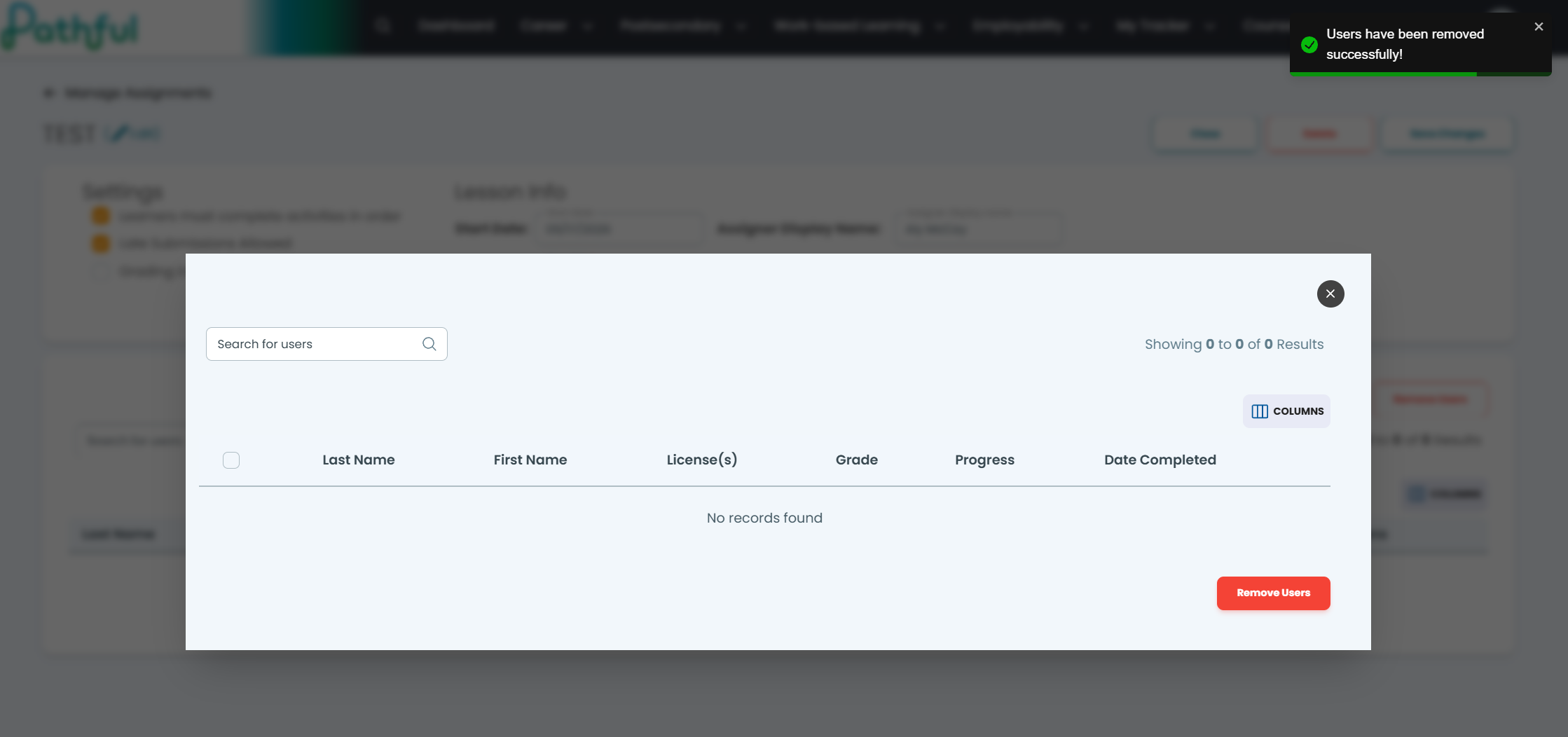
You will then see the users you selected removed and a notification the process is complete.
Was this helpful?
Still need help? Ask the team