Complete an Assessment Assigned to Me
An explanation of the CCIS EZ assessment and how to complete the assessment once it is assigned to you.
Last updated About 5 hours ago
Complete an Assessment Assigned to Me
An assessment is a simple set of questions designed to help you find careers that might be fun and interesting to you.
The Career Clusters Interest Survey (CCIS EZ) is used in Pathful Junior.
CCIS EZ is easy to complete, and you can start and stop as often as needed. All of your answers will be automatically saved.
There are no right or wrong answers on the assessment. Choose the answer that feels best to you.
The CCIS EZ has about 85 questions and is recommended for students age 8 and up.
This CCIS EZ assessment is available in English and Spanish.
At the end of the assessment, you can view your results to learn about fun and exciting careers.
How to Complete the CCIS EZ
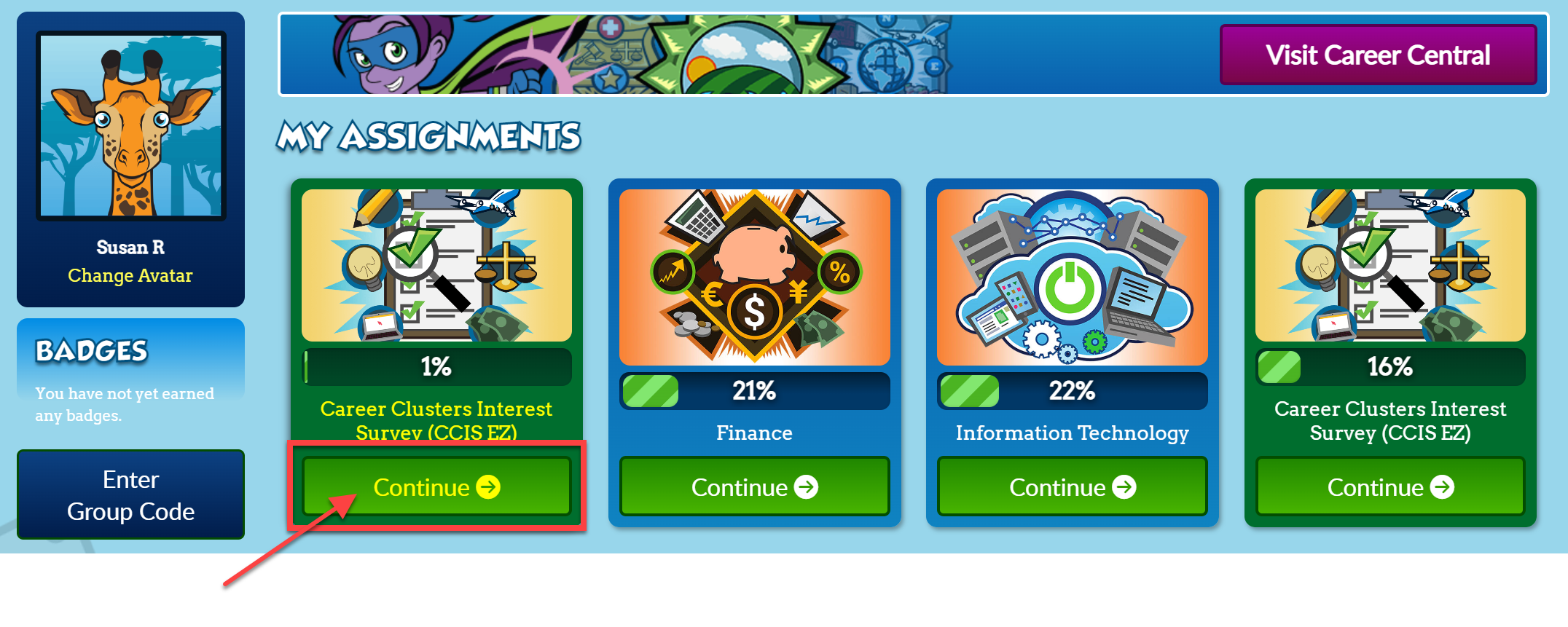
From the Student Dashboard, you will see My Assignments at the top.
Select Start if you are starting the assessment or Continue if you started in a previous session.
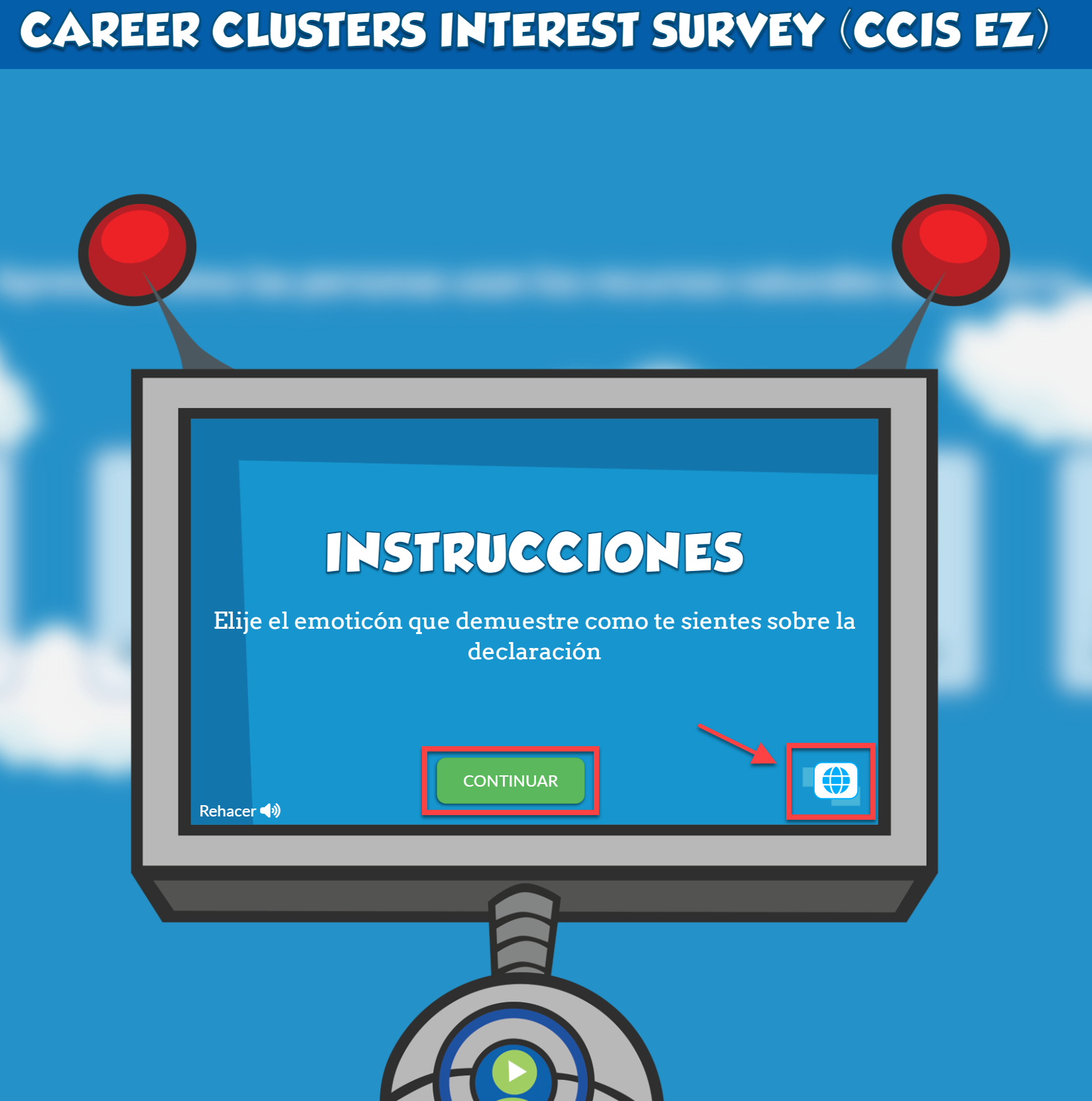
From the Directions page, you can change your language preference to Spanish.
Select the world icon on the bottom right.
The onscreen text and the read-aloud voice will change to Spanish.
Select the world icon to return to English.
Select Continue to resume an assessment you have already started.
Once you have started the assessment:
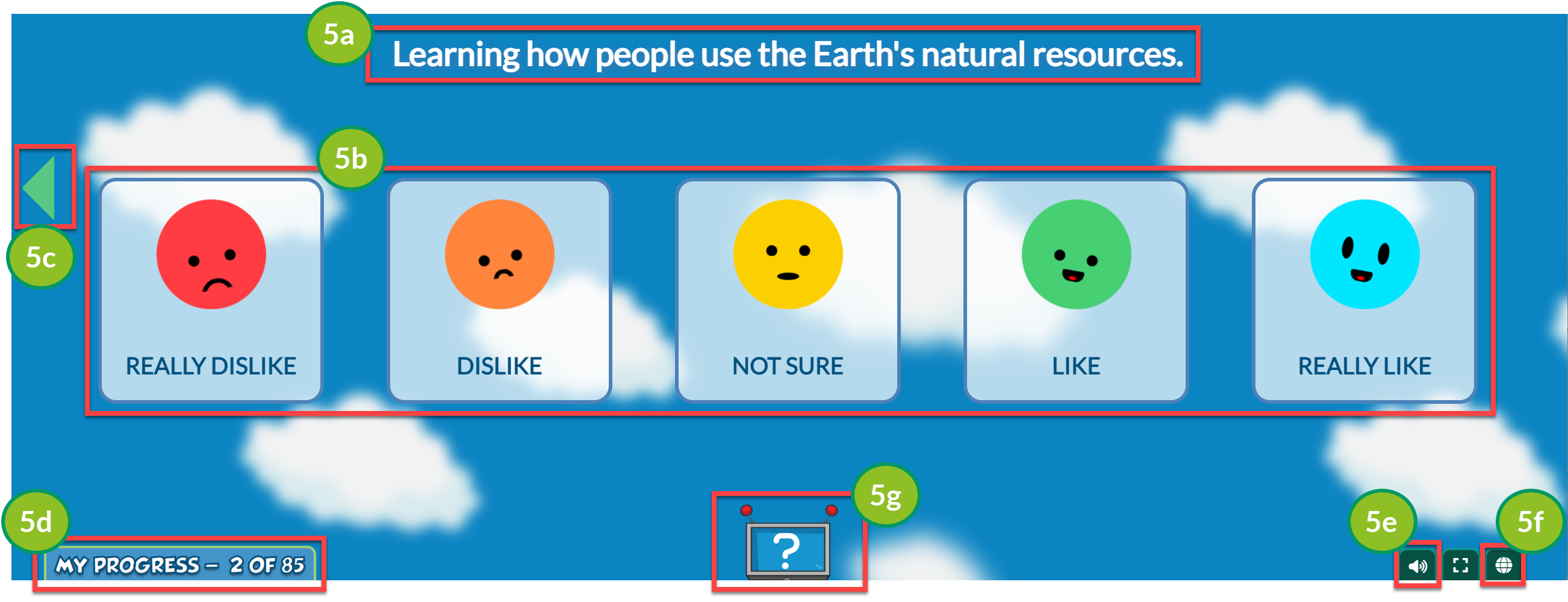
Each statement will be read to you. You can click on the statement to have it read again.
Select the emoji choice that feels best to you.
Click the green arrow on the left to go back to the previous question.
The My Progress bar at the bottom of the screen shows how many questions you have completed and how many are remaining.
You can mute the sound by selecting the sound button at the bottom of the screen.
Select the world button to change your language preference (i.e., English or Spanish).
The "?" icon at the bottom of the screen will replay the directions.
Once you answer a question, you will automatically be taken to the next question.
To leave the assessment and return later, click the Pathful Junior logo in the upper left corner of the screen.
You will be redirected to the Student Dashboard, where you can see the progress you made on the assessment (and any other assignments).